How to Check and Monitor SSD Health in Windows 11 (Without Third-Party Tools)
Your solid-state drive (SSD) stores Windows, applications, documents, photos, and other important files. Although SSDs are generally reliable, they can eventually wear out, develop errors, or stop working without much warning.
The good news is that you can check several aspects of SSD health in Windows 11 without installing third-party diagnostic software. Built-in tools such as PowerShell, Windows Settings, and Command Prompt can help you identify reported health problems, inspect supported reliability information, and check for file-system errors.
However, there is an important limitation: Windows cannot display every SSD’s complete health information through a single universal tool. The information available depends on the drive, its firmware, the storage controller, and how Windows communicates with the device.
In this guide, you’ll learn how to check SSD health in Windows 11, monitor supported health indicators, understand the results, and decide what to do if your drive shows warning signs.
Why should you check SSD health?
Monitoring your SSD can help you identify potential problems before they interrupt your work or cause data loss.
Here are the main reasons to check it periodically.
1. Detect potential drive failure
An SSD may report reliability warnings, uncorrectable errors, or other problems before it stops working. These warnings are not guaranteed to appear before every failure, but they can provide an opportunity to protect your data.
2. Monitor SSD wear
Flash memory has a finite endurance. Some SSDs expose wear-related counters that indicate how much of the drive’s rated endurance has been consumed. The exact meaning and scale depend on the manufacturer and drive model.
3. Investigate slow performance
An SSD that appears unusually slow may be experiencing a problem, but slow performance does not automatically mean the drive is failing. Low free space, background updates, overheating, and software issues can also affect performance.
4. Protect important files
A health check is useful, but it is not a substitute for a backup. SSDs can fail suddenly even when their reported health status looks normal.
If the drive contains important files, keep a current backup on a separate physical device or a trusted backup service.
Method 1: Check SSD health using PowerShell
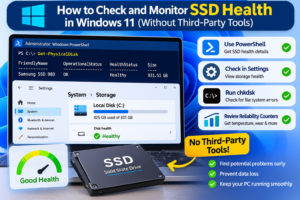
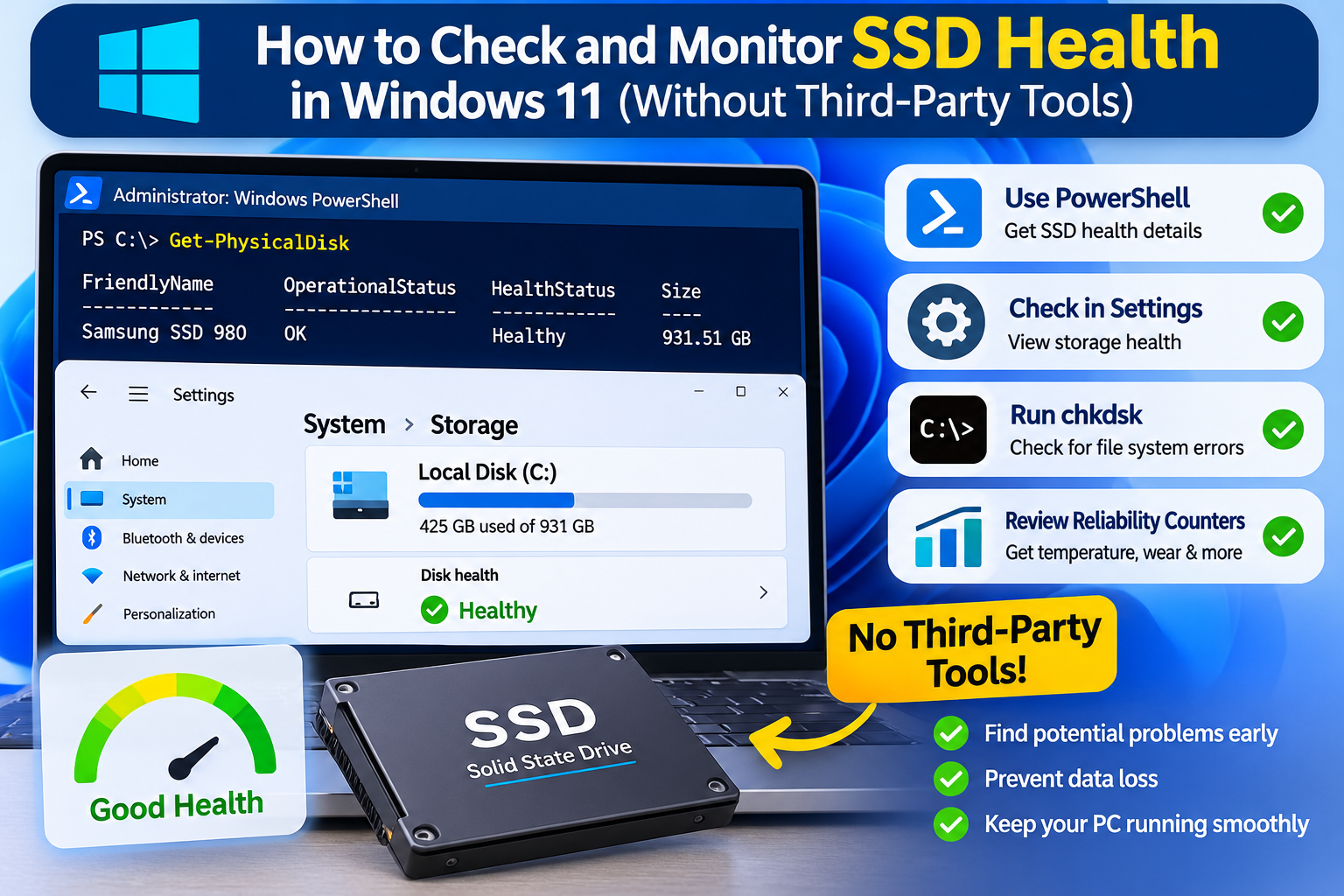
PowerShell is one of the most useful built-in options because Windows can report the health status of physical disks through its Storage module.
This method is a good starting point for most Windows 11 users.
Step 1: Open PowerShell as an administrator
-
Open the Start menu.
-
Type
PowerShell. -
Right-click Windows PowerShell or Terminal.
-
Select Run as administrator if needed.
Approve the User Account Control prompt if it appears.
Step 2: List your physical disks
Copy and run this command:
Get-PhysicalDiskWindows should display a table containing information such as:
-
FriendlyName— the name reported for the disk. -
OperationalStatus— the disk’s reported operating state. -
HealthStatus— the reported health category. -
Size— the disk’s capacity.
Microsoft documents Get-PhysicalDisk as a way to retrieve physical disk objects visible through available storage management providers.
Example of the kind of output you might see:
FriendlyName       OperationalStatus   HealthStatus   Size
------------       -----------------   ------------   ----
NVMe SSD           OK                  Healthy        ...
This is an illustrative example, not a reading from your computer.
Step 3: Understand the health result
| Result | What it means | What to do |
|---|---|---|
Healthy |
Windows reports no health issue through this interface. | Continue routine monitoring and backups. |
Warning |
A reported condition may require attention. | Back up important files and investigate further. |
Unhealthy |
The storage provider reports a serious health concern. | Back up data immediately if the drive is still accessible and plan for replacement or professional diagnosis. |
Unknown |
Windows cannot establish a usable health classification. | Check another built-in method and consult the drive manufacturer’s documentation if needed. |
A Healthy result is reassuring, but it does not prove that the SSD is perfect or guarantee that it will not fail.
If no disks appear, or the command returns incomplete information, the storage controller or device may not expose its information through the interface used by this command.
Method 2: Check SSD reliability counters with PowerShell
The previous command provides a quick health overview. Reliability counters can offer more detail, when your SSD and storage driver expose them.
Microsoft’s Get-StorageReliabilityCounter command can retrieve supported information about temperature, wear, errors, and operating time. Not every drive reports every counter.
Step 1: Display reliability information
Run this command in PowerShell:
Get-PhysicalDisk |
    Get-StorageReliabilityCounter |
    Format-List *
It attempts to retrieve the available reliability counters for the physical disks returned by Get-PhysicalDisk.
If you have multiple drives, the output may be lengthy. For easier interpretation, check the disk’s model or device identifier where available, and inspect each drive separately.
Step 2: Review the available counters
Depending on the hardware, you may see fields such as these:
| Counter | What it tells you |
|---|---|
Temperature |
Reported drive temperature, if supported. |
Wear |
A wear-related value reported by the drive or provider. |
PowerOnHours |
Reported operating time. |
ReadErrorsTotal |
Total reported read errors. |
ReadErrorsUncorrected |
Read errors reported as uncorrected. |
WriteErrorsTotal |
Total reported write errors. |
WriteErrorsUncorrected |
Write errors reported as uncorrected. |
The available fields vary by hardware and provider. Microsoft documents examples of these counters, but an empty field does not necessarily indicate a faulty SSD.
Step 3: Interpret wear and error information carefully
Do not assume that every SSD uses the same wear scale. A value of 10 could have a different meaning depending on the manufacturer, firmware, and counter definition.
Similarly, one error counter in isolation does not always establish that a drive is failing. Check whether errors are increasing, whether the drive reports a warning, and whether you are experiencing symptoms such as read failures or unexpected disconnects.
If the command returns no counters, reports an unsupported operation, or displays blank fields, try the Windows Settings method below. If the drive is still not reporting useful health information, you may need manufacturer-specific diagnostics for a more complete assessment.
Method 3: Check SSD health through Windows 11 Settings
Windows Settings provides information about connected storage devices and, on supported hardware, can expose a drive-health view.
Step 1: Open Storage settings
-
Press
Windows + Ito open Settings. -
Select System.
-
Choose Storage.
-
Open Advanced storage settings.
-
Select Disks & volumes.
Windows documents Storage settings as a place to inspect storage devices, disk types, capacities, and volumes.
Step 2: Select your SSD
Choose the disk containing the SSD you want to inspect, then open its Properties or the available disk details.
Look for any drive-health information exposed by your Windows version and hardware.
Depending on the device and Windows build, health-related details may be limited or unavailable. The full SMART-style health information available from a particular NVMe drive may not be available for every SATA SSD, USB enclosure, or storage controller.
Important: Do not confuse the drive’s capacity and free-space details with its physical health. A drive can have plenty of free space and still be failing, or be nearly full while remaining physically healthy.
Method 4: Check drive errors with Command Prompt
Command Prompt provides another useful built-in check. The chkdsk command examines a volume’s file system and metadata for logical errors. It is not a complete SSD wear or hardware-health diagnostic.
Step 1: Open Command Prompt as an administrator
-
Open Start.
-
Search for
Command Prompt. -
Select Run as administrator.
Step 2: Run a read-only check
For your Windows system drive, run:
chkdsk C:Replace C: with the appropriate drive letter if you want to check a different volume.
This checks the file system and displays a status report without asking chkdsk to repair errors. On an active volume, the results can be affected by files that are in use.
Step 3: Understand the result
-
No file-system errors found: Windows did not detect the checked logical errors. This does not prove that the SSD’s flash memory, controller, or firmware is healthy.
-
File-system errors found: Consider backing up important files and deciding whether repair is appropriate.
-
Drive cannot be locked or checked: Windows may need the volume to be available, or it may ask to schedule a check at restart.
If you need to repair logical file-system errors, the following command requests a repair:
chkdsk C: /fThis can require locking the volume or scheduling the check for the next restart. Back up important data before repairs if you suspect drive problems. Avoid repeatedly running intensive scans without a reason.
Microsoft explains that /f repairs logical file-system errors, while /r additionally looks for bad sectors and attempts to recover readable information. These switches serve different purposes from checking SSD wear counters.
Method 5: Check basic disk information with Windows Management tools
Windows also exposes basic disk information through its built-in management interfaces. This can help you identify a drive and check whether Windows sees it as operational.
In PowerShell, run:
Get-Disk |
    Select-Object Number, FriendlyName, SerialNumber, OperationalStatus, HealthStatus, Size
The command lists disk information available to Windows. The properties returned depend on the hardware and storage provider.
This is useful if you need to distinguish one drive from another before checking reliability counters. It should not be treated as a replacement for manufacturer-specific SMART or NVMe health information.
You can also inspect basic device details with:
Get-CimInstance Win32_DiskDrive |
    Select-Object Model, Status, Size
The Status property is a general device status, not a comprehensive SSD lifespan measurement. If it says OK, that alone does not guarantee that the drive has no wear or developing hardware problems.
How to monitor SSD health over time
Checking your SSD once is useful, but monitoring changes can be more informative. A drive that previously reported no warnings but now shows errors or a health alert deserves attention.
You can create a simple routine without installing additional software.
1. Check the reported health periodically
Run the PowerShell health-status command occasionally:
Get-PhysicalDisk |
    Select-Object FriendlyName, OperationalStatus, HealthStatus, Size
For a personal computer used normally, checking every month or two is a reasonable informal routine. If Windows reports a warning, the computer has storage-related errors, or the drive has become unreliable, investigate immediately rather than waiting for the next routine check.
2. Record supported reliability counters
If your SSD exposes reliability counters, record the available values and dates. Changes over time can be more useful than a single reading.
For example, note whether:
-
Reported wear is increasing.
-
Temperature is repeatedly reaching unusual levels.
-
Error counters are increasing.
-
Windows starts reporting a warning after previously reporting healthy status.
Use the drive manufacturer’s definitions to interpret these values. Not every counter is comparable between different SSD models.
3. Watch for Windows warnings
Pay attention to Windows notifications or storage-related alerts. If your system displays a message that a drive is at risk or needs attention, treat it seriously and back up your data.
4. Keep a backup regardless of health status
Health monitoring reduces uncertainty, but it cannot prevent every sudden failure. Keep important documents, photos, and project files backed up independently of the SSD being monitored.
Signs your SSD may be failing
Some symptoms are more concerning when they occur repeatedly or together.

Frequent crashes or boot failures
Repeated startup problems, unexpected restarts, or crashes may indicate storage trouble, although Windows, memory, and driver problems can cause similar symptoms.

Corrupted files or repeated read errors
Files that become unreadable or repeated storage I/O errors deserve investigation, especially if they affect multiple files or applications.

The SSD disappears unexpectedly
A drive that repeatedly disconnects or vanishes from Windows may have a hardware, connection, firmware, or controller issue.

A health or reliability warning
A drive warning, unhealthy status, or reported uncorrectable errors should prompt an immediate backup and further investigation.
If the drive is still accessible, back up important files before trying repairs or stress tests. If data is irreplaceable and the SSD is repeatedly disconnecting or failing to read files, consider professional data recovery rather than repeatedly attempting repairs.
What to do if Windows reports an SSD health problem
Follow this order of priority:
-
Back up important data. Do this before attempting repairs if the drive is still readable.
-
Record the warning. Note the exact message, disk model, and any available reliability counters.
-
Check connections where appropriate. For a desktop or removable SSD, a loose connection can sometimes cause detection problems. Avoid opening a laptop if doing so risks damage or voids applicable warranty terms.
-
Check for firmware or manufacturer guidance. If Windows cannot expose full health data, the drive manufacturer’s diagnostic utility may be necessary for a more complete assessment.
-
Replace a drive that is confirmed to be failing. Do not rely on a file-system repair to restore failing flash memory or a faulty controller.
Do not attempt to fix an SSD’s reported wear by repeatedly formatting it, running intensive scans, or changing Windows settings. These actions do not restore consumed flash endurance.
Frequently asked questions
Can I check SSD health in Windows 11 without installing software?
Yes. Start with PowerShell’s Get-PhysicalDisk command, then try Get-StorageReliabilityCounter to retrieve supported reliability information. Windows Settings and chkdsk provide additional information, but each has a different purpose and different limitations.
Does Get-PhysicalDisk show the remaining SSD lifespan?
Not necessarily. It shows the health status reported through Windows’ storage management interface. Remaining life or wear information may require reliability counters supported by the drive or manufacturer-specific diagnostics.
Why does PowerShell show Healthy but my SSD seems slow?
Healthy does not guarantee normal performance in every situation. Low free space, high background activity, thermal throttling, firmware problems, drivers, and other hardware issues can affect speed. Investigate the symptoms instead of relying on one status field.
Why does Get-StorageReliabilityCounter return blank values?
The drive, firmware, storage controller, or driver may not expose the requested counters through Windows. Blank values do not automatically mean the SSD is defective. Try the other built-in checks and consult the drive manufacturer’s documentation if you need more detailed information.
Does chkdsk check SSD health?
Not completely. chkdsk checks a volume’s file system and metadata for logical errors. It does not provide a complete measurement of SSD wear, remaining endurance, or overall hardware reliability.
How often should I check SSD health?
For routine personal use, checking every month or two is a practical habit, although there is no universal schedule. Investigate warnings and repeated storage symptoms immediately, and maintain backups continuously.
Can an SSD fail without warning?
Yes. A health report is only a snapshot of the information the device exposes. Sudden electronic, controller, firmware, or other hardware failures can occur without a preceding Windows warning.
Is Windows 11’s built-in SSD health check available for every SSD?
No. The information Windows can display depends on the device and its storage interface. Some drives expose detailed reliability information, while others provide only basic status or no useful counters.
Conclusion
You can check and monitor SSD health in Windows 11 without installing third-party software. Start with Get-PhysicalDisk for a quick health overview, use Get-StorageReliabilityCounter for supported wear and reliability information, and use Windows Settings and chkdsk to investigate storage details and file-system errors.
Remember that these tools answer different questions. A healthy status is reassuring, but it cannot guarantee that an SSD will never fail. Monitor changes, investigate warnings, and keep your important files backed up.