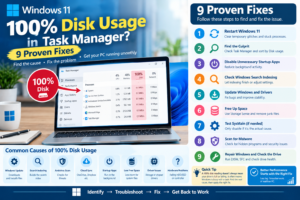
Windows 11 100% Disk Usage in Task Manager: 9 Proven Fixes
Seeing 100% Disk usage in Windows 11 Task Manager can make your computer feel almost unusable. Apps take forever to open, File Explorer freezes, websites become slow, and even moving the mouse can feel delayed.
The confusing part is that your PC may show 100% Disk even when you’re not downloading anything or copying large files.
The good news is that 100% disk usage doesn’t automatically mean your hard drive or SSD is full or failing.
In Task Manager, the percentage represents how busy the storage device is handling I/O activity. A drive can therefore reach 100% active time while transferring relatively little data. Recent Microsoft community guidance and troubleshooting resources also emphasize identifying the process generating the disk activity before changing system settings.
This guide walks through 9 proven troubleshooting fixes for Windows 11 100% disk usage, starting with the safest and easiest options and moving toward deeper software and hardware checks.
What Does 100% Disk Usage Mean in Windows 11?
First, understand what you’re looking at.
Open Task Manager by pressing:
Ctrl + Shift + Esc
Select Processes and look at the Disk column.
If it shows 100%, Windows is reporting that the storage device is fully busy during that measurement period.
It does not necessarily mean:
- Your storage is full.
- You have used 100% of your SSD capacity.
- Your computer has a virus.
- Your drive is definitely failing.
- You need to reinstall Windows.
For example, an HDD may reach 100% active time while handling many small read/write operations even though its transfer rate is relatively low.
An SSD can also reach 100% active time during a heavy workload or when experiencing unusually high latency.
100% Disk vs. Full Storage
These are two different problems.
100% Disk usage: The drive is busy handling storage operations.
Low free space: The drive is running out of available storage capacity.
Low free space can contribute to performance problems, but freeing space doesn’t automatically fix every 100% disk problem.
Microsoft notes that low disk space can reduce performance and recommends Storage Sense, temporary-file cleanup, and other storage-management tools.
Before the 9 Fixes: Find Out What’s Using Your Disk
Don’t start by disabling SysMain or Windows Search.
First find the culprit.
Step 1: Open Task Manager
Press:
Ctrl + Shift + Esc
Step 2: Open Processes
Look at the Disk column.
Step 3: Sort by Disk
Click the Disk heading so the highest activity appears at the top.
Look for processes such as:
- System
- Service Host: SysMain
- Windows Search
- Antimalware Service Executable
- Windows Update-related processes
- OneDrive
- Your browser
- A game launcher
- A backup application
- A file-sync application
- Another third-party program
Don’t immediately assume the process at the top is defective.
For example, Windows Search may be legitimately indexing files, while Microsoft Defender may be scanning your computer.
The important question is:
Does the activity continue abnormally, and does it coincide with the slowdown?
Fix 1: Restart Windows 11
It sounds simple, but restart your PC before making complicated changes.
A restart can clear:
- Stuck applications
- Background processes
- Temporary Windows glitches
- Incomplete operations
- Software that has become unresponsive
- Certain update-related tasks
Select:
Start → Power → Restart
After Windows starts again, don’t immediately launch dozens of applications.
Wait a few minutes and open Task Manager.
Check whether Disk usage remains at 100%.
When this fix works
If the disk returns to normal after restarting and stays normal, you may have been dealing with a temporary process or background task.
When to continue
If Disk quickly climbs back to 100% during normal use, continue with the next fix.
Fix 2: Identify and Stop the Application Causing Excessive Disk Activity
If a particular application is consistently at the top of the Disk column, investigate it before changing Windows services.
Common examples include:
- Chrome or another browser
- OneDrive
- Dropbox
- Steam
- Game launchers
- Backup software
- Video-editing applications
- Download managers
- Antivirus software
- File-compression tools
Close the application normally first.
Then watch Task Manager.
If disk usage immediately falls, you have valuable evidence.
Don’t confuse a test with a permanent solution
Ending a process may temporarily reduce disk activity, but it doesn’t necessarily fix the underlying cause.
For example, if OneDrive is syncing thousands of files, closing it may reduce disk activity—but the real solution may be allowing synchronization to finish, reducing the sync workload, or changing which folders are synchronized.
Fix 3: Disable Unnecessary Startup Apps
Too many applications launching automatically can create a burst of disk activity every time Windows starts.
Microsoft specifically recommends managing startup applications because programs launched during startup can affect overall system performance. Windows 11 lets you manage them through Settings or Task Manager.
How to disable startup apps
- Press Ctrl + Shift + Esc.
- Select Startup apps.
- Review the applications listed.
- Look at their startup impact.
- Right-click unnecessary applications.
- Select Disable.
You can also go to:
Settings → Apps → Startup
What should you disable?
Consider disabling applications you don’t need immediately after signing in.
Examples might include:
- Chat applications
- Game launchers
- Update assistants
- Media applications
- Manufacturer utilities you don’t use
- Third-party tools that don’t need to start with Windows
What should you leave alone?
Don’t randomly disable:
- Windows security components
- Hardware drivers
- Touchpad utilities you need
- Audio drivers
- Graphics-related software required by your system
If you’re unsure about a startup item, research the exact program before disabling it.
Fix 4: Check Windows Search Indexing
Windows Search creates an index of files and their properties so searches can return results faster.
Microsoft explains that Windows Search can use significant resources while indexing, especially when the index is first being built. Enhanced indexing covers more locations and can use more system resources.
This means your disk may temporarily become extremely busy after:
- A Windows installation
- A major update
- Adding many files
- Moving large numbers of files
- Installing applications
- Changing indexed locations
Check Search indexing
Go to:
Settings → Privacy & security → Searching Windows
Review your indexing mode and locations.
If you recently changed or added thousands of files, give Windows time to complete indexing before assuming something is broken.
Don’t permanently disable Search automatically
Windows Search is useful.
Disabling it may reduce disk activity in some cases, but it also affects the speed and behavior of Windows search.
Instead, determine whether Search Indexer is actually responsible for the problem.
If indexing completes and the 100% usage disappears, you probably don’t need to disable anything.
Fix 5: Check for Windows Updates and Driver Problems
An update can temporarily generate substantial disk activity while Windows downloads, installs, extracts, or processes files.
Go to:
Settings → Windows Update
Then select:
Check for updates
Install available updates and restart if Windows requests it.
Microsoft’s current instructions recommend checking Windows Update and installing available updates to keep Windows running properly.
Also check your drivers
Storage performance can be affected by problems involving:
- Storage controllers
- Chipset drivers
- SATA/AHCI controllers
- NVMe drivers
- SSD firmware
- Motherboard drivers
Microsoft recommends obtaining driver updates through Windows Update where available, with Device Manager also providing update/reinstall options.
Important
Don’t download random “driver updater” programs simply because your disk usage is high.
Start with:
Settings → Windows Update → Advanced options → Optional updates
when available, and use your PC or storage manufacturer’s official support resources for hardware-specific drivers and firmware.
Fix 6: Free Up Space on the Windows Drive
A nearly full system drive can make Windows less comfortable to operate and can interfere with updates and temporary-file operations.
Microsoft states that low storage can reduce system performance and recommends Storage Sense and cleanup tools.
Check your storage
Go to:
Settings → System → Storage
You’ll see categories such as:
- Installed apps
- Temporary files
- System & reserved
- Documents
- Other files
Use Storage Sense
Windows 11 includes Storage Sense, which can automatically remove certain unnecessary files.
Go to:
Settings → System → Storage → Storage Sense
You can also review Cleanup recommendations.
Remove unnecessary files
Look for:
- Temporary files
- Recycle Bin contents
- Large unused files
- Unused applications
- Previous Windows installation files, when appropriate
Microsoft notes that Storage Sense works primarily with the system drive and can automatically remove selected unnecessary content.
Don’t delete system files manually
Avoid randomly deleting files from:
- C:\Windows
- C:\Program Files
- C:\ProgramData
- System folders
Free space safely through Windows Storage settings or trusted applications.
Fix 7: Test SysMain Instead of Blindly Disabling It
SysMain is a Windows service designed to help manage application loading and system performance.
It is frequently blamed for 100% disk usage online.
But there is an important distinction:
Don’t disable SysMain just because someone on the internet says it’s the cause.
First check Task Manager.
If Service Host: SysMain is consistently generating substantial disk activity and the problem correlates with it, you can test whether stopping the service changes the behavior.
Test SysMain
- Press Windows + R.
- Type:
services.msc - Press Enter.
- Find SysMain.
- Right-click it.
- Select Stop.
- Monitor Task Manager.
If disk activity immediately falls and the problem disappears, you’ve found an important clue.
What if nothing changes?
Restore the service rather than leaving it disabled unnecessarily.
This is especially important because there is no universal rule that SysMain is bad for Windows 11.
The correct troubleshooting principle is:
Change one thing, test it, and keep the change only if it solves the problem.
Fix 8: Scan for Malware and Check Background Security Activity
Malware can generate unusual disk activity.
Microsoft includes malware scanning among its recommended performance troubleshooting steps because malicious software can consume CPU and disk resources.
Run Windows Security
Go to:
Settings → Privacy & security → Windows Security → Virus & threat protection
Run at least a Quick scan.
If you have strong reason to suspect malware, perform a more thorough scan using Windows Security’s available scanning options.
Watch for Antimalware Service Executable
You may notice:
Antimalware Service Executable
near the top of Task Manager while Microsoft Defender is scanning.
If this happens temporarily, don’t assume Defender is malfunctioning.
Let the scan finish and see whether disk activity returns to normal.
Another important warning
Running multiple antivirus programs can create unnecessary background activity.
If you have installed a third-party security suite, understand how it interacts with Microsoft Defender before changing security settings.
Don’t disable antivirus protection simply to make the Task Manager number fall.
Fix 9: Repair Windows and Check the Drive
If the problem continues after the earlier fixes, move into deeper troubleshooting.
At this point, you should consider:
- Corrupted Windows system files
- File-system problems
- Storage-driver issues
- SSD/HDD health
- Hardware failure
Part A: Run DISM and SFC
Microsoft recommends using DISM before System File Checker when repairing corrupted Windows components.
Open Terminal or Command Prompt as administrator.
Run:
DISM.exe /Online /Cleanup-image /RestorehealthWait for it to finish.
Then run:
sfc /scannowDon’t close the window until the scan finishes.
Restart Windows afterward.
These tools can repair missing or corrupted Windows components and system files.
Part B: Check the File System
You can also check the Windows drive with:
chkdsk C: /scanThis performs an online scan of the file system.
If errors are reported, don’t ignore them.
If Windows or your storage manufacturer’s diagnostic tools report serious drive-health problems, back up important files before attempting more aggressive repairs.
Bonus: Check Whether Your SSD or HDD Is Actually Failing
This is one of the most important parts of diagnosing persistent 100% disk usage.
If your PC has:
- Extremely long freezes
- Very high response times
- Frequent file errors
- Unexpected crashes
- Clicking or grinding noises from an HDD
- SMART warnings
- Files becoming corrupted
- Disk activity stuck near 100% with very little transfer
then don’t assume the problem is a Windows setting.
It could be the storage hardware.
Windows 11 includes storage-related health information for supported drives, and manufacturer utilities can provide additional SSD/HDD diagnostics.
If you see a drive-health warning
Back up your important data first.
Don’t spend hours experimenting with Windows services while an SSD or HDD may be failing.
What If Windows 11 Shows 100% Disk Usage but No App Is Using It?
This is one of the most frustrating versions of the problem.
Task Manager may show:
Disk: 100%
while individual processes appear to use relatively little disk bandwidth.
Possible explanations include:
- High disk latency
- Storage-driver problems
- Paging activity
- File-system problems
- Background Windows operations
- A saturated mechanical HDD
- SSD health or firmware issues
- Many small I/O operations
- A process that isn’t obvious from the basic Task Manager view
In this situation, don’t keep disabling random services.
Use Resource Monitor
Press:
Windows + R
Type:
resmonPress Enter.
Open the Disk tab.
Resource Monitor can provide more detailed information about disk activity and help you identify processes and files involved in the workload.
Microsoft’s Windows performance documentation also recommends examining process-level I/O and storage latency when diagnosing persistent performance problems.
Windows 11 100% Disk Usage on an HDD vs. SSD
Your storage type matters.
If you have an HDD
A mechanical hard drive can reach 100% active time relatively easily, particularly when:
- Windows is indexing files
- Multiple applications are loading
- Antivirus is scanning
- The page file is heavily used
- Many small files are being accessed
- The drive is old or slow
If your PC still uses a mechanical HDD as its main Windows drive, upgrading to an SSD can produce a much larger performance improvement than many software tweaks.
If you have an SSD
An SSD reaching 100% doesn’t automatically mean it is defective.
Look at:
- Transfer speed
- Response time
- Temperature
- Free space
- Drive health
- Firmware
- Storage-controller drivers
- Whether the issue occurs under a specific workload
A persistent 100% reading with severe system freezes deserves more investigation than a brief spike during a large file operation.
Why You Shouldn’t Disable Every Windows Service
Many “100% disk usage” guides recommend disabling:
- SysMain
- Windows Search
- Windows Update
- Background services
- Security services
- Other Windows components
This can make the number temporarily fall, but that’s not necessarily a successful repair.
You may simply be preventing Windows from performing tasks that it needs to perform.
For example:
Disabling Windows Search may reduce indexing activity, but it also affects search functionality.
Disabling Windows Update may reduce update-related disk activity, but it creates a security and maintenance problem.
Disabling security software may reduce scanning activity, but it weakens protection.
A better rule is:
Identify the workload, test the related component, and change only what you have evidence is causing the problem.
Windows 11 100% Disk Usage Troubleshooting Checklist
Work through this checklist in order:
Quick checks
-
Restart Windows
-
Open Task Manager
-
Sort by Disk
-
Identify the top process
-
Check whether CPU or Memory is also high
-
Check whether Windows Update is running
Software checks
-
Review startup apps
-
Check Windows Search indexing
-
Check OneDrive/cloud synchronization
-
Check antivirus activity
-
Test SysMain if it is clearly involved
-
Remove unnecessary applications
Storage checks
-
Check free space
-
Run Storage Sense
-
Clean temporary files
-
Check whether the drive is HDD or SSD
-
Check drive health
Repair checks
-
Install Windows updates
-
Update relevant drivers
-
Run DISM
-
Run SFC
-
Run CHKDSK scan
-
Investigate hardware if the problem persists
When Should You Be Concerned About 100% Disk Usage?
A brief spike isn’t necessarily a problem.
You should investigate when 100% disk usage is:
- Persistent
- Repeated during ordinary use
- Accompanied by severe lag
- Accompanied by application freezes
- Accompanied by very high response times
- Happening when the PC is essentially idle
- Associated with file corruption
- Associated with drive-health warnings
Microsoft’s performance guidance distinguishes short spikes from sustained storage latency and recommends investigating longer-lasting performance problems.
Frequently Asked Questions
Is 100% disk usage bad?
Not necessarily.
A short period of 100% activity can be completely normal during updates, indexing, file transfers, antivirus scans, or other intensive operations.
It becomes a problem when it remains high and causes noticeable system slowdown.
Does 100% disk usage mean my hard drive is full?
No.
Task Manager’s Disk percentage and your available storage capacity are different measurements.
You can have plenty of free space and still experience 100% active disk time.
Why is my Windows 11 disk at 100% when nothing is open?
Windows continues running background tasks even when no visible applications are open.
Possible causes include:
- Search indexing
- Windows Update
- Antivirus scanning
- SysMain
- Cloud synchronization
- Paging
- Storage-driver issues
- File-system problems
- Hardware issues
Start by sorting Task Manager by Disk and then investigate the process or workload.
Should I disable SysMain?
Only test it if SysMain is actually associated with the problem.
Don’t treat disabling SysMain as a universal Windows 11 performance fix.
Should I disable Windows Search?
Not automatically.
Windows Search uses indexing to make searches faster. If indexing is temporarily creating high disk activity, allowing it to finish may be all that’s needed.
Can low RAM cause 100% disk usage?
Yes.
When available RAM is under pressure, Windows may rely more heavily on virtual memory, which involves disk activity.
If Disk and Memory are both consistently high, investigate memory pressure instead of focusing exclusively on the drive.
Can a virus cause 100% disk usage?
Yes.
Malware can consume disk and other system resources. Run Windows Security or another trusted security solution if you suspect an infection.
Does upgrading from HDD to SSD fix 100% disk usage?
It can dramatically improve overall responsiveness if the HDD is the bottleneck.
However, an SSD can also reach 100% active time, so an SSD upgrade isn’t a universal software fix.
Should I reinstall Windows?
Reinstalling Windows should generally be a later option, not the first fix.
Before reinstalling, identify the workload, check storage health, update Windows and drivers, free space, scan for malware, and repair system files.
The Fastest Troubleshooting Path
If you don’t want to read the entire guide, follow this sequence:
1. Open Task Manager
Press Ctrl + Shift + Esc.
2. Sort by Disk
Find the process generating the activity.
3. Restart
See whether the problem returns.
4. Check Windows Update
Let legitimate update activity finish.
5. Check Search indexing
Especially if the problem began after installing Windows or moving lots of files.
6. Disable unnecessary startup apps
Reduce background activity.
7. Check storage
Make sure your Windows drive has sufficient free space.
8. Run security and repair checks
Use Windows Security, DISM and SFC.
9. Check the drive
If the problem persists despite low software activity, investigate HDD/SSD health, latency, drivers and firmware.
Final Takeaway
Windows 11 100% disk usage is a symptom, not a diagnosis.
The biggest mistake is assuming that one Windows service is responsible for every case.
Start by identifying what is actually using the disk.
Then work through the problem logically:
Find the workload → restart → reduce unnecessary background activity → check indexing and updates → free storage → test relevant services → scan for malware → repair Windows → check the drive.
If the problem disappears after one of these steps, you have more than a temporary workaround—you have a much better idea of what caused the slowdown.
And if none of the software fixes work, don’t keep disabling Windows components indefinitely.
At that point, investigate the storage hardware itself.
A healthy Windows 11 PC can briefly reach 100% disk activity. Persistent 100% usage accompanied by severe lag, freezing, or unusual drive behavior is what deserves attention.