Chrome Not Opening in Windows 11? 12 Ways to Fix It
Google Chrome is one of the most widely used web browsers, but like any Windows application, it can sometimes stop launching. You may click the Chrome icon and nothing happens, see a Chrome window for a second before it disappears, or find Chrome running in the background without displaying a window.
If Chrome is not opening in Windows 11, don’t immediately uninstall the browser or reset your PC. In many cases, the problem can be fixed with a simple restart, by ending a stuck Chrome process, resetting a damaged profile, or checking whether security software is blocking the browser.
This guide walks through the most useful fixes in order, starting with the easiest solutions and moving toward more advanced troubleshooting.
Quick answer: What should you try first?
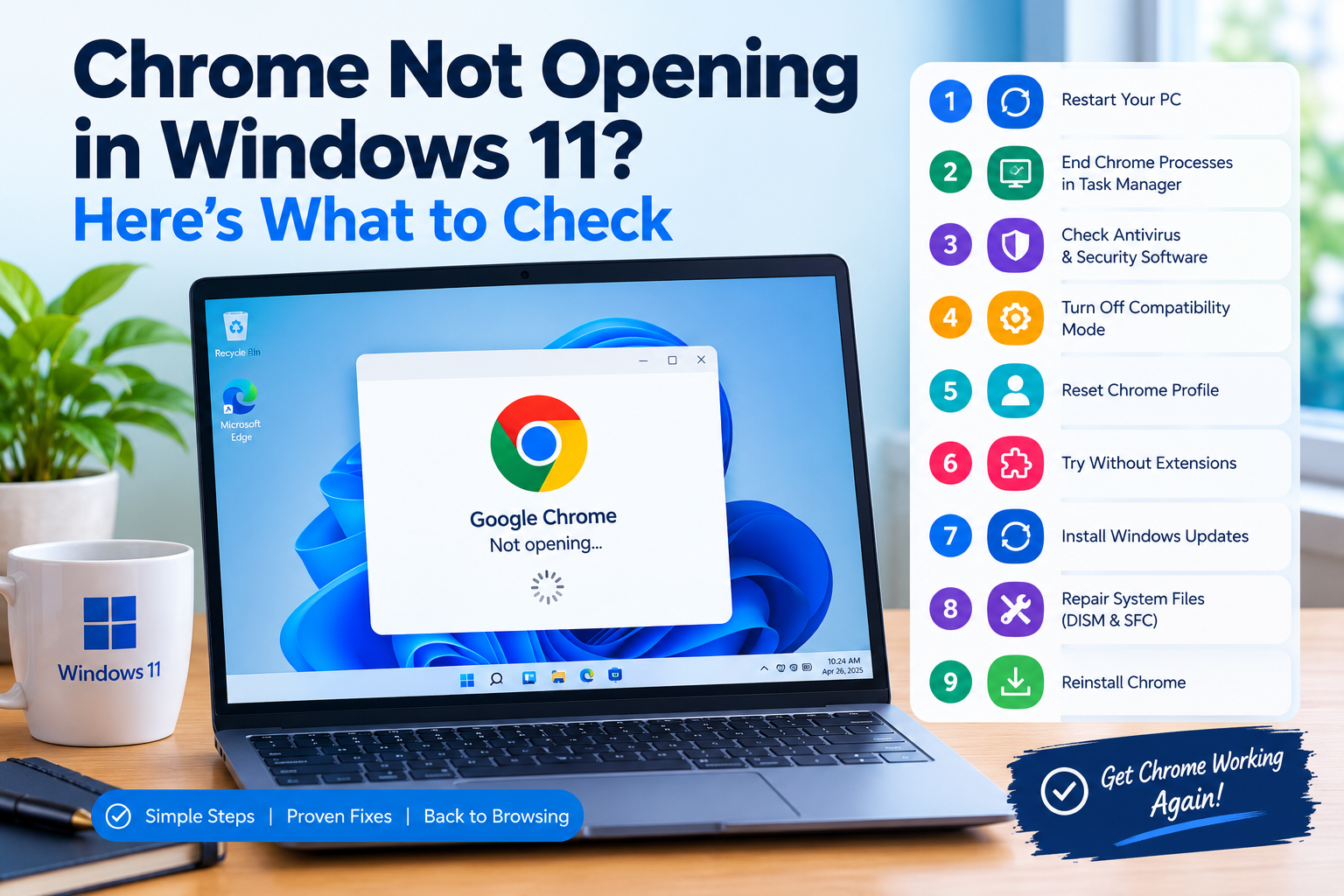
If Chrome won’t open on your Windows 11 PC, work through these fixes:
- Restart your computer.
- End every Chrome process in Task Manager.
- Try launching Chrome as an administrator.
- Check whether antivirus or security software is blocking Chrome.
- Turn off Compatibility Mode for Chrome.
- Reset or rename the Chrome user profile.
- Try launching Chrome without extensions.
- Check for Windows updates.
- Repair corrupted Windows system files with DISM and SFC.
- Check available disk space.
- Perform a clean Chrome reinstall.
- Investigate Windows or application crash logs if Chrome still won’t launch.
You probably won’t need all 12 methods. Start at the top and test Chrome after each step.
Why Is Chrome Not Opening in Windows 11?
There isn’t one single cause when Chrome refuses to launch.
Common causes include:
- A Chrome process is already running in the background.
- The Chrome user profile has become corrupted.
- An extension or browser setting is causing Chrome to crash.
- Antivirus or security software is interfering with Chrome.
- Chrome is running in an incompatible Windows compatibility mode.
- Chrome files became damaged.
- Windows system files are corrupted.
- A recent Windows or Chrome update created a software conflict.
- Your system is running very low on storage or memory.
- Another background application is interfering with Chrome.
The symptom can provide a clue.
For example, if clicking Chrome does absolutely nothing, a stuck background process or security restriction may be involved. If Chrome appears briefly and immediately closes, profile corruption or a software conflict becomes more likely.
1. Restart Your Windows 11 PC
Before changing settings, restart Windows.
This simple step can resolve temporary problems involving:
- Stuck background processes
- Memory problems
- Temporary Windows glitches
- Software conflicts
- Pending updates
- Chrome processes that did not shut down correctly
To restart Windows 11:
- Click Start.
- Select the Power icon.
- Choose Restart.
- Wait for Windows to completely restart.
- Try opening Chrome again.
If Chrome works after restarting, you probably had a temporary process or system conflict rather than a serious Chrome installation problem.
If Chrome still won’t open, continue to the next fix.
2. End All Chrome Processes in Task Manager
One of the first things to check is whether Chrome is already running in the background.
Sometimes Chrome can become stuck. Windows may still have a chrome.exe process running even though no Chrome window appears.
Google’s current troubleshooting guidance specifically recommends checking Task Manager and ending Chrome processes when Chrome won’t open.
How to end Chrome processes
- Press Ctrl + Shift + Esc.
- Task Manager will open.
- Look under Processes.
- Find Google Chrome or
chrome.exe. - Right-click the process.
- Select End task.
- Repeat this for any remaining Chrome processes.
- Close Task Manager.
- Try opening Chrome again.
If Chrome opens normally afterward, the problem was likely caused by a stuck Chrome process.
What if Chrome isn’t listed?
That’s fine. Move on to the next troubleshooting step.
3. Try Running Chrome as Administrator
Windows permissions can occasionally interfere with an application.
You can test whether permissions are involved by launching Chrome with administrator privileges.
Try this:
- Find the Google Chrome shortcut.
- Right-click it.
- Select Run as administrator.
- If Windows displays a User Account Control prompt, select Yes.
- Wait for Chrome to open.
If Chrome opens only when you run it as administrator, don’t automatically use administrator mode permanently.
Instead, investigate the underlying permissions or software conflict.
Running everyday applications with elevated privileges is not generally something you should use unnecessarily.
4. Check Your Antivirus or Security Software
Security software can sometimes interfere with applications.
Google’s troubleshooting documentation recommends checking whether antivirus software or other security software is preventing Chrome from opening.
This can happen after:
- An antivirus update
- A Chrome update
- A Windows update
- A security-policy change
- A newly installed security application
What should you do?
Open your antivirus or security application and look for:
- Blocked applications
- Quarantined files
- Application restrictions
- Firewall notifications
- Recently detected threats
If Chrome is being blocked, allow the legitimate Chrome application through the security software according to that product’s instructions.
Don’t leave antivirus protection disabled
You may see advice online telling you to permanently disable Windows Security or your antivirus.
Don’t do that.
If you temporarily disable protection for diagnostic purposes, turn it back on immediately after testing.
If Chrome starts working when security software is disabled, the goal should be to identify the specific blocking rule rather than leaving your computer unprotected.
5. Turn Off Chrome Compatibility Mode
Windows has compatibility settings designed to help older applications run on newer versions of Windows.
Chrome is designed to run on supported Windows versions, and Google’s troubleshooting guidance specifically notes that compatibility mode can cause problems when Chrome reports an unsupported Windows version.
Check Chrome’s compatibility settings
- Right-click the Chrome shortcut.
- Select Properties.
- Open the Compatibility tab.
- Look for Run this program in compatibility mode for.
- If it is enabled, turn it off.
- Click Apply.
- Click OK.
- Try opening Chrome again.
Also check the actual Chrome executable if the shortcut’s compatibility settings aren’t solving the issue.
The goal is to make sure Chrome isn’t being forced to behave as though it is running on an older version of Windows.
6. Reset the Chrome User Profile
This is one of the most important fixes when Chrome won’t open at all.
Chrome stores information such as settings, extensions, browsing information and profile data in local user-profile folders.
If that data becomes corrupted, Chrome can sometimes crash immediately during startup.
This is particularly worth trying when:
- Chrome worked previously.
- You recently installed an extension.
- Chrome began crashing after an update.
- Chrome appears for a second and disappears.
- Reinstalling Chrome didn’t fix the problem.
Important: Don’t immediately delete your profile
Instead, rename the folder first.
Renaming gives you a safer way to test whether the profile is causing the problem.
Rename Chrome’s User Data folder
- Press Windows + R.
- Enter:
%LOCALAPPDATA%\Google\Chrome\
- Press Enter.
- Find the folder named:
User Data
- Right-click it.
- Select Rename.
- Rename it to something such as:
User Data Backup
- Close the folder.
- Try opening Chrome.
If Chrome launches, Windows and the Chrome installation are probably fine, and the original Chrome profile data is a strong suspect.
Chrome should create fresh profile data when it starts.
Why renaming is better than deleting
Deleting your Chrome profile immediately can make recovery more difficult.
Renaming lets you keep the original folder while testing with a clean profile.
Current Chrome Help Community troubleshooting discussions also recommend renaming Chrome’s user-data folder when Chrome launches briefly and then closes.
7. Try Renaming Only the Default Profile
If you don’t want to rename the entire Chrome User Data folder, you can try the specific default profile.
Press:
Windows + R
Then enter:
%LOCALAPPDATA%\Google\Chrome\User Data
Press Enter.
Look for a folder named:
Default
Rename it to:
Default Backup
Then launch Chrome.
If Chrome opens, you’ve identified a likely profile-related problem.
This approach can be useful if you have multiple Chrome profiles and don’t want to disturb all of them at once.
8. Start Chrome Without Extensions
Extensions are useful, but a broken or incompatible extension can sometimes cause Chrome to crash.
If you can get Chrome to open after creating a fresh profile, don’t immediately reinstall every extension.
Test Chrome first.
If Chrome works normally without your extensions, add them back one at a time.
This helps identify whether a particular extension is responsible.
If Chrome opens normally with a clean profile
Use this process:
- Open Chrome.
- Test several websites.
- Add one extension.
- Restart Chrome.
- Test again.
- Continue until the problematic extension is identified.
This is much more reliable than reinstalling every extension at once.
9. Check Windows 11 for Updates
Windows and Chrome interact closely with system components, drivers and security software.
If your Windows installation has pending updates, install them before moving to more advanced troubleshooting.
Check Windows Update
- Press Windows + I.
- Select Windows Update.
- Click Check for updates.
- Install available updates.
- Restart your PC if Windows asks you to.
After restarting, try Chrome again.
Keeping Windows updated can also help resolve broader system instability.
10. Repair Corrupted Windows System Files
If Chrome still won’t launch, the problem may not be Chrome itself.
Windows contains many system components that applications rely on. If important system files become corrupted, applications can behave unexpectedly.
Microsoft recommends using DISM and System File Checker (SFC) to repair corrupted Windows components and protected system files. Microsoft specifically recommends running DISM before SFC.
Step 1: Open Command Prompt as administrator
- Click Start.
- Search for Command Prompt.
- Right-click Command Prompt.
- Select Run as administrator.
- Approve the User Account Control prompt.
Step 2: Run DISM
Enter:
DISM.exe /Online /Cleanup-image /Restorehealth
Press Enter.
Allow the process to finish.
It can take several minutes.
Step 3: Run System File Checker
After DISM finishes, enter:
sfc /scannow
Press Enter.
Wait until the verification reaches 100%.
Then restart Windows and try Chrome again.
What does SFC do?
SFC scans protected Windows system files and attempts to replace corrupted files with valid copies.
If Windows reports that corrupted files were repaired, restart your computer and test Chrome again.
11. Make Sure Your Drive Has Enough Free Space
A nearly full system drive can cause strange application behavior.
Chrome needs storage for:
- Browser files
- Temporary files
- User profile data
- Updates
- Cache
- Windows-related operations
Check your available storage:
- Open Settings.
- Select System.
- Select Storage.
- Check the available space on your system drive.
If your drive is almost full, remove unnecessary temporary files and unused applications.
Avoid randomly deleting folders inside Windows or Chrome’s application directories.
12. Reinstall Google Chrome
If none of the previous solutions work, reinstalling Chrome may be appropriate.
Google recommends uninstalling and reinstalling Chrome when other troubleshooting steps do not resolve startup problems.
However, remember an important point:
A normal reinstall does not necessarily eliminate corrupted user-profile data.
That’s why it can be useful to address the Chrome User Data folder separately.
Basic reinstall process
- Open Settings.
- Select Apps.
- Select Installed apps.
- Find Google Chrome.
- Select the three-dot menu.
- Choose Uninstall.
- Follow the instructions.
- Restart Windows.
- Download Chrome again from Google’s official Chrome website.
- Install Chrome.
- Test it before restoring extensions and custom settings.
Chrome’s current system requirements support Windows 10 and later on compatible Intel systems, while ARM Chrome requires Windows 11 or later.
What If Chrome Opens for One Second and Then Closes?
This is a particularly common version of the problem.
If Chrome appears briefly and immediately disappears, focus on these fixes first:
1. End Chrome processes
Open Task Manager and end every chrome.exe process.
2. Rename the Chrome profile
Use:
%LOCALAPPDATA%\Google\Chrome\
Then rename:
User Data
to:
User Data Backup
3. Check antivirus software
Look for Chrome-related blocks or quarantined files.
4. Check compatibility settings
Make sure Chrome isn’t being forced to run in Windows compatibility mode.
5. Repair Windows system files
Run:
DISM.exe /Online /Cleanup-image /Restorehealth
followed by:
sfc /scannow
6. Reinstall Chrome
If everything else fails, perform a clean reinstall.
This sequence is more useful than repeatedly reinstalling Chrome without addressing the local profile or Windows environment.
What If Chrome Is Not Showing in Task Manager?
If you click Chrome and absolutely nothing appears in Task Manager, the problem may be happening very early in the launch process.
Try these checks:
- Restart Windows.
- Run Chrome as administrator.
- Check compatibility settings.
- Check antivirus/security software.
- Rename the Chrome
User Datafolder. - Install pending Windows updates.
- Run DISM and SFC.
- Reinstall Chrome.
If other applications are also refusing to start, don’t assume Chrome is the only problem.
That could indicate a broader Windows issue.
What If Chrome Works but Immediately Crashes?
If Chrome manages to open but crashes shortly afterward, investigate:
- Extensions
- Hardware acceleration
- Chrome profile data
- Memory usage
- Security software
- Recently installed applications
- Recently installed Windows updates
Google’s troubleshooting documentation recommends reducing unnecessary memory usage, removing problematic extensions and investigating hardware acceleration for Chrome crashes.
If you can access Chrome Settings, you can also reset Chrome’s settings to their defaults.
Google says resetting Chrome settings does not delete saved bookmarks or passwords, although it resets items such as the default search engine, startup pages, cookies/site data, extensions and themes.
Should You Reset Windows 11?
Usually, no.
A Windows reset should be a last-resort solution for a Chrome-specific problem.
If Microsoft Edge and other applications work normally and only Chrome refuses to launch, resetting the entire operating system is excessive.
Try the Chrome-specific fixes first.
A Windows reset can remove applications and settings and may result in data loss depending on the option selected. Microsoft recommends backing up important files before using recovery or reset options.
How to Prevent Chrome Startup Problems in the Future
Once Chrome is working again, a few habits can reduce the chances of the problem returning.
Keep Chrome updated
Use the current stable version rather than intentionally staying on an old release.
Don’t install unnecessary extensions
Every extension adds another component that can potentially conflict with the browser.
Install extensions only from sources you trust.
Remove extensions you no longer use
Old extensions can remain installed even when you no longer need them.
Keep Windows updated
Windows updates can include security improvements, compatibility fixes and system-component updates.
Maintain free disk space
Avoid allowing your system drive to become completely full.
Be careful with security software
If an antivirus product repeatedly blocks legitimate applications, investigate its application-control settings rather than permanently disabling protection.
Avoid random registry cleaners
You may find websites recommending registry modifications or third-party “Chrome repair” utilities.
Be cautious.
You usually don’t need a registry cleaner to fix Chrome.
Start with Google’s troubleshooting instructions and Windows’ built-in repair tools.
A Simple Troubleshooting Decision Tree
If you want the fastest path to a solution, use this decision tree.
Chrome does nothing when clicked
Try:
Restart → Task Manager → Run as administrator → antivirus check → profile reset
Chrome appears briefly and disappears
Try:
Task Manager → rename User Data → antivirus check → compatibility settings → DISM/SFC
Chrome opens but immediately crashes
Try:
Extensions → profile reset → hardware acceleration → Windows updates → reinstall
Chrome works after reinstalling but breaks again
Suspect:
Profile data → extensions → security software → conflicting applications
Chrome and other Windows applications are failing
Suspect:
Windows system corruption → updates → DISM/SFC → broader Windows troubleshooting
Frequently Asked Questions
Why is Chrome not opening on Windows 11?
Chrome may fail to open because of a stuck Chrome process, corrupted profile data, security software interference, compatibility settings, damaged Chrome files, or Windows system-file problems.
Start with Task Manager and then investigate the Chrome profile if the browser still won’t launch.
How do I force Chrome to open on Windows 11?
First end all Chrome processes in Task Manager. Then try launching Chrome again. If that doesn’t work, test Chrome as administrator and investigate the Chrome user-data folder.
Why does Chrome open and then close immediately?
A corrupted Chrome profile, software conflict, security application, or damaged system component can cause Chrome to crash immediately after launch.
Renaming the Chrome User Data folder is one useful diagnostic step.
Will reinstalling Chrome fix the problem?
It can, especially if Chrome’s installed files are damaged. However, reinstalling alone may not fix a corrupted user profile, so profile troubleshooting can be necessary.
Will I lose my bookmarks if I reset Chrome?
Resetting Chrome settings is different from deleting the entire Chrome profile. Google says its built-in settings reset does not delete saved bookmarks or passwords, although it resets several browser settings.
If you manually rename or remove profile folders, however, you should take care to preserve important data before making changes.
Is Chrome compatible with Windows 11?
Yes. Current Google Chrome requirements support Windows 10 and later on compatible Intel systems, and Windows 11 and later on ARM systems.
Should I use Windows 11 Safe Mode to fix Chrome?
Safe Mode can be useful for diagnosing broader Windows problems, but it isn’t the first thing to try for an isolated Chrome startup problem.
Start with the simpler Chrome-specific fixes first.
Can antivirus software stop Chrome from opening?
Yes. Security software can interfere with applications or network components. Check your security software for blocked or quarantined Chrome components before making major changes.
Should I delete the Chrome User Data folder?
Don’t make deletion your first choice.
A safer troubleshooting approach is to rename the folder, for example:
User Data Backup
Then launch Chrome.
If Chrome works, you’ve learned that the original profile data was likely involved while retaining the old folder for possible recovery.
Final Troubleshooting Checklist
Before giving up on Chrome, work through this checklist:
- Restart Windows 11
- End all Chrome processes
- Try Chrome as administrator
- Check antivirus/security software
- Disable Chrome compatibility mode
- Rename the Chrome User Data folder
- Test with a clean Chrome profile
- Remove problematic extensions
- Install Windows updates
- Check available storage
- Run DISM
- Run SFC
- Reinstall Chrome
- Investigate Windows problems if other applications are also failing
Final Verdict
When Chrome is not opening in Windows 11, don’t jump straight to reinstalling Windows or repeatedly reinstalling Chrome.
Start with the simplest possibilities: restart Windows, end stuck Chrome processes and check security software. If Chrome still won’t launch—especially if it briefly appears and then disappears—pay particular attention to the Chrome user profile. Renaming the User Data folder can help determine whether corrupted profile data is responsible.
If Chrome still refuses to start, move on to Windows-level troubleshooting with DISM and SFC, followed by a clean Chrome reinstall.
The most important principle is to troubleshoot from least destructive to most destructive. Most Chrome startup problems can be investigated without deleting personal files or resetting your entire Windows installation.