Microsoft Edge Not Opening in Windows 11? 8 Fixes That Work
Is Microsoft Edge not opening in Windows 11 when you click its icon? You may see nothing happen, a window may appear for a few seconds and disappear, or Edge may become stuck before displaying a webpage.
Fortunately, you usually don’t need to reset Windows or replace your computer to fix the problem.
Microsoft Edge startup problems can be caused by a stuck background process, a damaged browser profile, security software, compatibility issues, insufficient system resources, Windows problems, or damaged Edge installation files.
The best approach is to start with the simplest solutions and move toward more advanced repairs only if necessary.
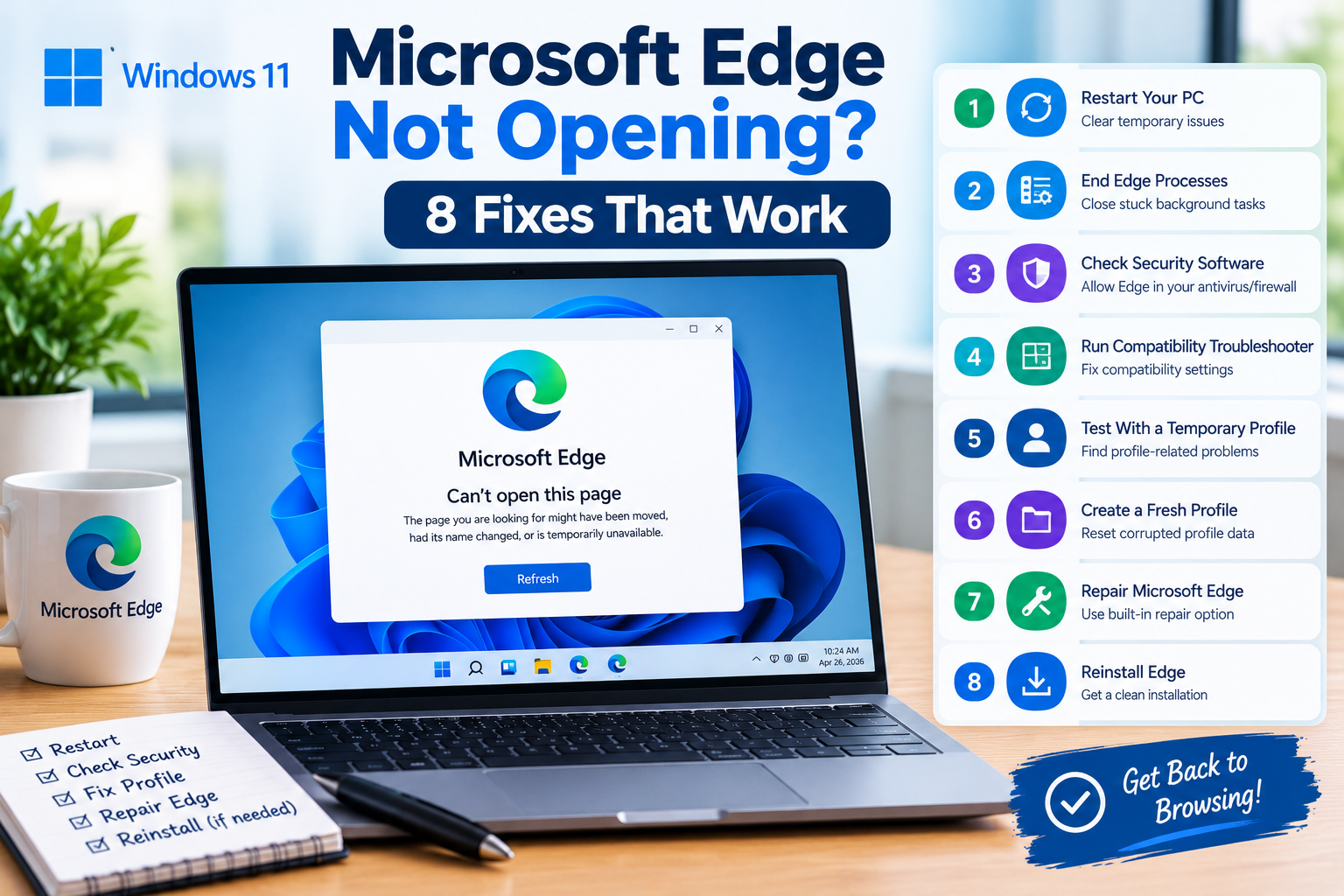
In this guide, you’ll learn 8 ways to fix Microsoft Edge when it won’t open in Windows 11, including a useful profile test and Microsoft’s built-in Edge Repair option.
Quick Fixes: Microsoft Edge Not Opening in Windows 11
Before going through every solution, try these in order:
- Restart your Windows 11 PC.
- End Microsoft Edge processes in Task Manager.
- Check security software and available system resources.
- Run the Windows Program Compatibility Troubleshooter.
- Test Edge with a temporary user profile.
- Create a fresh Edge profile.
- Repair Microsoft Edge from Windows Settings.
- Reinstall Edge and repair Windows if necessary.
You may only need one of these fixes.
Why Is Microsoft Edge Not Opening in Windows 11?
There are several reasons Microsoft Edge may stop launching.
Common causes include:
- A stuck Edge process is already running.
- Edge does not have enough available system resources.
- A browser extension or background component is causing a crash.
- The Edge user profile has become corrupted.
- Antivirus or other security software is interfering with Edge.
- A Windows compatibility problem is preventing Edge from starting correctly.
- Edge’s installation files have become damaged.
- A recent update has caused a temporary software conflict.
- Windows itself has corrupted or malfunctioning components.
- An Edge update or installation problem has occurred.
The symptom can provide an important clue.
For example, if you click Edge and absolutely nothing happens, a stuck process or system-level problem may be responsible.
If Edge appears briefly and immediately closes, a damaged profile or startup crash becomes more likely.
If Edge opens but freezes before displaying a webpage, extensions, memory usage, cache, or network-related problems may be involved.
The following fixes address these situations progressively.
Fix 1: Restart Your Windows 11 PC
It sounds simple, but restarting Windows should be the first thing you try.
A background process may be stuck, an update may be waiting for a restart, or another application may be interfering with Edge.
Microsoft specifically recommends restarting the computer when Edge doesn’t open.
How to restart Windows 11
- Click Start.
- Select the Power button.
- Click Restart.
- Wait for Windows to shut down and restart completely.
- Try opening Microsoft Edge.
Don’t simply close the laptop lid or put the computer to sleep.
Use the actual Restart option.
Why can restarting fix Edge?
Restarting clears many temporary system states and closes background processes that may have become stuck.
It can also complete pending Windows operations that require a reboot.
If Edge opens normally after restarting, you don’t need to perform the remaining fixes.
If it still won’t open, continue to Fix 2.
Fix 2: End Microsoft Edge Processes in Task Manager
Sometimes Edge is technically running even though no browser window appears.
This can happen if the browser crashed during startup but left one or more msedge.exe processes running.
Windows may then prevent a new Edge session from starting normally.
How to end Edge processes
- Press Ctrl + Shift + Esc.
- Task Manager will open.
- Look under Processes.
- Find Microsoft Edge.
- Right-click it.
- Select End task.
- Repeat the process if multiple Edge processes are listed.
- Close Task Manager.
- Try opening Edge again.
You may see several Edge processes. That’s normal when Edge is functioning, so don’t worry about seeing multiple entries.
The important thing is to close them all before trying to launch Edge again.
What if Edge isn’t listed?
If Task Manager doesn’t show Microsoft Edge, simply continue to the next solution.
Fix 3: Check Security Software, Memory, and Background Apps
If Edge still refuses to open, check whether another program is interfering with it.
Microsoft recommends checking third-party security software when Edge doesn’t open and also notes that insufficient memory can cause Edge problems.
Check antivirus software
Third-party antivirus, firewall, or endpoint-security applications can sometimes interfere with browsers.
Open your security software and check for:
- Blocked applications
- Quarantined files
- Recent security alerts
- Firewall restrictions
- Application-control rules
If Edge has been blocked, allow the legitimate Microsoft Edge application according to your security software’s instructions.
Don’t permanently disable antivirus protection
You may find troubleshooting guides that tell you to completely disable antivirus software.
That’s not a good long-term solution.
If you temporarily disable security protection for diagnostic purposes, turn it back on afterward.
The better goal is to determine whether a specific security rule is interfering with Edge.
Check available memory
If many applications are open, Windows may be under heavy memory pressure.
Close unnecessary programs before trying Edge again.
Also close:
- Large applications
- Games
- Video-editing software
- Unnecessary browser windows
- File-transfer programs
- Background applications you don’t need
Then restart Edge.
Fix 4: Run the Windows Program Compatibility Troubleshooter
Windows 11 includes compatibility troubleshooting tools that can diagnose certain application startup problems.
Microsoft’s current Edge troubleshooting guidance recommends using the Program Compatibility Troubleshooter for Edge-related installation and compatibility problems on Windows 11.
How to access it
Depending on your Windows 11 version, the troubleshooting experience may be available through the Get Help app.
You can also look under:
Settings → System → Troubleshoot → Other troubleshooters
Look for Program Compatibility Troubleshooter and follow the instructions.
Why use the compatibility troubleshooter?
Windows applications depend on operating-system components and compatibility settings.
If Edge is experiencing a compatibility problem, the troubleshooter may identify a configuration issue without requiring you to manually change system settings.
This is particularly worth trying if:
- Edge stopped working after a Windows update.
- You recently changed compatibility settings.
- Other applications work normally but Edge doesn’t.
- Edge was recently installed or updated.
After completing the troubleshooter, restart Windows and try Edge again.
Fix 5: Test Microsoft Edge With a Temporary Profile
This is one of the most useful advanced troubleshooting steps if Edge opens briefly and then closes.
Microsoft Learn provides a specific method for launching Edge with a temporary user-data directory. If Edge works with that temporary profile, the original Edge profile becomes the primary suspect.
Before you start
This method requires Command Prompt.
It doesn’t delete your normal Edge profile.
Step 1: Open Command Prompt
- Press Windows + R.
- Type:
cmd
- Press Enter.
Step 2: Launch Edge with a temporary profile
Enter:
"C:\Program Files (x86)\Microsoft\Edge\Application\msedge.exe" --user-data-dir="%TEMP%\edge-test-profile"
Then press Enter.
If Edge opens using the temporary profile, you’ve learned something important.
What does this test tell you?
If Edge works normally with the temporary profile but refuses to open using your normal profile, the Edge installation itself may be fine.
Your original profile is more likely to be causing the startup failure.
This is a powerful diagnostic step because it helps separate:
Edge installation problems
from
Edge profile problems.
Fix 6: Create a Fresh Edge Profile
If the temporary-profile test works, your original Edge profile may be corrupted.
Microsoft Learn recommends creating a fresh profile by renaming the existing Default folder.
Important warning
Don’t immediately delete the original profile.
Renaming it is safer because it preserves the old data while you test the new profile.
Step 1: Close Edge
Make sure Microsoft Edge is completely closed.
You can also check Task Manager to make sure there are no Edge processes remaining.
Step 2: Open the Edge profile folder
Press:
Windows + R
Enter:
%LOCALAPPDATA%\Microsoft\Edge\User Data
Press Enter.
Step 3: Find the Default folder
Look for:
Default
Right-click it and choose Rename.
Change it to something such as:
Default.old
Step 4: Start Edge
Launch Microsoft Edge.
If the old profile was the problem, Edge should create a new Default profile.
What if Edge now works?
That’s strong evidence that your original profile was damaged or contained data that was causing Edge to crash during startup.
Microsoft recommends keeping the old profile available so that needed data, such as bookmarks, can potentially be copied into the new profile.
Don’t immediately copy everything back.
First confirm that Edge remains stable.
Fix 7: Repair Microsoft Edge From Windows Settings
If the previous fixes didn’t work, use Microsoft’s built-in Edge Repair feature.
This is one of the most important fixes in this guide because it can repair Edge without requiring you to completely reinstall the browser.
Microsoft’s current support documentation specifically recommends:
Start → Settings → Apps → Installed apps → Microsoft Edge → Modify → Repair.
How to repair Edge
- Open Settings.
- Select Apps.
- Select Installed apps.
- Find Microsoft Edge.
- Select the three-dot menu beside Edge.
- Choose Modify.
- Approve the User Account Control prompt.
- Make sure your computer is connected to the internet.
- Select Repair.
Microsoft says the repair process should not affect your browser data or settings.
What if the Modify option isn’t available?
If Modify isn’t available, the Edge installation may be managed by your organization.
This is common on some business or school-managed computers.
In that situation, you may need to contact the system administrator rather than attempting to modify the installation yourself.
Why repair before reinstalling?
Repair is less disruptive than completely replacing the browser.
It makes sense to try the built-in repair option before taking more drastic steps.
Fix 8: Reinstall Edge and Check Windows for Deeper Problems
If Edge still won’t open after the previous seven fixes, reinstalling Edge may be appropriate.
Microsoft’s troubleshooting guidance includes reinstalling Edge when installation, updating, or browser problems persist.
Before reinstalling
Make sure you have another working browser available.
For example, you may use Chrome or Firefox to download the latest Edge installer if necessary.
Reinstall Microsoft Edge
Use Microsoft’s official Edge download source rather than downloading the browser from an unknown third-party website.
After installation:
- Restart Windows.
- Open Edge.
- Test it before installing extensions.
- Sign in only after confirming that the browser works.
- Add extensions gradually.
What if Edge still won’t open after reinstalling?
At this point, the problem may not be Edge itself.
Investigate:
- Windows system corruption
- Security software
- Recent Windows updates
- Malware
- Damaged user profiles
- Application conflicts
- Hardware or driver problems
Microsoft’s Windows recovery guidance recommends starting with the least disruptive recovery option and escalating only when necessary.
Don’t reset Windows simply because Edge isn’t opening.
A complete Windows reset is a much bigger intervention and should generally be reserved for broader operating-system problems.
What If Microsoft Edge Opens and Immediately Closes?
This symptom deserves special attention.
If you click Edge, the window appears for a moment, and then it disappears, try these fixes in this order:
1. End Edge processes
Use Task Manager to close every Microsoft Edge process.
2. Test a temporary profile
Run:
"C:\Program Files (x86)\Microsoft\Edge\Application\msedge.exe" --user-data-dir="%TEMP%\edge-test-profile"
If that works, your normal Edge profile is likely involved.
3. Rename the Default profile
Go to:
%LOCALAPPDATA%\Microsoft\Edge\User Data
Rename:
Default
to:
Default.old
4. Check security software
Look for antivirus or firewall blocks.
5. Repair Edge
Use:
Settings → Apps → Installed apps → Microsoft Edge → Modify → Repair
This sequence lets you identify the cause instead of blindly reinstalling the browser.
What If Nothing Happens When You Click Edge?
If the Edge icon does absolutely nothing, try this sequence:
Restart Windows → Task Manager → security check → compatibility troubleshooter → Edge Repair
If Edge still refuses to launch, perform the temporary-profile test.
If the temporary profile works, focus on the Edge profile.
If the temporary profile also fails, focus on Edge installation, security software, compatibility, or Windows itself.
What If Edge Works but Won’t Load Websites?
That’s a slightly different problem.
If Edge opens successfully but websites won’t load, don’t immediately reinstall the browser.
First determine whether the problem affects:
- One website
- All websites
- Edge only
- Every browser
Try opening the same website in another browser.
If the website doesn’t work in another browser either, the issue may be related to the website or your network rather than Edge.
Microsoft also recommends checking network connectivity and restarting networking equipment when webpages fail to load.
If Edge itself opens normally, you can also investigate:
- Cached browsing data
- Extensions
- Security software
- DNS/network configuration
- VPN settings
- Windows network problems
Should You Clear Edge’s Cache?
Clearing cached data can help when Edge opens but webpages display incorrectly or the browser behaves strangely.
However, if Edge doesn’t open at all, clearing the cache isn’t usually the first troubleshooting step because you can’t access the normal Edge settings interface.
In that situation, focus on:
- Restarting
- Ending Edge processes
- Testing the profile
- Repairing Edge
- Checking security software
Once Edge opens again, clearing unnecessary cached data may help with ongoing browser problems.
Should You Delete the Microsoft Edge Folder?
Be careful with this advice.
You may see online guides telling users to manually delete Edge folders from Windows.
That isn’t the first approach you should take.
If you’re troubleshooting a profile problem, Microsoft’s own documentation provides a safer method: rename the Default profile folder and test Edge with a fresh profile.
If you’re repairing the installation, Windows provides the built-in Repair option.
Use those approaches before manually deleting system directories.
Can Antivirus Software Stop Microsoft Edge From Opening?
Yes, security software can potentially interfere with Edge.
Microsoft specifically recommends checking third-party security software when Edge doesn’t open.
This is particularly worth investigating if:
- Edge stopped working immediately after an antivirus update.
- You installed a new security application.
- Your antivirus recently quarantined an Edge component.
- Other applications work normally.
- Edge works when the security software is not interfering.
Don’t permanently disable protection.
Instead, identify the specific conflict and update or configure the security software appropriately.
Can a Windows Update Cause Edge Problems?
A Windows or Edge update can sometimes coincide with a startup problem.
If Edge stopped working immediately after a system or browser update, check:
Settings → Windows Update
Install available updates and restart Windows.
Microsoft also recommends keeping Edge up to date when troubleshooting browser stability issues.
If an update appears to have introduced a problem, avoid making multiple unrelated system changes at once.
Change one thing, restart, and test Edge.
How to Tell Whether Your Edge Profile Is Corrupted
The temporary-profile test is one of the clearest ways to investigate this.
If:
Normal Edge profile → crashes
but:
Temporary profile → opens normally
then the Edge installation is less likely to be the main problem.
Your original profile becomes the leading suspect.
Microsoft’s troubleshooting documentation specifically uses this approach to isolate profile problems.
This is why simply reinstalling Edge isn’t always enough.
A browser can be reinstalled successfully while problematic profile data remains on the computer.
Should You Reset Windows 11?
Usually, no.
If Microsoft Edge is the only application that refuses to open, resetting the entire operating system is excessive.
Microsoft recommends using Windows recovery options progressively, starting with the least disruptive solutions.
Before considering a Windows reset, make sure you’ve tried:
- Restarting the computer
- Ending Edge processes
- Checking security software
- Running compatibility troubleshooting
- Testing a fresh Edge profile
- Repairing Edge
- Reinstalling Edge
If many Windows applications are also crashing or failing to launch, then you have a broader Windows problem that deserves separate troubleshooting.
Frequently Asked Questions
Why is Microsoft Edge not opening in Windows 11?
The most common possibilities include stuck Edge processes, a damaged Edge profile, security-software interference, compatibility problems, insufficient system resources, or damaged Edge installation components.
Start with a restart and Task Manager, then move toward profile testing and Edge Repair.
How do I force Microsoft Edge to open?
First restart Windows and end all Microsoft Edge processes in Task Manager.
If Edge still doesn’t launch, test it using a temporary user-data folder to determine whether the normal Edge profile is responsible.
Why does Microsoft Edge open and then close?
A corrupted profile, extension, security conflict, or browser crash can cause Edge to launch briefly and then terminate.
Testing Edge with a temporary profile is a useful way to determine whether the normal profile is responsible.
How do I repair Microsoft Edge in Windows 11?
Go to:
Settings → Apps → Installed apps → Microsoft Edge → Modify → Repair
Microsoft says Edge’s repair process should preserve browser data and settings.
Will repairing Microsoft Edge delete my bookmarks?
Microsoft’s current support documentation says the Repair process should not affect browser data or settings.
Nevertheless, maintaining a backup of important data is always a sensible precaution before performing significant software troubleshooting.
Should I uninstall Edge if it won’t open?
Not immediately.
Try restarting, ending Edge processes, checking security software, testing the profile, and using the built-in Repair option first.
Reinstallation should generally come later in the troubleshooting process.
What should I do if Edge isn’t listed under Installed Apps?
The Edge installation may be managed differently, particularly on organization-managed computers.
If the Modify option isn’t available, Microsoft notes that an organization may be managing the Edge installation.
Can a corrupted Edge profile stop Edge from opening?
Yes.
Microsoft Learn specifically documents testing Edge with a temporary user-data folder and creating a fresh profile when the original profile is responsible for startup problems.
Quick Troubleshooting Checklist
Use this checklist if you want the fastest path through the fixes:
- Restart Windows 11
- End all Microsoft Edge processes
- Check antivirus/security software
- Close unnecessary applications
- Run the Windows Program Compatibility Troubleshooter
- Test Edge with a temporary profile
- Rename the Edge
Defaultprofile if necessary - Repair Microsoft Edge
- Reinstall Edge if repair doesn’t work
- Investigate Windows problems if other applications are also failing
Final Verdict
When Microsoft Edge is not opening in Windows 11, don’t jump straight to uninstalling the browser or resetting Windows.
Start with the simple fixes: restart your PC and end any stuck Edge processes. Then check security software and Windows compatibility.
If Edge opens briefly and closes, the user profile is especially important to investigate. Microsoft’s own troubleshooting documentation provides a temporary-profile test that can help determine whether the existing Edge profile is responsible.
If the profile isn’t the problem, use Windows’ built-in Microsoft Edge Repair feature before resorting to a complete reinstall. Microsoft specifically recommends the Repair option and says it should not affect browser data or settings.
The safest troubleshooting strategy is:
Restart → End processes → Check security → Test compatibility → Test profile → Create fresh profile → Repair Edge → Reinstall if necessary.
That approach gives you the best chance of getting Edge working again without unnecessarily deleting browser data or resetting Windows.
SEO Quality Audit
Primary keyword: Used naturally throughout the title, introduction, headings, and troubleshooting sections.
Search intent: Fully covered for users searching because Edge won’t launch, opens and closes, crashes on startup, or stops responding.
Content depth: Strong — includes beginner fixes, profile diagnosis, temporary-profile testing, repair, reinstall, security software, compatibility, and Windows-level troubleshooting.
Content gap: Strong — the article goes beyond generic restart/reinstall advice by explaining how to distinguish an Edge installation problem from an Edge profile problem.
Technical accuracy: Based on current Microsoft Support and Microsoft Learn guidance. Microsoft’s dedicated Edge troubleshooting documentation was updated in 2026 and explicitly covers failure to launch, temporary profile testing, profile creation, and Edge Repair.
Internal-link opportunities: Link this article to your existing Windows 11 articles, particularly:
- Windows 11 Update Stuck
- Windows 11 Update Failed
- Windows 11 Search Not Working
- Windows 11 File Explorer Keeps Crashing
- Windows 11 Start Menu Not Working
- Chrome Not Opening in Windows 11
Suggested image alt text: Microsoft Edge not opening in Windows 11 troubleshooting fixes
Suggested image filename: microsoft-edge-not-opening-windows-11.jpg
Overall SEO readiness: 9.5/10
The article is ready for publication, with screenshots of the Task Manager, Edge Repair screen, temporary-profile command, and Edge User Data folder being the main additions that could make it even more useful.