Windows 11 Notifications Not Showing? 11 Ways to Fix Them
Are Windows 11 notifications not showing when you receive emails, messages, reminders, or alerts from your apps?
You may hear a sound without seeing a popup, see notifications only after opening Notification Center, or receive nothing at all. In some cases, the problem affects one application. In others, notifications can stop working across Windows.
Fortunately, you usually do not need to reset your PC to fix the problem.
Windows 11 has several settings that control how notifications appear. Do Not Disturb, Focus sessions, individual app settings, background activity, notification sounds, and other system settings can all affect what you see.
This guide walks through the most useful fixes, starting with the easiest and safest.
Why Are Windows 11 Notifications Not Showing?
Windows 11 notifications can fail to appear for several reasons.
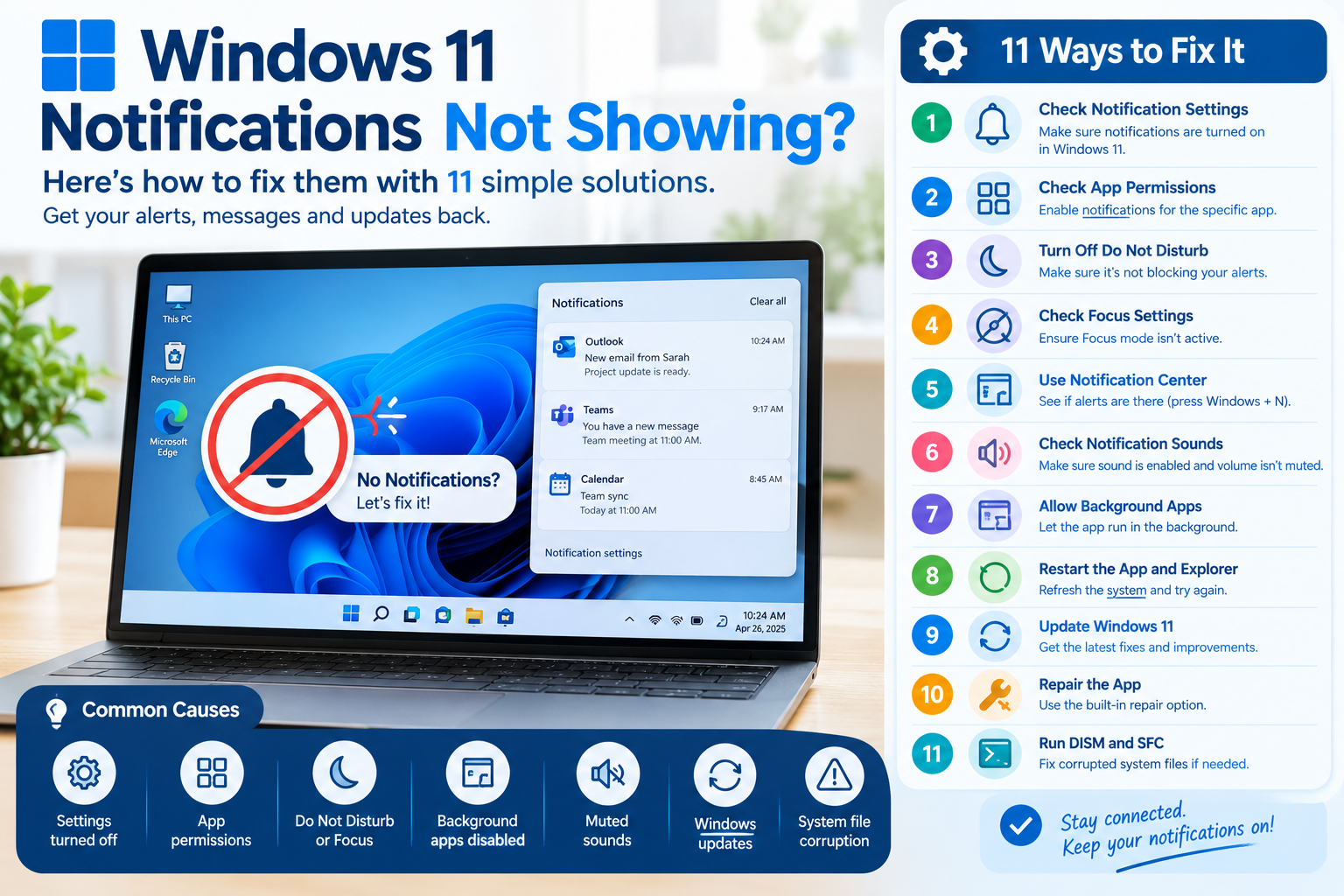
Common causes include:
- Notifications are turned off.
- Notifications are disabled for a specific app.
- Notification banners are disabled.
- Do Not Disturb is active.
- Focus is suppressing notifications.
- The affected app cannot run in the background.
- Notification sounds are disabled.
- The app itself is malfunctioning.
- Windows has pending updates.
- Windows notification components or system files have become corrupted.
- A work or school administrator has restricted notification settings.
The first thing to determine is whether all notifications are missing or only notifications from one app.
If Gmail, Teams, WhatsApp, Outlook, and other applications all stop displaying notifications, focus on Windows-level settings.
If only one application is affected, start by checking that application’s notification and background settings.
1. Make Sure Windows 11 Notifications Are Turned On
Start with the simplest possibility: Windows notifications may have been disabled.
How to check
- Open Start.
- Select Settings.
- Select System.
- Select Notifications.
- Make sure Notifications is turned on.
This setting controls whether Windows allows notifications from apps and other senders.
Microsoft also provides individual controls for apps, including whether they can show notification banners, appear in Notification Center, and play sounds.
If the main notification switch is off, turn it on and test the affected application.
Test it
After enabling notifications, open the affected app and perform an action that should trigger an alert.
For example:
- Send yourself an email.
- Receive a test message.
- Create a short calendar reminder.
- Trigger a test notification inside the application.
If notifications appear again, you have identified the problem.
2. Check the Specific App’s Notification Settings
Windows allows notification controls for individual applications.
This means Windows notifications can be enabled globally while notifications for a particular application remain disabled.
Go to:
Settings > System > Notifications
Scroll down to Notifications from apps and other senders.
Find the application that is not showing notifications.
Select it and check its available options.
Make sure:
- Notifications are enabled.
- Show notification banners is enabled.
- Show notifications in notification center is enabled.
- Sound is enabled if you want notification sounds.
- The app has not been assigned an unusual notification priority.
For example, if Outlook notifications are missing but notifications from other applications work normally, inspect Outlook’s individual notification settings rather than changing Windows settings everywhere.
Microsoft documents these per-app controls as part of Windows 11’s notification configuration.
3. Turn Off Do Not Disturb
Do Not Disturb is one of the first settings to check when Windows 11 notifications suddenly stop appearing.
When Do Not Disturb is active, Windows can suppress notification banners while still allowing selected priority notifications.
Check Do Not Disturb
Go to:
Settings > System > Notifications
Look for Do not disturb.
If it is enabled, turn it off temporarily.
You can also open the notification area from the taskbar and check whether Do Not Disturb is active.
Check automatic Do Not Disturb rules
Do Not Disturb can also activate automatically.
Windows allows it to be triggered by conditions such as:
- A scheduled time
- Duplicating the display
- Playing a game
- Using an app in full-screen mode
- Certain periods following a Windows feature update
Therefore, simply turning it off once may not solve the problem if an automatic rule immediately turns it back on.
Open the Do Not Disturb settings and review the automatic rules.
Microsoft specifically documents these automatic activation conditions in Windows 11.
4. Check Focus Settings
Focus is another Windows 11 feature that can make it appear as though notifications are broken.
Focus is designed to reduce distractions by suppressing notifications and other alerts during a focus session.
When a Focus session starts, Windows can automatically turn on Do Not Disturb.
Check Focus
Go to:
Settings > System > Focus
If a focus session is currently running, stop it.
Also review the Focus options if notifications repeatedly disappear during certain activities.
For example, you may notice that notifications disappear whenever you:
- Start working
- Play a game
- Use a full-screen application
- Start a scheduled focus period
Microsoft explains that Focus can temporarily block notifications and that Do Not Disturb is enabled during a Focus session.
5. Check Notification Center
Sometimes notifications are not actually missing.
They may simply not be appearing as pop-up banners.
Windows 11 stores notifications in the Notification Center.
Press:
Windows + N
to open Notification Center.
You can also select the notification area on the taskbar.
If your missing notifications are visible there, Windows is receiving them but may not be displaying them as banners.
Fix notification banners
Go to:
Settings > System > Notifications
Select the affected app.
Make sure:
Show notification banners
is enabled.
Also make sure:
Show notifications in notification center
is enabled if you want the notification to remain available after the popup disappears.
This distinction is important.
There are several different notification behaviors:
- Notification banner
- Notification Center
- Notification sound
- Lock-screen notification
A problem with one does not necessarily mean the entire notification system has failed.
6. Check Notification Sounds
If you hear nothing when an alert arrives, the problem may be related to notification sounds rather than notifications themselves.
Open:
Settings > System > Notifications
Select the affected application.
Check that the option to play a sound for notifications is enabled.
Then check your general Windows sound settings.
Make sure:
- Your volume is not muted.
- The correct output device is selected.
- Your speakers or headphones are working.
- The application is not muted in the volume mixer.
If you can see notification banners but cannot hear them, focus on sound settings instead of notification delivery.
7. Allow the App to Run in the Background
Some applications need background activity to receive information and deliver notifications when you are not actively using them.
Windows 11 provides background activity controls for supported applications.
For an affected app, check:
Settings > Apps > Installed apps
Find the application.
Select the three-dot menu next to it and choose Advanced options, when available.
Look for:
Background apps permissions
Depending on the application, you may see options such as:
- Always
- Power optimized
- Never
If the app is set to Never, it may not receive updates or notifications while you are not actively using it.
For notification-heavy applications, consider using Always or Power optimized, depending on your needs.
Microsoft explains that background activity can allow supported apps to receive information, send notifications, and stay updated even when they are not actively being used.
8. Restart the App and Windows Explorer
If notification settings are correct, temporarily restart the affected application.
Completely close it and open it again.
If that does not work, restart Windows Explorer.
Restart Windows Explorer
- Press Ctrl + Shift + Esc.
- Open Task Manager.
- Find Windows Explorer.
- Right-click it.
- Select Restart.
Your taskbar and desktop may briefly disappear and reload.
Then test notifications again.
Also restart Windows
A full restart can clear temporary problems affecting Windows components.
Select:
Start > Power > Restart
Do not simply close the laptop lid and reopen it.
Use the actual Restart option.
9. Restart Notification-Related Windows Services
If notifications are still not working system-wide, notification-related Windows services may need attention.
One advanced troubleshooting option is to restart the Windows Push Notifications services.
How to do it
- Press Windows + R.
- Type:
services.msc - Press Enter.
- Look for Windows Push Notifications System Service.
- Right-click it and choose Restart, if available.
- Look for the Windows Push Notifications User Service associated with your account and restart it if the option is available.
- Restart Windows afterward.
These services are involved in the Windows notification infrastructure.
If you are uncomfortable working with Windows services, skip this step and continue with the other fixes.
Do not randomly disable Windows services while troubleshooting.
10. Update Windows 11
A Windows component responsible for notifications may behave incorrectly because of a software problem that has already been fixed in a newer Windows update.
Check for updates.
Go to:
Settings > Windows Update
Select:
Check for updates
Install available updates and restart the computer if Windows requests it.
Also check for optional updates when appropriate, especially if the notification problem began after a driver or system change.
Keeping Windows updated can also help resolve broader system problems.
If Windows Update itself is malfunctioning, Microsoft provides additional troubleshooting procedures for Windows Update, including its built-in troubleshooter and system-repair options.
11. Repair the Affected App
If Windows notifications work for other applications but one specific app refuses to send notifications, repair the application.
Windows 11 provides a built-in repair option for supported applications.
Go to:
Settings > Apps > Installed apps
Find the affected application.
Select:
Three dots > Advanced options
If available, select:
Repair
Windows will attempt to repair the application without requiring you to reinstall it.
If Repair does not solve the issue, you may see a Reset option.
Be careful with Reset because it can remove the application’s data or settings depending on the application.
Microsoft recommends Repair first when the option is available, followed by Reset if Repair does not resolve the problem.
12. Repair Windows System Files With DISM and SFC
If notifications have stopped working across Windows and the simpler solutions have failed, damaged or corrupted Windows system files could be involved.
Windows includes two built-in tools that can help:
- DISM
- System File Checker (SFC)
Microsoft recommends running DISM before SFC in its current system-file repair instructions.
Step 1: Open Command Prompt as administrator
Search Windows for:
Command Prompt
Right-click it and select:
Run as administrator
Step 2: Run DISM
Enter:
DISM.exe /Online /Cleanup-image /Restorehealth
Press Enter.
Allow the process to finish.
It may take several minutes.
Step 3: Run SFC
After DISM completes, run:
sfc /scannow
Press Enter.
Wait until the verification reaches 100%.
Then restart your PC.
Microsoft explains that DISM can repair the Windows image and that SFC can scan protected system files and replace corrupted files with cached copies.
Windows 11 Notifications Still Not Showing?
If you have tried the fixes above and notifications are still missing, narrow down the problem.
Ask these questions.
Do notifications work for any app?
If no applications generate notifications, the issue is probably Windows-wide.
Focus on:
- Notification settings
- Do Not Disturb
- Focus
- Windows services
- Windows Update
- DISM/SFC
Do notifications work for some apps?
If yes, the problem is probably application-specific.
Focus on:
- App notification settings
- Background permissions
- App repair/reset
- The application’s own notification settings
Do notifications appear in Notification Center but not as popups?
Check:
- Notification banners
- Do Not Disturb
- Focus
- Notification priority
Do you receive notification sounds but no visual alerts?
Check:
- Notification banners
- Notification Center settings
- Display-related behavior
- Do Not Disturb
Does the problem happen only during gaming or full-screen applications?
Check Do Not Disturb and Focus automatic rules.
Windows can automatically suppress notifications under certain conditions, including gaming, full-screen applications, display duplication, and scheduled periods.
What If Windows 11 Says Some Settings Are Managed by Your Organization?
If you use a work or school computer, some notification settings may be controlled by an administrator.
In that situation, you may see messages indicating that settings are managed by your organization.
Microsoft notes that managed Windows Security notification settings, for example, can be controlled by an administrator.
If this is a company-managed PC, do not attempt to bypass organizational policies.
Instead, contact your IT administrator.
Quick Fix Checklist
Before trying advanced repairs, work through this checklist:
- Notifications are enabled in Settings.
- Notifications are enabled for the affected app.
- Notification banners are enabled.
- Notification Center notifications are enabled.
- Do Not Disturb is turned off.
- Automatic Do Not Disturb rules have been checked.
- Focus is not active.
- The affected app can run in the background.
- Notification sounds are enabled if needed.
- The app has been restarted.
- Windows Explorer has been restarted.
- Windows has been restarted.
- Windows 11 is up to date.
- The affected app has been repaired.
- DISM and SFC have been run if necessary.
How to Prevent Windows 11 Notification Problems
Once notifications are working again, a few habits can reduce future problems.
Keep Windows updated
Install Windows updates regularly.
Review Do Not Disturb rules
If notifications repeatedly disappear at certain times, check whether an automatic rule is responsible.
Check important apps individually
For applications such as email, messaging, calendar, and security software, verify their notification settings after major updates.
Avoid disabling background activity unnecessarily
If an app needs background access to provide notifications, setting it to Never may prevent notifications while the app is closed.
Restart your PC when Windows behaves strangely
A restart can resolve temporary system problems that do not justify more complicated troubleshooting.
Frequently Asked Questions
Why are my Windows 11 notifications not showing?
The most common possibilities include disabled notification settings, app-specific notification settings, Do Not Disturb, Focus, background activity restrictions, or an application problem.
Start with Settings > System > Notifications.
Why do I hear notification sounds but see no popup?
Your notifications may be arriving but notification banners may be disabled. Check the affected app under Settings > System > Notifications and enable Show notification banners.
Why are Windows 11 notifications only showing in Notification Center?
This usually means Windows is receiving notifications but not displaying them as banners. Check the affected application’s notification settings and make sure notification banners are enabled.
Why do notifications stop when I play a game?
Do Not Disturb can automatically activate when you are playing a game or using an application in full-screen mode. Review the automatic Do Not Disturb rules under Settings > System > Notifications.
Why aren’t notifications working for one app?
Check the app’s notification settings, Windows notification permissions, background activity permissions, and the app’s own settings. You can also try repairing the app through Settings > Apps > Installed apps > Advanced options > Repair.
Can battery settings stop Windows 11 notifications?
Some applications rely on background activity to receive information and send notifications. Restricting an app’s background activity can therefore affect notifications while the app is not actively open.
How do I reset Windows 11 notifications?
There is not one universal “reset all notifications” button that fixes every notification problem. Start by checking notification settings, Do Not Disturb, Focus, and affected-app settings. For deeper system problems, restarting notification-related services and repairing Windows system files may help.
Should I reinstall Windows if notifications don’t work?
Usually, no.
Try the simpler fixes first. Check notification settings, Do Not Disturb, Focus, app permissions, background activity, updates, and app repair. If the problem appears to involve damaged Windows components, try DISM and SFC before considering a major Windows reset or reinstall.
Final Thoughts
When Windows 11 notifications are not showing, the problem is usually easier to fix than it first appears.
Start with the basics:
Settings > System > Notifications
Then check the affected app, Do Not Disturb, Focus, and background activity.
If the problem continues, restart Windows components, update Windows, repair the affected app, and use DISM and SFC for deeper system problems.
The key is to troubleshoot from simple to advanced.
You do not need to reset Windows just because notifications stopped appearing.
In most cases, identifying whether the problem affects one app, all apps, notification banners, sounds, or Notification Center will point you toward the correct solution.