Windows 11 “This App Can’t Run on Your PC” Error: 9 Fixes That Actually Help
Seeing the “This app can’t run on your PC” message in Windows 11 can be frustrating, especially when the same application worked on another computer or an earlier version of Windows.
The message doesn’t always mean your PC is too weak to run the application. It can appear because of an incompatible app version, processor architecture, Windows security settings, S mode restrictions, a damaged installation, an outdated application, or problems with Windows itself.
Microsoft specifically notes that older applications can become incompatible because of changes in Windows architecture, security features, or system requirements.
Fortunately, you can work through several targeted fixes before considering a Windows reset or reinstall.
This guide explains 9 ways to fix “This app can’t run on your PC” in Windows 11, starting with the simplest checks and moving toward more advanced repairs.
What Does “This App Can’t Run on Your PC” Mean?
The “This app can’t run on your PC” message means Windows cannot launch the application as currently installed or configured.
The message itself doesn’t identify the exact cause.
Possible reasons include:
- The program is designed for an unsupported version of Windows.
- You downloaded the wrong version of the application.
- The program requires a different processor architecture.
- The application installation is damaged.
- Windows is blocking the file for security reasons.
- Smart App Control is blocking the application.
- Your PC is running Windows 11 in S mode.
- The application is very old.
- Windows system files or components are damaged.
- The application requires an update from its developer.
A 32-bit application can normally run on 64-bit Windows through Microsoft’s WOW64 compatibility layer, but 16-bit Windows applications aren’t supported on 64-bit Windows. Architecture-specific components such as drivers and DLLs can also create compatibility problems.
So before trying random fixes, it’s useful to determine what kind of application you’re dealing with.
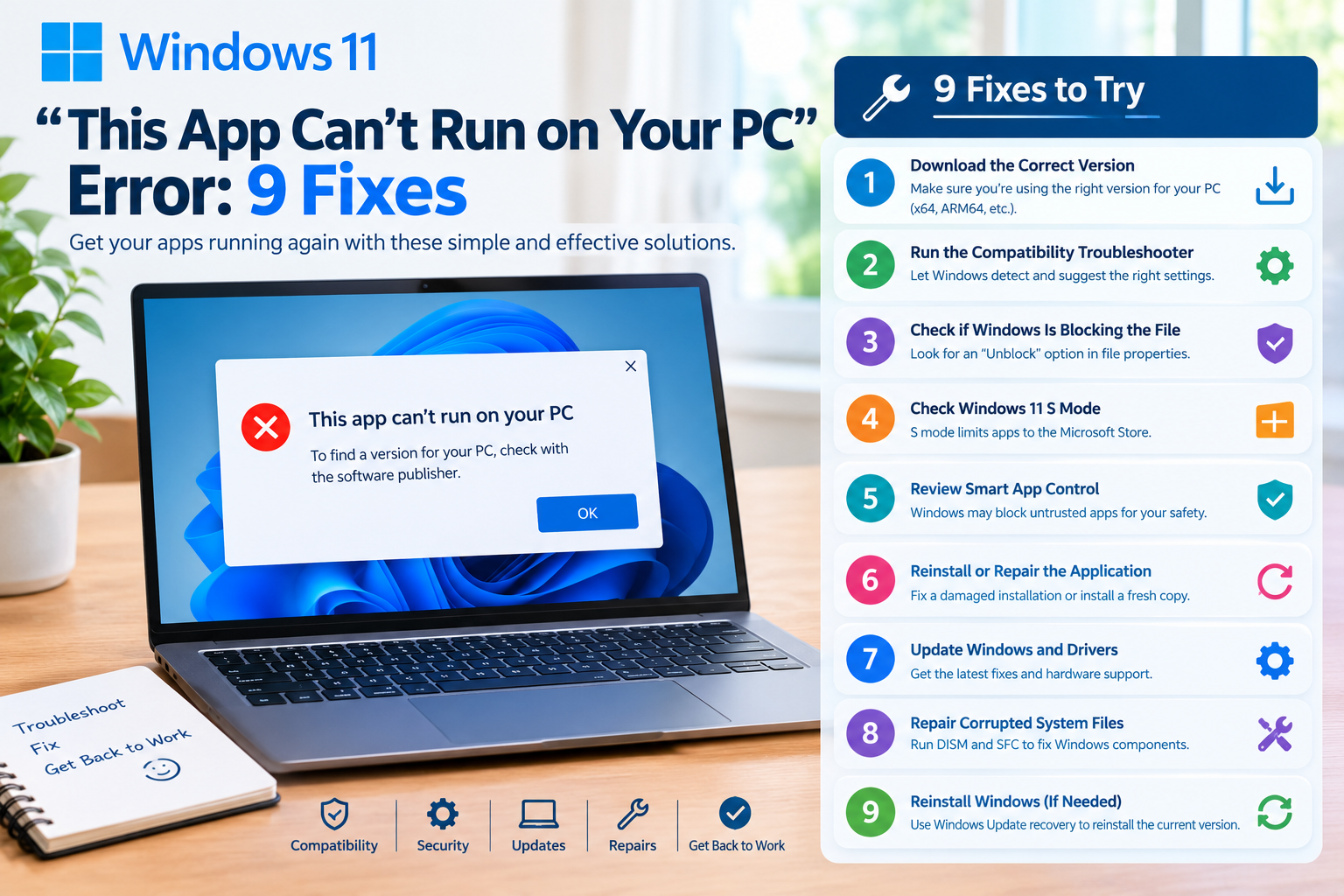
9 Ways to Fix “This App Can’t Run on Your PC” in Windows 11
1. Download the Correct Version of the App
The first thing to check is whether you downloaded the correct version of the program.
Applications may have different builds for:
- x86
- x64
- ARM
- ARM64
Microsoft’s documentation notes that Windows applications and app packages can target different processor architectures.
This matters particularly if you’re using a Windows 11 PC with an ARM-based processor.
Check your system type
Press:
Windows + I → System → About
Look for System type.
You may see information such as:
- 64-bit operating system, x64-based processor
- 64-bit operating system, ARM64-based processor
Then visit the software developer’s official website and download the version designed for your system.
If you’re using an ARM-based Windows PC
Look specifically for an ARM64 version if the developer provides one.
Some traditional x86/x64 applications can work on Windows on Arm through compatibility technologies, but applications with incompatible components may still require a native version or an update from the developer.
Don’t download random “patched” versions from unofficial websites simply to get around the error.
2. Run the Program Compatibility Troubleshooter
Windows 11 includes a Program Compatibility Troubleshooter designed to help with applications that don’t work correctly with the current version of Windows.
Microsoft recommends the troubleshooter for compatibility problems involving older applications.
How to run it
Open:
Settings → System → Troubleshoot → Other troubleshooters
Look for:
Program Compatibility Troubleshooter
Select Run and follow the instructions.
Windows may identify compatibility settings that allow an older application to operate correctly.
When should you try this?
This is particularly useful when:
- The application used to work on an older Windows version.
- The problem appeared after upgrading Windows.
- The program is several years old.
- The developer hasn’t released a recent version.
- Other applications work normally.
Microsoft also recommends checking for an updated version of the application before relying on compatibility settings.
3. Check Whether Windows Is Blocking the Downloaded File
If you downloaded the application from the internet, Windows may attach security information to the file.
Microsoft documents a file-unblocking option in File Explorer for files that Windows identifies as coming from another computer or the internet.
Try this
- Locate the application’s
.exefile. - Right-click it.
- Select Properties.
- Stay on the General tab.
- Look near the bottom for a security message.
- If you see an Unblock option, select it.
- Click Apply and then OK.
- Try launching the program again.
Important security warning
Only unblock a file if you trust its source.
Before doing so:
- Confirm you downloaded it from the legitimate developer.
- Check that the filename is correct.
- Scan the file with Microsoft Defender or your security software.
- Avoid executables sent by unknown people or suspicious websites.
Unblocking a malicious file can weaken Windows’ protection, so don’t use this step as a way to bypass security warnings blindly.
4. Check Windows 11 S Mode
If your computer is running Windows 11 in S mode, app installation restrictions may be responsible.
Windows 11 in S mode is designed around security and performance and is limited to applications installed through the Microsoft Store. Microsoft says that users who need applications unavailable in the Store may need to switch out of S mode.
Check whether you’re using S mode
Open:
Settings → System → Activation
Look for information about your Windows edition and S mode status.
If the PC is running Windows 11 in S mode, an application downloaded from outside the Microsoft Store may not be allowed.
Should you leave S mode?
That depends on your needs.
If the application is available through the Microsoft Store, using the Store version may be the simplest solution.
If the application is only available directly from the developer, switching out of S mode may be necessary.
However, Microsoft states that switching out of S mode is one-way. Once you leave S mode, you cannot switch the device back into S mode.
So don’t make this change solely as a first troubleshooting step.
5. Check Smart App Control
Windows 11 includes Smart App Control, a security feature that evaluates applications before allowing them to run.
Microsoft explains that Smart App Control can block applications it considers malicious or potentially unwanted. If it can’t confidently determine that an application is safe, it can also use the application’s digital signature as part of the decision.
Check Smart App Control
Open:
Settings → Privacy & security → Windows Security → App & browser control
Look for Smart App Control.
If it is blocking a legitimate application, first verify that you downloaded the application from its legitimate publisher.
Don’t disable security protection casually
If Smart App Control is blocking an application, don’t immediately turn it off.
Instead:
- Verify the application source.
- Check whether a newer version exists.
- Check whether the developer provides a digitally signed version.
- Look for an official Microsoft Store version.
- Contact the developer if the application is legitimate but incorrectly blocked.
Microsoft says Smart App Control does not currently provide a per-app bypass; disabling it affects the protection more broadly.
This makes checking the application source particularly important.
6. Reinstall or Repair the Application
A damaged or incomplete installation can also prevent a program from starting correctly.
If the application is already installed, Windows 11 provides repair and reset options for some applications.
Try Repair first
Go to:
Settings → Apps → Installed apps
Find the application.
Select the three-dot menu → Advanced options.
If available, select:
Repair
Windows will attempt to fix the application without removing its data.
If Repair doesn’t work, you may see:
Reset
Microsoft notes that Reset can restore the application to its default state and may remove application data.
If Repair isn’t available
Uninstall the application and download a fresh installer directly from the official developer.
Then:
- Restart Windows.
- Download the newest version.
- Install it again.
- Try launching it.
For traditional desktop programs, Windows may provide Repair or Change options through Control Panel as well.
7. Update Windows and Your Drivers
An application may depend on Windows components or hardware drivers that are outdated.
Microsoft recommends keeping Windows and drivers updated when troubleshooting compatibility problems.
Check Windows Update
Go to:
Settings → Windows Update
Select:
Check for updates
Install available updates and restart your PC.
Check optional driver updates
Go to:
Settings → Windows Update → Advanced options → Optional updates
If driver updates are available, review them and install appropriate updates.
Microsoft notes that Windows 11 automatically installs recommended drivers through Windows Update, while optional driver updates aren’t installed automatically.
Why this can matter
Driver-related compatibility is especially relevant for applications that depend on:
- Graphics acceleration
- Audio hardware
- Specialized peripherals
- Printers
- Scanners
- External devices
- Gaming hardware
If the problem started immediately after a Windows update, also check the application’s developer website for compatibility information.
8. Repair Corrupted Windows System Files
If multiple applications suddenly display errors or Windows itself is behaving strangely, the problem may be deeper than one application.
Windows includes two important repair tools:
- DISM
- System File Checker (SFC)
Microsoft recommends running DISM before SFC when repairing corrupted Windows components.
Run DISM
Open the Start menu and search for:
Command Prompt
Right-click it and select:
Run as administrator
Run:
DISM.exe /Online /Cleanup-image /RestorehealthWait for the operation to complete.
Then run:
sfc /scannowAllow the scan to reach 100%.
Restart your PC afterward and test the application again.
What do these commands do?
DISM repairs the Windows component store that can be used to restore damaged system components.
SFC scans protected Windows system files and attempts to replace corrupted files with correct versions.
This fix is more relevant when the problem affects Windows itself rather than one isolated third-party application.
9. Reinstall Windows Without Immediately Resetting Everything
If none of the previous fixes work and Windows itself appears to have compatibility or system-component problems, Windows 11 provides a recovery option that can reinstall the current Windows version.
Microsoft’s Fix problems using Windows Update recovery feature can reinstall the same version of Windows while repairing system files and components and preserving apps, files, and settings.
Go to:
Settings → System → Recovery
Look for:
Fix problems using Windows Update → Reinstall now
Follow the instructions shown by Windows.
Why this is different from Reset this PC
A normal Windows reset can remove applications and settings, depending on the option selected.
Microsoft’s Windows Update recovery reinstall is designed specifically to repair the current Windows installation while preserving apps, files, and settings.
If this option isn’t available on your system, Windows Recovery provides other repair and reset options.
Before using a major recovery option, make sure important files are backed up.
What If None of These Fixes Work?
If the error remains after all nine fixes, the problem may be specific to the application.
At that point, check the developer’s support documentation.
Look for information about:
- Supported Windows versions
- Processor requirements
- x64 or ARM64 support
- Required runtime components
- Required drivers
- Minimum Windows build
- Known Windows 11 compatibility problems
- Installation requirements
- Digital signatures
- Required .NET or Visual C++ components
You should also check whether another version of the application is available.
For example, a developer may offer:
- An older Windows version
- A current Windows 11 version
- x64
- ARM64
- Microsoft Store edition
- Portable edition
- Enterprise edition
Installing the correct version can be more effective than repeatedly changing Windows settings.
Why Does Windows Say an App Can’t Run?
The message can have several underlying causes.
| Possible cause | What to try |
|---|---|
| Wrong application version | Download the correct version |
| Old software | Update the application |
| Compatibility problem | Run Program Compatibility Troubleshooter |
| File downloaded from internet | Check Properties and Unblock if trusted |
| S mode restriction | Check Windows activation/S mode |
| Smart App Control | Verify the app and publisher |
| Corrupted installation | Repair or reinstall |
| Outdated Windows | Install Windows updates |
| Driver problem | Install appropriate driver updates |
| Corrupted Windows components | Run DISM and SFC |
| Windows installation problem | Use Windows Update recovery |
The important point is that the error message itself doesn’t prove that your computer lacks the hardware needed to run the application.
What Not to Do When You See This Error
Some troubleshooting advice found online can create more problems than it solves.
Don’t download cracked versions
A modified application may appear to bypass the problem but can introduce malware, unwanted software, or other security risks.
Don’t disable every security feature
Turning off Windows security controls without identifying the cause is not a good general troubleshooting strategy.
First determine whether Windows is correctly blocking an untrusted application.
Don’t randomly change compatibility settings
Compatibility modes can help older applications, but changing settings without understanding the application can create additional problems.
Don’t download DLL files from random websites
If an application reports a missing DLL, don’t automatically download a replacement DLL from an unknown website.
Use the application’s official installer or the developer’s recommended installation package.
Don’t reset Windows as your first step
A Windows reset is a major recovery action.
Work through application-specific and compatibility troubleshooting first.
Quick Fix Checklist
If you want the shortest troubleshooting sequence, work through these steps in order:
1. Restart your PC
A simple restart can eliminate temporary Windows problems.
2. Check the application version
Download the current version from the developer.
3. Check your system architecture
Go to:
Settings → System → About
Check whether your PC is x64 or ARM64.
4. Run the Program Compatibility Troubleshooter
Go to:
Settings → System → Troubleshoot → Other troubleshooters
5. Check the file’s Properties
If the application was downloaded from the internet, check whether Windows has marked the file as blocked.
6. Check S mode
Make sure your Windows edition isn’t restricting installation of the application.
7. Check Smart App Control
Verify whether Windows security is blocking the application.
8. Repair or reinstall the application
Use Windows’ Repair option when available, or reinstall the latest official version.
9. Repair Windows
If several applications are affected, run:
DISM.exe /Online /Cleanup-image /Restorehealthfollowed by:
sfc /scannowFrequently Asked Questions
Why does Windows 11 say “This app can’t run on your PC”?
The message can appear for several reasons, including an incompatible application version, unsupported architecture, outdated software, security restrictions, S mode restrictions, a damaged installation, or Windows system problems.
Can 32-bit apps run on Windows 11?
64-bit Windows supports many 32-bit x86 applications through WOW64. However, 64-bit Windows does not support 16-bit Windows applications, and applications that depend on incompatible drivers or components may still fail.
How do I fix an old program that won’t run on Windows 11?
First check the developer for an updated version. Then try the Windows Program Compatibility Troubleshooter. Microsoft specifically recommends these approaches for older applications that experience compatibility problems.
Does Windows 11 S mode prevent apps from running?
S mode restricts applications to those installed from the Microsoft Store. If you need an application that isn’t available through the Store, Microsoft says you may need to switch out of S mode. Switching out is one-way.
Should I disable Smart App Control to fix the error?
Not automatically. First verify that the application is legitimate and obtain an updated or properly signed version from the developer. Smart App Control is a Windows security feature designed to block potentially unsafe applications.
Can corrupted Windows files cause apps not to run?
They can. If Windows system components are damaged, DISM and SFC can scan and repair Windows components and protected system files.
What if only one application won’t run?
If other programs work normally, focus first on that application’s version, installation, architecture, compatibility requirements, and security status rather than immediately repairing or resetting Windows.
Final Thoughts
The “This app can’t run on your PC” error in Windows 11 doesn’t have one universal cause.
The fastest solution is to identify whether the problem comes from the application itself, Windows compatibility, processor architecture, security restrictions, the installation, or Windows system files.
Start by downloading the correct and current application version. If the problem continues, run the Program Compatibility Troubleshooter, check whether Windows is blocking the file, and verify whether S mode or Smart App Control is involved.
For damaged installations, repair or reinstall the application. If multiple programs are affected, move on to Windows Update, driver updates, and DISM/SFC repairs.
Only consider larger Windows recovery options after you’ve ruled out the application-specific causes.
In most cases, a systematic approach is much more effective than randomly changing Windows security or compatibility settings.
SEO Optimization & Final Quality Audit
Primary keyword: Windows 11 “This App Can’t Run on Your PC” error
SEO title: Windows 11 “This App Can’t Run on Your PC” Error: 9 Fixes
Suggested URL:
/windows-11-this-app-cant-run-on-your-pc-error/
Meta description: Fix the “This app can’t run on your PC” error in Windows 11 with 9 practical solutions covering compatibility, S mode, Smart App Control, architecture, repairs, updates, and more.
Search intent covered: Exact-error troubleshooting, app compatibility, old software, architecture issues, security blocking, S mode, corrupted installations, Windows repairs, and recovery.
Content-gap opportunities addressed: The article doesn’t treat every occurrence as the same problem. It distinguishes between compatibility, architecture, downloaded-file security, S mode, Smart App Control, application corruption, driver/Windows updates, and Windows component corruption.
Featured-snippet opportunities: The article includes a concise definition, 9 numbered fixes, a cause/fix table, quick checklist, and FAQ section.
Internal-link opportunities: If this is part of your Windows 11 content cluster, link it to articles about Windows Update problems, Device Manager errors, Microsoft Store issues, high CPU usage, USB device problems, Windows 11 app crashes, and Windows system-file repair.
Source quality: The troubleshooting recommendations were cross-checked against current Microsoft Support and Microsoft Learn documentation, including Microsoft’s Windows 11 compatibility guidance, Program Compatibility Troubleshooter, S mode documentation, Smart App Control documentation, application repair guidance, architecture documentation, and Windows system-repair instructions.
:::Winvalid?