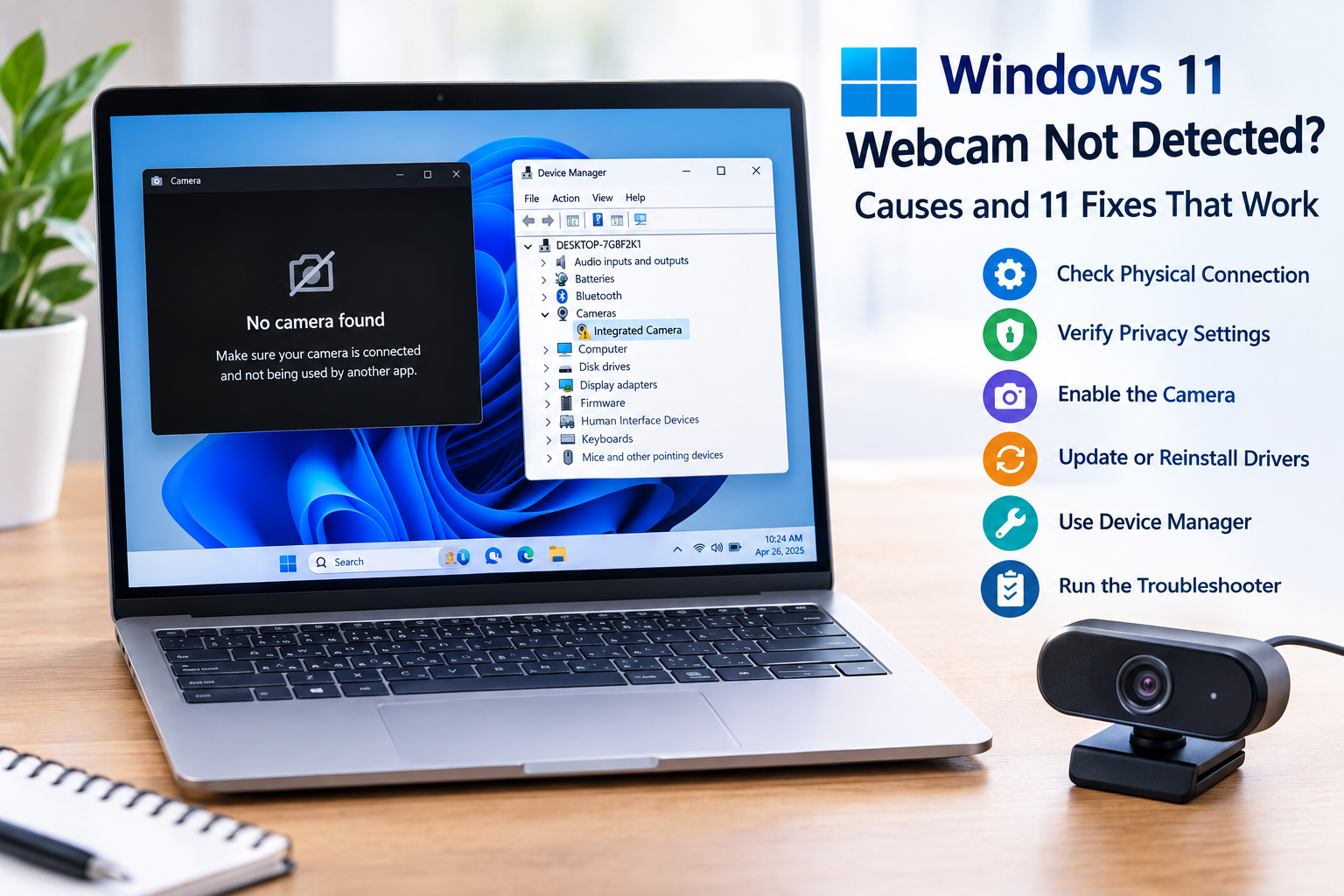
Windows 11 Webcam Not Detected? Causes and 11 Fixes That Work
A webcam that suddenly disappears from your Windows 11 PC can be frustrating, especially when you need it for a video meeting, online class, interview, or video call.
If Windows 11 says it can’t find your camera, the problem isn’t necessarily a broken webcam. The camera may be disabled, blocked by privacy settings, disconnected, missing a driver, affected by a recent update, or simply not being recognized correctly by Windows.
Microsoft’s current Windows camera guidance recommends checking the physical connection, camera switches, privacy permissions, Windows updates, troubleshooting tools, security software, and camera drivers.
The good news is that many webcam detection problems can be fixed without replacing the camera.
This guide walks through the most useful fixes, starting with the simplest ones.
Why Is My Windows 11 Webcam Not Detected?
A Windows 11 webcam may not be detected for several reasons, including:
- The webcam is physically disconnected.
- A laptop camera shutter or hardware switch is turned off.
- Camera access is disabled in Windows privacy settings.
- The camera has been disabled in Windows settings.
- The webcam driver is outdated or corrupted.
- A recent Windows update caused a driver conflict.
- The webcam is connected to a faulty USB port.
- Another application is using or interfering with the camera.
- Antivirus or security software is blocking camera access.
- Windows has failed to detect the hardware.
- The webcam itself has developed a hardware problem.
Microsoft lists error 0xA00F4244 as one indication that Windows cannot detect the camera.
Before assuming the webcam is broken, work through the following fixes.
1. Check the Webcam’s Physical Connection
Start with the simplest possibility: Windows may not be able to detect the camera because the hardware isn’t properly connected.
For an external USB webcam
Unplug the webcam and connect it again.
Then:
- Disconnect the webcam.
- Wait a few seconds.
- Plug it into another USB port.
- Wait for Windows to recognize it.
- Open the Camera app and test it.
If you’re using a USB hub, docking station, or adapter, connect the webcam directly to the computer if possible.
A different USB port can help determine whether the problem is with the webcam or the original port.
Microsoft specifically recommends trying another USB port when troubleshooting an external camera.
For a built-in laptop webcam
Check the area around the camera.
Some laptops include:
- A physical camera shutter.
- A camera privacy switch.
- A keyboard camera key.
- An Fn-key combination that disables the webcam.
If the physical camera switch is turned off, Windows may not recognize the camera correctly.
2. Check Windows 11 Camera Privacy Settings
One of the most common reasons an otherwise functional camera doesn’t work is that Windows is preventing applications from accessing it.
To check your permissions:
Start → Settings → Privacy & security → Camera
Make sure camera access is enabled.
Look for settings related to:
- Camera access.
- Allow apps to access your camera.
- Allow desktop apps to access your camera.
Microsoft notes that browsers and many video-conferencing programs are desktop applications, so the desktop-app camera permission is particularly important.
Why this matters
You might have a working webcam, but Windows can still prevent Zoom, Teams, Chrome, Edge, or another application from accessing it.
If the Camera app works but another application doesn’t, the problem is more likely to be related to that application’s permissions or settings rather than the webcam itself.
3. Check Whether the Camera Is Disabled in Windows 11
Windows 11 includes camera management settings that let you view connected cameras and enable or disable them.
Go to:
Settings → Bluetooth & devices → Cameras
Windows can display cameras under the connected-camera settings. Disabled cameras may appear in a separate section where they can be enabled.
If your webcam appears under Disabled cameras, select it and choose Enable.
You may need administrator access to enable a disabled camera.
This is an important step because a camera can be physically connected but unavailable to applications if Windows has it disabled.
4. Test the Webcam With the Windows Camera App
Before changing drivers or performing complicated troubleshooting, determine whether the problem affects the entire operating system or only one application.
Open:
Start → Camera
If your webcam works in the Camera app but doesn’t work in Zoom, Teams, Discord, Chrome, or another program, the webcam itself may not be the problem.
Instead, check that application’s camera settings.
For example, the application may have:
- The wrong camera selected.
- Camera permissions disabled.
- Its own privacy settings.
- A temporary software problem.
Microsoft recommends testing the camera in another application to determine whether the problem is application-specific.
If the Camera app also can’t find the webcam
Continue with the next fixes because the problem is more likely to involve Windows, drivers, hardware detection, or the camera itself.
5. Restart Your Windows 11 PC
A simple restart can sometimes restore a camera that disappeared after sleep, an application crash, a driver problem, or a temporary Windows issue.
Select:
Start → Power → Restart
Don’t simply close the laptop lid and reopen it.
A full restart reloads Windows and its hardware drivers.
Microsoft specifically recommends restarting the computer during camera troubleshooting.
After restarting, open the Camera app and check whether the webcam has returned.
6. Check Device Manager for the Webcam
If Windows isn’t detecting your webcam properly, Device Manager is one of the most important places to check.
Press:
Windows + X → Device Manager
Look for categories such as:
- Cameras
- Imaging devices
- Sound, video and game controllers
Your webcam may appear under one of these categories.
If the webcam appears
Right-click it and look for options such as:
- Enable device
- Update driver
- Properties
- Uninstall device
If you see Enable device, the webcam may currently be disabled.
Enable it and restart the computer.
If the webcam doesn’t appear
Don’t immediately assume that it is broken.
In Device Manager, select:
Action → Scan for hardware changes
Windows will search for connected hardware and may rediscover the camera. Microsoft recommends this step when the camera isn’t appearing in Device Manager.
7. Update the Webcam Driver
A damaged or outdated camera driver can prevent Windows 11 from communicating properly with the webcam.
In Device Manager:
- Expand Cameras.
- Right-click your webcam.
- Select Update driver.
- Choose Search automatically for drivers.
- Follow the instructions.
- Restart Windows.
Microsoft recommends updating camera drivers when problems such as video-start failures occur.
You should also check Windows Update because camera-related driver updates can sometimes be delivered through Windows.
Go to:
Settings → Windows Update → Check for updates
You can also check Advanced options → Optional updates for available driver updates.
8. Roll Back the Webcam Driver
What if your webcam stopped working immediately after a Windows or driver update?
In that situation, installing the newest driver isn’t always the solution.
Windows provides a Roll Back Driver option when an earlier driver is available.
Open:
Device Manager → Cameras → Your webcam → Properties → Driver
If Roll Back Driver is available, select it and follow the instructions.
Then restart the computer.
Microsoft specifically recommends considering a driver rollback when the camera stopped working after an update.
If the rollback option is unavailable, move on to the next fix.
9. Uninstall and Reinstall the Webcam Driver
A corrupted driver installation can cause Windows 11 to stop recognizing a camera.
You can reinstall the driver through Device Manager.
- Open Device Manager.
- Expand Cameras.
- Right-click the webcam.
- Select Uninstall device.
- Confirm the removal.
- Restart the PC or use Action → Scan for hardware changes.
- Allow Windows to reinstall the camera.
- Test the webcam.
Microsoft includes driver removal and hardware scanning among its recommended camera troubleshooting steps.
Important
If your laptop manufacturer provides a specific camera driver, you may also want to check the manufacturer’s official support page for your exact laptop model.
Avoid downloading random driver packages from unfamiliar websites.
10. Try the Built-In Windows Camera Troubleshooter
Windows 11 includes troubleshooting assistance for camera problems through the Get Help application.
Open the Get Help app and search for:
camera troubleshooter
Microsoft currently recommends using the camera troubleshooter for Windows camera problems.
The troubleshooting process can check common configuration and software problems and may suggest appropriate fixes.
This is especially useful if you’re unsure which Windows setting is causing the issue.
11. Check Antivirus or Security Software
Security software can sometimes interfere with camera access.
If Windows recognizes the webcam but applications cannot use it, check whether your antivirus or security software includes webcam protection or privacy controls.
Some security products have settings designed to prevent applications from accessing cameras.
Microsoft identifies antivirus software and firewalls as possible causes of camera access problems.
If your security software provides a camera-blocking feature, review its settings rather than permanently disabling your security protection.
After making any change, test the Camera app again.
What If the Webcam Is Completely Missing From Device Manager?
This is an important distinction.
If the webcam appears in Device Manager but doesn’t work, you may be dealing with:
- A driver problem.
- A disabled device.
- A permissions issue.
- An application conflict.
But if the webcam is completely missing from Device Manager, Windows may not be detecting the hardware at all.
Try these steps:
For a USB webcam
- Disconnect it.
- Try another USB port.
- Avoid a USB hub temporarily.
- Reconnect it directly to the PC.
- Scan for hardware changes in Device Manager.
- Test it on another computer if available.
For a built-in webcam
Check:
- Physical privacy shutter.
- Camera keyboard shortcut.
- BIOS/UEFI camera settings if your manufacturer provides such an option.
- Laptop manufacturer’s support software.
- Manufacturer-specific camera drivers.
If the camera doesn’t appear on another computer either, hardware failure becomes more plausible.
Windows 11 Webcam Detected but Not Working
Not every camera problem is a detection problem.
There’s an important difference between:
“Windows doesn’t see my webcam.”
and:
“Windows sees my webcam, but the camera doesn’t work.”
If the webcam appears in Windows settings or Device Manager but produces a black screen or fails to start, investigate:
- Camera permissions.
- Camera application settings.
- Driver problems.
- Another application using the webcam.
- Antivirus restrictions.
- Windows updates.
- Physical obstruction.
- Hardware problems.
Microsoft’s camera documentation also lists separate errors for cameras being used by another process, access being denied, security software blocking the camera, and video-start failures.
What Does Error 0xA00F4244 Mean?
If Windows displays:
0xA00F4244 — NoCamerasAreAttached
it generally indicates that Windows cannot detect the camera.
Microsoft associates this error with situations such as hardware connection problems, camera configuration, and privacy settings.
Start with:
- Check the physical connection.
- Check the camera privacy settings.
- Check whether the camera is disabled.
- Check Device Manager.
- Scan for hardware changes.
- Update or reinstall the driver.
- Test the webcam on another computer.
How to Tell Whether Your Webcam Is Broken
Software troubleshooting can fix many problems, but sometimes the hardware itself is the issue.
Consider a hardware problem if:
- The webcam isn’t detected on multiple computers.
- An external webcam doesn’t power on or respond.
- A USB webcam fails with multiple known-good USB ports.
- The laptop camera remains completely absent from Windows after driver troubleshooting.
- The camera was physically damaged.
- The camera stopped working after physical impact or liquid exposure.
For an external webcam, testing it on another computer is particularly useful because it helps separate a Windows configuration problem from a potential hardware problem.
Quick Windows 11 Webcam Troubleshooting Checklist
If you want the shortest possible troubleshooting path, follow this order:
1. Check the camera shutter or hardware switch.
2. Reconnect the webcam or try another USB port.
3. Go to Settings → Privacy & security → Camera.
4. Make sure camera access is enabled.
5. Check Settings → Bluetooth & devices → Cameras.
6. Open the Windows Camera app.
7. Restart the PC.
8. Check Device Manager.
9. Scan for hardware changes.
10. Update, roll back, or reinstall the camera driver.
11. Run the Windows camera troubleshooter.
This sequence moves from low-risk, simple checks toward deeper driver and hardware troubleshooting.
When Should You Contact the Manufacturer?
If you’ve completed the Windows troubleshooting steps and the webcam is still completely undetected, contacting the computer or webcam manufacturer may be appropriate.
This is particularly true when:
- The camera isn’t visible in Device Manager.
- The webcam fails on another computer.
- The laptop camera is missing after a hardware repair.
- Manufacturer-specific drivers are required.
- The camera may have a physical hardware fault.
Microsoft also recommends consulting the camera manufacturer’s website if standard troubleshooting doesn’t resolve the problem.
Frequently Asked Questions
Why is my webcam not detected in Windows 11?
Common causes include disabled camera access, a physical camera switch or shutter, USB connection problems, missing or corrupted drivers, Windows updates, security software, or a hardware problem.
Why isn’t my webcam showing in Device Manager?
The camera may not be properly connected, may be disabled, or Windows may have failed to detect the hardware. Try reconnecting the camera, using another USB port, and selecting Action → Scan for hardware changes in Device Manager.
How do I enable my webcam in Windows 11?
Check Settings → Bluetooth & devices → Cameras for disabled cameras. You should also check Settings → Privacy & security → Camera to ensure camera access is allowed.
Why does my webcam work in the Camera app but not Zoom?
If the Windows Camera app works but Zoom or another application doesn’t, the problem may be specific to that application. Check its selected camera and make sure Windows allows desktop applications to access the camera.
Should I reinstall my webcam driver?
If updating the driver doesn’t solve the problem and the webcam appears in Device Manager, reinstalling the camera driver can be worth trying. Microsoft includes uninstalling the camera device and scanning for hardware changes as part of its troubleshooting process.
Can a Windows update cause webcam problems?
Yes. Microsoft specifically recommends rolling back the camera driver when a camera stops working after an update, provided the rollback option is available.
What if my external webcam works on another computer?
That suggests the webcam itself is likely functioning, so focus your troubleshooting on the Windows 11 PC, including USB ports, privacy settings, Device Manager, drivers, security software, and Windows updates.
Final Thoughts
When your Windows 11 webcam is not detected, don’t immediately buy a new camera.
Start with the basics: check the physical switch or shutter, reconnect an external webcam, verify camera permissions, and check Windows’ camera settings. Then move to Device Manager, hardware detection, driver updates or reinstallation, Windows troubleshooting, and security software.
The most important diagnostic step is determining whether Windows doesn’t detect the webcam at all or whether Windows detects it but a particular application can’t access it.
Once you make that distinction, troubleshooting becomes much easier.
For the most current Windows-specific instructions, Microsoft’s camera troubleshooting documentation remains the appropriate reference because Windows 11 camera settings and driver behavior can change through updates.