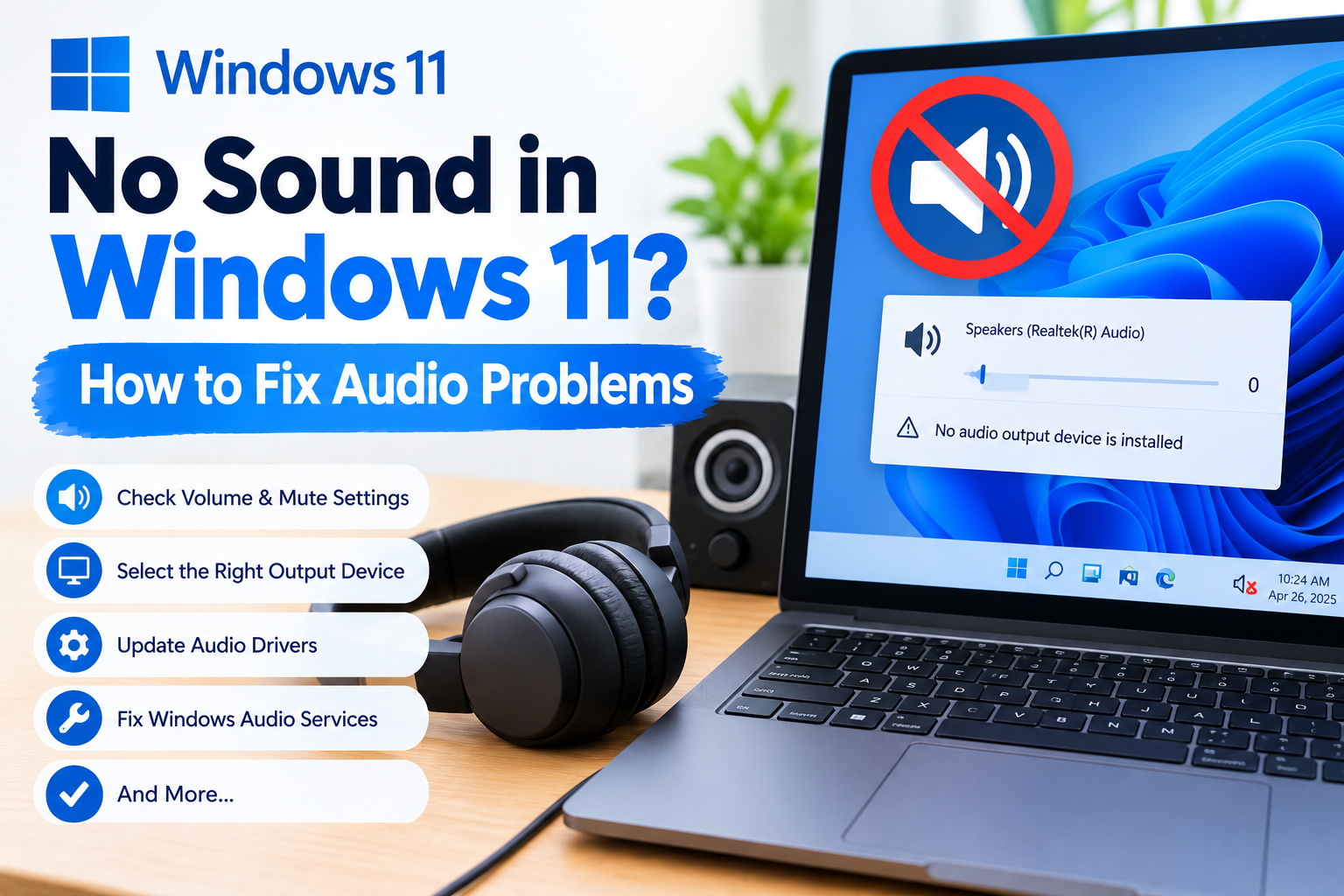
No Sound in Windows 11? How to Fix Audio Problems
Nothing is more frustrating than opening a video, joining a meeting, or playing music on your Windows 11 PC and hearing absolutely nothing.
The good news is that no sound in Windows 11 does not necessarily mean your speakers or headphones are broken. Audio problems can be caused by a muted volume setting, the wrong output device, disabled audio hardware, problematic audio enhancements, outdated drivers, Windows updates, or Windows audio services.
In many cases, you can restore your sound without replacing any hardware.
This guide walks through the most effective solutions, starting with quick checks and gradually moving toward driver and system-level troubleshooting.
Why Is There No Sound in Windows 11?
Windows 11 can lose audio for several different reasons. The most common include:
- The wrong speaker or headphone output is selected.
- Windows volume is muted or turned down.
- Your headphones or speakers are disconnected.
- HDMI or USB audio is being used instead of your normal speakers.
- Audio enhancements are interfering with playback.
- The audio device has been disabled.
- The audio driver is outdated or corrupted.
- A recent Windows update caused an audio compatibility problem.
- Windows Audio services are not functioning correctly.
- The audio device is missing from Device Manager.
- The physical speakers, headphones, cable, or audio jack has failed.
Microsoft also notes that Windows may fail to detect an audio output device when its driver is missing, outdated, disabled, or not loading correctly.
Let’s go through the fixes in order.
1. Check the Volume and Mute Settings
Before changing drivers or Windows settings, start with the simplest possibility: your computer may simply be muted.
Look at the speaker icon on the Windows 11 taskbar.
Make sure:
- The volume isn’t muted.
- The volume slider is turned up.
- Your keyboard does not have a mute key enabled.
- Your speakers or headphones have their own volume controls turned up.
If you’re using external speakers, check their physical volume knob or buttons as well.
Some headphones also have a separate mute button that can disable sound even when Windows appears to be working normally.
Quick test
Play a YouTube video or another audio file while increasing the Windows volume.
If you see the volume indicator moving but hear nothing, continue to the next step.
2. Make Sure Windows 11 Is Using the Correct Audio Output
One of the most common causes of no sound in Windows 11 is that Windows is sending audio to the wrong device.
For example, you may have:
- Laptop speakers
- Bluetooth headphones
- Wired headphones
- USB speakers
- A monitor connected through HDMI
- A USB headset
Windows can switch between these devices automatically or after you connect something new.
How to select the correct output
- Open Settings.
- Select System.
- Select Sound.
- Look under Output.
- Select the speakers or headphones you actually want to use.
You can also select the speaker icon on the taskbar and open the available output devices.
For example, if your monitor is connected through HDMI, Windows may be sending sound to the monitor rather than your laptop speakers.
Microsoft specifically recommends checking the selected output device when sound isn’t playing.
If you’re using HDMI
Check whether your monitor or TV is selected as the audio output.
If the display does not have built-in speakers, Windows can technically send audio to it while you hear nothing.
3. Disconnect and Reconnect Your Speakers or Headphones
If you’re using wired headphones or external speakers, check the physical connection.
Disconnect the device and reconnect it securely.
If possible:
- Try another headphone jack.
- Try another USB port.
- Check the cable for visible damage.
- Test another pair of headphones.
- Test your headphones on another device.
If another pair of headphones works, the original headphones or cable may be the problem.
For USB audio devices, also avoid connecting through a problematic USB hub while troubleshooting.
4. Restart Your Windows 11 PC
A simple restart can fix temporary Windows audio problems.
Restarting can reload:
- Audio drivers
- Windows Audio services
- Connected audio devices
- USB audio devices
- System components
Go to:
Start → Power → Restart
After restarting, test the audio again.
Microsoft includes restarting the PC among its recommended solutions when Windows does not detect an audio output device.
If the sound suddenly works after restarting, the problem may have been temporary.
If it disappears again later, continue troubleshooting to identify the underlying cause.
5. Run the Windows 11 Audio Troubleshooter
Windows 11 includes automated troubleshooting through the Get Help app.
This is one of the easiest solutions to try because Windows can perform diagnostic checks automatically.
How to run the audio troubleshooter
- Open Start.
- Search for Get Help.
- Open the app.
- Search for audio troubleshooter.
- Follow the instructions.
- Allow Windows to run its diagnostics.
- Apply any recommended fixes.
- Test your audio.
Microsoft currently recommends starting with the automated Audio troubleshooter in the Get Help app for Windows 11 audio problems.
The troubleshooter may identify problems involving your audio configuration, output device, or other Windows settings.
6. Turn Off Audio Enhancements
Audio enhancements can sometimes cause sound problems instead of improving your audio.
If your speakers suddenly stopped working, disabling enhancements is worth trying.
How to disable audio enhancements
- Open Settings.
- Select System.
- Select Sound.
- Select your current output device.
- Find Audio enhancements.
- Set the option to Off.
- Play some audio again.
Microsoft specifically recommends disabling audio enhancements when troubleshooting sound problems because they can interfere with audio playback.
If turning them off fixes the problem, you can leave them disabled.
7. Check Whether Your Audio Device Is Disabled
Windows may recognize your sound hardware but have it disabled.
You can check this through Windows Settings and Device Manager.
Check Sound settings
Go to:
Settings → System → Sound
Look under the output devices.
If your expected speakers or headphones are missing, move on to Device Manager.
Check Device Manager
- Open Start.
- Search for Device Manager.
- Open it.
- Expand Sound, video and game controllers.
- Look for your audio device.
If the device is disabled, right-click it and select Enable device, when available.
If the audio device doesn’t appear, select:
View → Show hidden devices
Then select:
Action → Scan for hardware changes
Microsoft recommends these Device Manager checks when an audio output device is missing or undetected.
8. Update Your Audio Driver
An outdated, incompatible, or malfunctioning audio driver can cause Windows 11 sound problems.
Drivers allow Windows to communicate properly with your sound hardware.
Update the audio driver through Device Manager
- Open Device Manager.
- Expand Sound, video and game controllers.
- Right-click your audio device.
- Select Update driver.
- Select Search automatically for drivers.
- Follow the instructions.
- Restart your PC.
After restarting, test the sound.
If Windows says the best driver is already installed but your sound still doesn’t work, don’t assume the driver is definitely fine.
Your computer manufacturer may provide a newer or more compatible driver.
For example, laptop manufacturers often provide customized audio drivers for specific models.
Microsoft recommends getting the latest audio driver from the device manufacturer when Windows cannot find an appropriate updated driver.
9. Uninstall and Reinstall the Audio Driver
If updating the driver doesn’t work, reinstalling it can resolve corrupted driver problems.
How to reinstall the audio driver
- Open Device Manager.
- Expand Sound, video and game controllers.
- Right-click your audio device.
- Select Uninstall device.
- Follow the prompts.
- Restart your computer.
After restarting, Windows can reinstall the audio driver automatically in many situations.
Microsoft specifically recommends uninstalling the audio device and restarting the PC when updating the driver doesn’t solve the problem.
Important
Before uninstalling a driver, save your work and close important applications.
If Windows does not reinstall the appropriate driver after restarting, download the correct driver from your PC, motherboard, or sound-device manufacturer’s official support website.
Avoid downloading random driver packages from unknown websites.
10. Roll Back the Audio Driver After a Windows Update
Did your sound stop working immediately after installing a Windows update?
If so, the update may have introduced an audio-driver compatibility problem.
In this situation, rolling back the driver can sometimes restore your previous working configuration.
How to roll back an audio driver
- Open Device Manager.
- Expand Sound, video and game controllers.
- Right-click your audio device.
- Select Properties.
- Open the Driver tab.
- Select Roll Back Driver, if available.
- Follow the instructions.
- Restart your PC.
Microsoft recommends considering a driver rollback when audio problems begin after a Windows update.
The Roll Back Driver option may be unavailable if Windows does not have a previous driver available.
11. Restart Windows Audio Services
Windows relies on background services to handle audio.
If these services stop working correctly, your speakers and headphones may suddenly stop producing sound.
You can restart the relevant services manually.
Restart Windows Audio
- Press Windows + R.
- Type:
services.msc
- Press Enter.
- Find Windows Audio.
- Right-click it.
- Select Restart.
- Find Windows Audio Endpoint Builder.
- Right-click it.
- Select Restart.
- Test your audio.
Microsoft lists restarting Windows Audio and Windows Audio Endpoint Builder as a troubleshooting step for Windows audio problems.
If these services repeatedly stop, there may be a deeper Windows, driver, or system configuration problem.
12. Install Pending Windows Updates
If your Windows 11 installation is missing important updates, installing available updates may resolve known compatibility or driver problems.
Go to:
Settings → Windows Update
Then select:
Check for updates
Install available updates and restart the computer.
This is especially important if your audio problem started after a major Windows update.
Microsoft recommends installing pending Windows updates when troubleshooting audio problems that occur after Windows updates.
13. Check the Default Audio Device
Windows can have multiple playback devices available.
If the wrong device is configured as the default, applications may send sound somewhere you aren’t expecting.
Set your preferred playback device
- Open Settings.
- Select System.
- Select Sound.
- Select More sound settings.
- Open the Playback tab.
- Select your preferred audio device.
- Set it as the default device when the option is available.
This is particularly useful if you frequently switch between:
- Laptop speakers
- Headphones
- HDMI monitors
- TVs
- Bluetooth speakers
- USB headsets
Microsoft recommends checking the default playback device when Windows has no audible output.
14. Try a Different Audio Format
If you aren’t completely without sound but instead experience distorted, crackling, or unreliable audio, the selected audio format may be contributing to the problem.
Windows allows you to change the default audio format.
Go to:
Settings → System → Sound → Your output device → Advanced
Look for the Default format setting.
Try another available format and test the audio.
Microsoft includes changing the default audio format among its troubleshooting steps for distorted or crackling audio.
You don’t need to change this setting if your audio is working normally.
15. What to Do If Windows Says “No Audio Output Device Is Installed”
This message usually means Windows isn’t properly detecting the audio hardware.
Possible causes include:
- Missing audio driver
- Disabled audio device
- Corrupted driver
- Failed hardware
- Recent Windows update
- Device configuration problem
Start with Device Manager.
Step 1: Open Device Manager
Search for:
Device Manager
Then expand:
Sound, video and game controllers
Step 2: Look for your audio device
If it appears, make sure it is enabled.
Step 3: Show hidden devices
Select:
View → Show hidden devices
Step 4: Scan for hardware
Select:
Action → Scan for hardware changes
Step 5: Install the manufacturer’s driver
If Windows still doesn’t recognize the device, download the appropriate audio driver from your PC or motherboard manufacturer’s official support page.
These are among Microsoft’s recommended solutions for missing or undetected audio output devices.
16. What If Headphones Work but Speakers Don’t?
If headphones produce sound but the built-in speakers don’t, the problem is more likely related to the speaker output configuration, speaker hardware, or the audio driver.
Try these steps:
- Disconnect the headphones.
- Open Settings → System → Sound.
- Select the internal speakers.
- Make sure they aren’t muted.
- Set them as the output device.
- Disable audio enhancements.
- Update the audio driver.
- Restart Windows.
If external headphones work normally but the internal speakers remain silent, hardware failure is also possible.
17. What If Bluetooth Headphones Are Connected but Have No Sound?
Bluetooth headphones can be connected to Windows without necessarily being selected as the current playback device.
Check:
Settings → System → Sound
Then select your Bluetooth headphones under Output.
If they’re connected but still silent:
- Disconnect and reconnect them.
- Check the Windows volume.
- Confirm they’re selected as the output device.
- Restart the PC.
- Remove and pair the Bluetooth device again.
- Check for driver updates.
Also make sure Windows isn’t sending audio to your laptop speakers or another connected monitor.
18. What If Sound Works in Windows but Not in One App?
If system sounds work but one particular application has no sound, the problem may be specific to that application rather than your Windows audio system.
Check:
- The application’s own volume settings.
- Windows Volume Mixer settings.
- The application’s selected output device.
- Whether the application is muted.
- Whether restarting the application fixes the problem.
For example, if YouTube has sound but one desktop application doesn’t, reinstalling your entire audio driver may not be necessary.
Start by checking that application’s audio settings.
19. What If Sound Is Distorted or Crackling?
If you hear sound but it is distorted, crackling, popping, or poor quality, try these solutions:
First, disable audio enhancements
Go to:
Settings → System → Sound → Output device → Audio enhancements
Turn enhancements off.
Next, change the audio format
Go to the advanced audio settings and try another available default format.
Then update the audio driver
Open Device Manager and update your audio device driver.
Finally, restart Windows Audio services
Restart:
- Windows Audio
- Windows Audio Endpoint Builder
Microsoft identifies audio enhancements, audio formats, drivers, and Windows audio services as potential causes of distorted or crackling audio.
20. What If Nothing Works?
If you’ve tried all of the above and Windows 11 still has no sound, the problem may be more serious.
At this stage, investigate whether:
- Your audio device appears in Device Manager.
- Your speakers work on another computer.
- Your headphones work on another device.
- Another audio output works on your PC.
- The problem began immediately after an update.
- Your PC manufacturer has a newer audio driver.
- Your motherboard or sound card has a hardware problem.
If Windows cannot detect the audio hardware at all, software troubleshooting may eventually reach its limit.
A hardware diagnostic may be necessary.
Quick Fix Checklist for No Sound in Windows 11
Before moving into advanced troubleshooting, run through this checklist:
☐ Check Windows volume
☐ Make sure mute is turned off
☐ Select the correct audio output
☐ Disconnect and reconnect headphones
☐ Check speaker cables
☐ Try another USB port
☐ Restart Windows 11
☐ Run the Get Help audio troubleshooter
☐ Turn off audio enhancements
☐ Check Device Manager
☐ Enable the audio device
☐ Update the audio driver
☐ Reinstall the audio driver
☐ Roll back the driver if the problem began after an update
☐ Restart Windows Audio services
☐ Install pending Windows updates
☐ Check the default playback device
☐ Try another audio format
☐ Test the speakers or headphones on another device
Frequently Asked Questions
Why is there no sound on my Windows 11 PC?
The most common causes include the wrong output device, muted volume, disabled audio hardware, driver problems, audio enhancements, Windows updates, or Windows audio service issues.
Start by checking Settings → System → Sound and confirming that the correct output device is selected.
How do I fix no sound in Windows 11?
Start with the basic checks: verify volume, select the correct output device, reconnect your speakers or headphones, and restart Windows.
If that doesn’t work, run the Get Help audio troubleshooter, disable audio enhancements, check Device Manager, and update or reinstall your audio driver.
Why does Windows 11 say “No audio output device is installed”?
This can happen when Windows cannot detect the audio hardware or when its driver is missing, outdated, disabled, or corrupted.
Check Device Manager under Sound, video and game controllers, show hidden devices, and scan for hardware changes.
Why did my sound stop working after a Windows 11 update?
A Windows update can sometimes result in an incompatible or partially functioning audio driver.
Install pending updates, update the audio driver, and if the problem began immediately after an update, check whether the Roll Back Driver option is available.
Why do my headphones work but my speakers don’t?
Windows may be using your headphones as the current output device, or the internal speakers may be disabled or affected by a driver problem.
Disconnect the headphones and manually select your internal speakers under Settings → System → Sound.
Why is my Windows 11 audio crackling?
Crackling can be caused by audio enhancements, incompatible audio formats, driver problems, or Windows audio services.
Try disabling audio enhancements, changing the default audio format, updating the audio driver, and restarting Windows Audio services.
Should I reinstall Windows if my audio isn’t working?
Usually, no.
Audio problems should first be investigated through sound settings, output devices, the Get Help troubleshooter, Device Manager, audio drivers, Windows Audio services, and Windows Update.
Reinstalling Windows should generally be considered only after less disruptive troubleshooting options have failed.
Final Thoughts
When you have no sound in Windows 11, don’t immediately assume that your speakers are broken.
Start with the simple possibilities: check the volume, verify the correct output device, reconnect your headphones or speakers, and restart your computer.
If those steps don’t work, move deeper into Windows troubleshooting. The most important areas to investigate are audio settings, audio enhancements, Device Manager, audio drivers, Windows Audio services, and recent Windows updates.
For many users, the solution is simply selecting the correct output device or reinstalling a problematic audio driver. Microsoft also recommends using the Windows 11 Get Help audio troubleshooter as an early troubleshooting step.
Work through the fixes in order rather than changing many settings at once. That makes it easier to identify what actually solved the problem—and reduces the chance of creating another configuration issue.
SEO Quality Audit
Primary keyword: No sound in Windows 11
Search intent: Informational + troubleshooting
Keyword coverage: Strong coverage of Windows 11 audio, sound, speakers, headphones, drivers, output devices, and related troubleshooting searches.
Content depth: Covers basic, intermediate, and advanced troubleshooting.
User experience: Solutions progress from quick, low-risk checks toward driver and system-level fixes.
Content gap opportunities covered:
- No audio output device
- Wrong output device
- Headphones vs. speakers
- Bluetooth audio
- HDMI audio
- Audio after Windows Update
- Audio driver rollback
- Audio enhancements
- Audio services
- Distorted/crackling audio
- Single-app audio problems
E-E-A-T improvement: Troubleshooting recommendations are aligned with current Microsoft Support guidance rather than relying on generic third-party driver advice.
SEO verdict: Ready for publication after adding your site’s internal links, author information, and a relevant featured image.