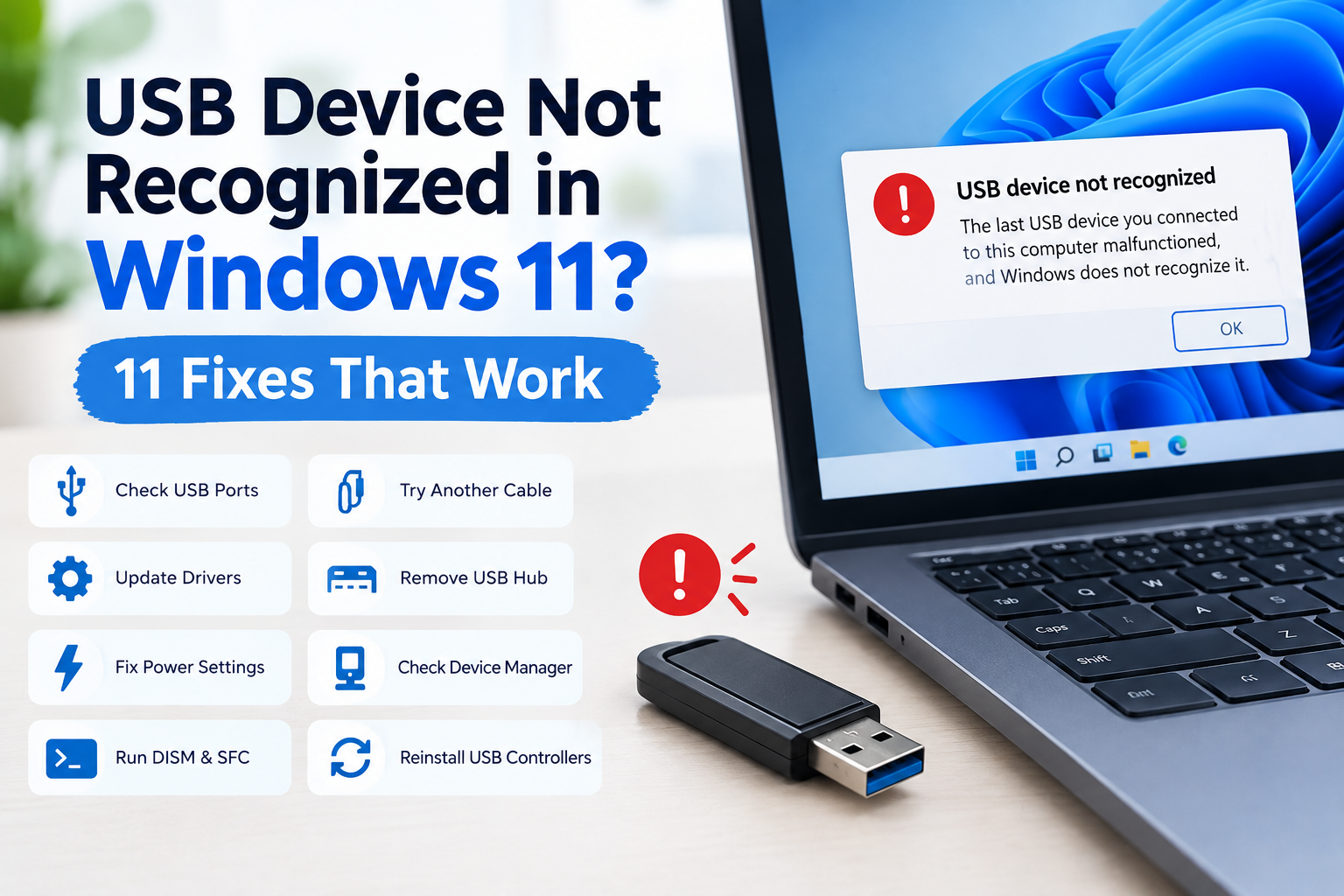
USB Device Not Recognized in Windows 11? Here’s How to Fix It
Connecting a USB device to your Windows 11 PC should normally be effortless. You plug it in, Windows detects it, and the device is ready to use.
But sometimes Windows displays an error such as “USB device not recognized,” “Unknown USB Device,” or the device simply doesn’t appear.
This can happen with almost any USB hardware, including:
- USB flash drives
- External hard drives
- External SSDs
- USB keyboards
- USB mice
- Printers
- Game controllers
- Smartphones
- Cameras
- USB-C devices
- USB Wi-Fi adapters
The good news is that a USB recognition problem doesn’t necessarily mean the device is broken.
The problem could be caused by a bad USB port, damaged cable, outdated driver, USB controller problem, power-management setting, Windows configuration issue, or corrupted system files.
In this guide, we’ll go through 11 ways to fix a USB device that isn’t recognized in Windows 11, beginning with simple hardware checks and gradually moving toward more advanced solutions.
Why Is My USB Device Not Recognized in Windows 11?
There isn’t one single cause of USB detection problems.
Windows needs several components to work together before a USB device becomes usable. The physical port needs to provide a proper connection and power, Windows needs to detect the hardware, and the appropriate drivers and system components need to communicate with it.
Common causes include:
- Faulty USB ports
- Damaged USB cables
- Loose connections
- Defective USB hubs
- Insufficient power
- Outdated or corrupted drivers
- USB controller problems
- Power-management conflicts
- Windows system-file corruption
- Problems with the USB device itself
Microsoft’s own troubleshooting guidance recommends beginning with hardware checks such as reconnecting the device, trying another USB port, checking cables, bypassing USB hubs, and testing the device on another computer.
That means you shouldn’t immediately jump into complicated Windows repairs.
Start with the simple checks below.
11 Ways to Fix a USB Device Not Recognized in Windows 11
1. Unplug the USB Device and Restart Windows 11
The first solution is also one of the easiest.
Sometimes Windows temporarily fails to initialize a USB device correctly. Disconnecting it and restarting your computer can clear a temporary driver or hardware state.
Try these steps:
- Disconnect the USB device.
- Save your work and close open applications.
- Restart your Windows 11 PC.
- Wait until Windows finishes loading.
- Connect the USB device again.
- Give Windows several seconds to detect it.
If the device works after the restart, the problem may have been temporary.
Microsoft also recommends disconnecting and reconnecting USB devices as an initial troubleshooting step.
If it still doesn’t work
Don’t keep restarting repeatedly. Move on to the next fix.
2. Try a Different USB Port
A defective USB port can make a working device appear to be broken.
If your computer has several USB ports, test the device in each one.
For a desktop computer, you can also try a USB port directly on the back of the PC rather than a front-panel port.
For a laptop, try the other available USB ports.
Here’s an easy test:
USB port 1: Not recognized
USB port 2: Not recognized
USB port 3: Works
If the device works in one port but not another, the USB device itself is probably fine.
The problematic port could have a physical, electrical, or configuration problem.
Microsoft specifically recommends trying another USB port when troubleshooting USB-connected devices.
3. Disconnect the USB Hub
Are you connecting your device through a USB hub?
For example:
USB device → USB hub → computer
Try removing the hub and connecting the device directly:
USB device → computer
USB hubs can introduce additional problems, particularly if the hub doesn’t have enough power or isn’t functioning correctly.
Microsoft recommends removing an intermediate USB hub and connecting the device directly to the PC when troubleshooting USB problems.
This is especially important for devices that require more power, such as external hard drives.
If the device works without the hub
The problem may be with:
- The hub
- The hub’s power supply
- The hub’s cable
- Too many connected devices
- The hub’s drivers
4. Check the USB Cable
A damaged USB cable is another common reason for a device not being recognized.
USB cables can fail internally even when they look perfectly normal.
If your device uses a removable cable, try another compatible cable.
This is particularly useful for:
- External hard drives
- External SSDs
- Phones
- Cameras
- Printers
- Game controllers
Important USB-C warning
Not all USB-C cables provide the same capabilities.
Some USB-C cables may support charging but provide limited or no data functionality.
So if you’re troubleshooting a phone, storage device, or other data device, make sure the replacement cable supports data transfer.
If a known-good cable makes the device work, you’ve found the cause.
5. Test the USB Device on Another Computer
This is one of the most valuable troubleshooting steps.
Take the USB device and connect it to another computer.
The result can immediately tell you where to concentrate your troubleshooting.
If the USB device works on another PC
The device is probably functioning correctly.
The problem is more likely related to your Windows 11 computer.
Focus on:
- Drivers
- USB controllers
- Power settings
- Windows configuration
- System files
If the device doesn’t work on another computer
The problem may be with:
- The USB device
- Its cable
- Its power adapter
- Its hardware
Microsoft recommends testing a device on another PC when determining whether the device itself is working correctly.
This simple test can save you from spending hours changing Windows settings when the actual problem is a defective device.
6. Check Device Manager
If your USB device still isn’t recognized, Windows Device Manager should be your next stop.
Device Manager lets you see hardware detected by Windows and can reveal driver errors.
Open Device Manager
Press:
Windows + X → Device Manager
You can also search for Device Manager from the Start menu.
Look for categories such as:
- Universal Serial Bus controllers
- Disk drives
- Portable Devices
- Other devices
- Human Interface Devices
Look for a device with:
- A yellow warning icon
- An exclamation mark
- The name “Unknown Device”
- An error message
Right-click the affected device and select Properties.
Then check Device status.
Windows may display an error code that gives you additional information about the problem.
Microsoft recommends checking Device Manager for hardware errors and using options such as updating or uninstalling problematic drivers.
7. Update the USB Driver
A corrupted, outdated, or incompatible driver can prevent Windows 11 from communicating properly with a USB device.
Start by checking Windows Update.
Check Windows Update
Go to:
Start → Settings → Windows Update
Then select:
Check for updates
Also check:
Advanced options → Optional updates
If Windows provides a relevant driver update, install it and restart your computer.
You can also update drivers through Device Manager.
Using Device Manager
- Open Device Manager.
- Find the problematic device.
- Right-click it.
- Select Update driver.
- Follow the instructions.
If Windows doesn’t find a suitable driver, check the official support website for your:
- Laptop manufacturer
- Desktop manufacturer
- Motherboard manufacturer
- USB-device manufacturer
Microsoft recommends using Windows Update for recommended drivers and Device Manager or the hardware manufacturer’s website when appropriate.
Avoid random driver websites
Don’t download USB drivers from suspicious websites simply because they advertise “one-click driver updates.”
Use Windows Update or the official manufacturer’s website whenever possible.
8. Uninstall and Reinstall the USB Driver
If updating the driver doesn’t solve the problem, the existing driver installation may be corrupted.
Windows can reinstall a device driver after you remove the device and restart or scan for hardware changes.
Here’s how:
- Open Device Manager.
- Locate the problematic USB device.
- Right-click it.
- Select Uninstall device.
- Confirm the action.
- Restart Windows.
You can also select Scan for hardware changes in Device Manager.
Microsoft documents uninstalling a problematic device and scanning for hardware changes as a way to reinstall drivers.
After Windows detects the hardware again, test your USB device.
What if the problem started after a driver update?
If the USB device stopped working immediately after a driver update, you may also have the option to Roll Back Driver in Device Manager.
That can be useful when a newer driver introduces compatibility problems.
9. Reinstall the USB Controllers
Sometimes the USB device isn’t the actual problem.
The issue may be with one of the USB controllers or hubs responsible for communicating with connected devices.
Open:
Device Manager → Universal Serial Bus controllers
You may see entries such as:
- USB Root Hub
- Generic USB Hub
- USB Host Controller
- USB Composite Device
If one of these components has an error, you may be able to uninstall the affected device and let Windows detect it again.
Basic process
- Open Device Manager.
- Expand Universal Serial Bus controllers.
- Identify the problematic controller or hub.
- Right-click it.
- Choose Uninstall device.
- Restart Windows.
Windows can reinstall the necessary driver during startup.
Be careful
Don’t randomly remove every device under USB controllers.
If you’re unsure which controller is causing the problem, make one change at a time and test the USB device after restarting.
10. Check USB Power Management
Windows 11 includes power-management features designed to reduce unnecessary power consumption.
In certain situations, USB power-management behavior can contribute to a device becoming unavailable or unresponsive.
This can be particularly noticeable with:
- External drives
- USB hubs
- Wireless USB receivers
- Devices that disconnect after the computer sleeps
Check the USB Root Hub
- Open Device Manager.
- Expand Universal Serial Bus controllers.
- Right-click a USB Root Hub.
- Select Properties.
- Look for the Power Management tab.
- Review the available power-saving options.
- Test the device after making a change.
Don’t change multiple power settings simultaneously.
If changing a power setting doesn’t solve the problem, restore the previous configuration.
What about USB selective suspend?
USB selective suspend is designed to reduce power consumption by allowing USB devices to enter a lower-power state.
It shouldn’t automatically be disabled on every Windows PC.
Instead, consider power-management changes as a troubleshooting step when other solutions haven’t worked.
11. Repair Corrupted Windows System Files
If you’ve tried the hardware and driver solutions and USB devices are still behaving strangely, corrupted Windows system files could be contributing to the problem.
Windows includes two built-in repair tools:
- DISM
- System File Checker (SFC)
Microsoft recommends running DISM before SFC when repairing corrupted Windows components.
Step 1: Open Command Prompt as administrator
Search for:
Command Prompt
Right-click it and select:
Run as administrator
Step 2: Run DISM
Enter:
DISM.exe /Online /Cleanup-image /RestorehealthPress Enter.
The process can take some time.
Wait for it to finish.
Step 3: Run System File Checker
After DISM completes, run:
sfc /scannowPress Enter.
Don’t close the Command Prompt window until the scan reaches 100%.
Microsoft states that SFC scans protected Windows system files and can replace corrupted files with cached copies.
Step 4: Restart your computer
After both commands finish, restart Windows and test the USB device again.
Bonus: Check Disk Management for USB Drives
If you’re troubleshooting a USB flash drive, external HDD, or external SSD, there’s another important distinction.
Sometimes Windows detects the storage device but doesn’t display it normally in File Explorer.
In that case, check Disk Management.
Open Disk Management
Right-click the Start button and select:
Disk Management
Look for your USB drive.
You may find that Windows recognizes the physical disk but the volume:
- Doesn’t have a drive letter
- Is offline
- Is unallocated
- Has another configuration problem
Be careful with formatting
If Windows asks you to format the USB drive, don’t immediately click Format if the drive contains important files.
Formatting can make existing data harder or impossible to recover.
If the drive contains valuable information, prioritize data recovery before performing destructive disk operations.
Microsoft provides Windows File Recovery for certain file-recovery situations involving local, external, and USB storage devices.
How to Fix “Unknown USB Device” in Windows 11
The “Unknown USB Device” message generally means Windows has detected something connected through USB but hasn’t successfully identified or initialized it.
Possible causes include:
- Bad cable
- Faulty port
- Driver problem
- USB controller issue
- Power problem
- Device firmware problem
- Hardware failure
Try these solutions in order:
- Disconnect the USB device.
- Restart your computer.
- Try another USB port.
- Remove the USB hub.
- Replace the USB cable.
- Test the device on another PC.
- Check Device Manager.
- Update the driver.
- Reinstall the driver.
- Check USB controllers and power settings.
- Run DISM and SFC.
This approach helps determine whether the problem is hardware or software.
What If a USB Flash Drive Is Not Showing in File Explorer?
If your USB flash drive isn’t visible in File Explorer, don’t automatically assume Windows can’t detect it.
Open Disk Management first.
If the drive appears there, Windows may recognize the physical device even though the volume isn’t accessible through File Explorer.
Possible reasons include:
- Missing drive letter
- Unallocated space
- Offline disk
- File-system problems
If the drive contains important data, avoid formatting or deleting partitions.
If it’s a new or empty drive, you can investigate its Disk Management status and configure it appropriately.
What If Only One USB Device Doesn’t Work?
If all your other USB devices work normally but one particular device doesn’t, the problem is likely isolated to that device or its cable.
Try:
- Another USB cable
- Another USB port
- Another computer
- Direct connection instead of a USB hub
- The manufacturer’s official driver
- The manufacturer’s troubleshooting instructions
If the same device fails on multiple computers, hardware failure becomes much more likely.
What If All USB Devices Stop Working?
If your keyboard, mouse, flash drives, and other USB devices suddenly stop working, the problem is more likely to be associated with the PC rather than one particular USB device.
Possible causes include:
- USB controller problems
- Chipset-driver problems
- Windows driver corruption
- Power-management issues
- System-file corruption
- Motherboard or USB-port hardware problems
Start with:
- Restarting Windows.
- Trying different USB ports.
- Checking Device Manager.
- Checking USB controllers.
- Installing Windows updates.
- Updating chipset/system drivers.
- Running DISM and SFC.
If all USB ports remain unusable with multiple known-good devices, hardware diagnostics may be necessary.
How to Tell Whether the USB Device Is Actually Broken
One of the easiest ways to determine whether your USB device has failed is to test it on another computer.
Scenario 1: It works on another computer
Your USB device is probably okay.
Investigate your Windows 11 PC.
Scenario 2: It doesn’t work anywhere
The USB device or cable may be defective.
Scenario 3: It works only with a different cable
Replace the original cable.
Scenario 4: It works in one USB port but not another
The problematic USB port may be the cause.
Scenario 5: Multiple USB devices fail on the same PC
Investigate the computer’s USB controllers, drivers, power settings, and hardware.
This simple diagnostic process can prevent unnecessary Windows reinstalls.
When Should You Suspect Hardware Failure?
Software troubleshooting can’t fix physically damaged hardware.
Hardware failure becomes more likely when:
- The USB device isn’t recognized on multiple computers.
- Multiple cables don’t work.
- The connector is physically damaged.
- The USB port is loose.
- The device repeatedly disconnects.
- The device gets unusually hot.
- An external hard drive makes unusual noises.
- Multiple USB ports on the computer have stopped working.
If the USB device contains important data, avoid repeatedly reconnecting a failing storage device.
The more important the data is, the more carefully you should approach recovery rather than immediately formatting or initializing the drive.
Should You Reset or Reinstall Windows 11?
Usually, no.
A USB recognition problem alone isn’t a good reason to immediately reset your PC.
You should first try:
- Another USB port
- Another cable
- Removing USB hubs
- Testing another computer
- Device Manager
- Driver updates
- Driver reinstallation
- USB controller troubleshooting
- Power-management checks
- DISM
- SFC
If Windows itself has broader problems, Windows 11 also provides a recovery option called Fix problems using Windows Update.
Microsoft says this option can reinstall the current version of Windows while repairing system files and components and preserving apps, files, and settings.
That makes it a much more targeted option than immediately performing a clean installation.
Quick USB Troubleshooting Checklist
If you want the fastest possible troubleshooting path, work through this list:
Hardware
- Restart your computer
- Disconnect and reconnect the USB device
- Try another USB port
- Try another USB cable
- Remove the USB hub
- Test the device on another computer
Drivers
- Open Device Manager
- Look for yellow warning icons
- Update the USB/device driver
- Uninstall and reinstall the driver
- Check USB controllers
Windows
- Install available Windows updates
- Review USB power-management settings
- Run DISM
- Run SFC
Storage devices
- Check Disk Management
- Look for a missing drive letter
- Don’t format a drive containing important data
Hardware
- Test multiple USB devices
- Test multiple USB ports
- Consider hardware failure if the device fails everywhere
Frequently Asked Questions
Why is my USB device not recognized in Windows 11?
The most common possibilities include a bad USB port, damaged cable, driver problem, USB controller issue, power-management problem, or faulty USB device.
Start by trying another USB port and cable and testing the device on another computer.
How do I reset a USB port in Windows 11?
You can use Device Manager to uninstall a problematic USB controller or hub and then restart Windows. Windows can detect and reinstall the required hardware components.
How do I update USB drivers in Windows 11?
Open Settings → Windows Update → Advanced options → Optional updates and check for available driver updates.
You can also update the relevant device through Device Manager.
Why does my USB drive appear in Device Manager but not File Explorer?
Windows may recognize the physical device while the storage volume has a missing drive letter or another disk-management problem.
Check Disk Management.
Don’t format the drive if it contains important data.
Why does Windows say “Unknown USB Device”?
Windows has detected a USB connection but hasn’t successfully identified or initialized the device.
Try another port, cable, computer, and then investigate drivers and USB controllers.
Can a bad USB cable cause Windows 11 to stop recognizing a device?
Yes. A damaged or incompatible cable can prevent the required data connection from being established.
Testing a known-good cable is one of the easiest troubleshooting steps.
Should I disable USB power management?
Not necessarily.
Power-management features are designed to reduce energy consumption. If you’re troubleshooting a persistent USB problem, you can test relevant power settings, but disabling them shouldn’t be treated as a universal fix.
Can corrupted Windows files cause USB problems?
Corrupted Windows components can cause broader operating-system problems. If other troubleshooting methods fail, Microsoft’s DISM and SFC tools can check and repair certain Windows system-file problems.
Final Thoughts
When a USB device is not recognized in Windows 11, don’t assume that the device has failed.
The problem could be something as simple as a damaged cable, faulty USB port, USB hub, or temporary Windows issue.
The best approach is to troubleshoot systematically.
Start with the physical connection. Try another USB port and cable, remove any USB hub, and test the device on another computer. If the hardware works elsewhere, focus on Windows 11 by checking Device Manager, updating or reinstalling drivers, examining USB controllers, and reviewing power-management settings.
For persistent problems, DISM and SFC can help repair corrupted Windows components.
And if you’re troubleshooting a USB storage device, remember that “not showing in File Explorer” and “not recognized by Windows” aren’t always the same problem. Disk Management can reveal whether Windows sees the physical drive even when it isn’t accessible normally.
Most importantly, don’t format a USB drive simply because Windows doesn’t recognize it if the drive contains important files.
With a methodical approach, you can usually determine whether the problem is caused by the USB device, cable, port, driver, Windows, or hardware—and fix the problem without reinstalling Windows unnecessarily.