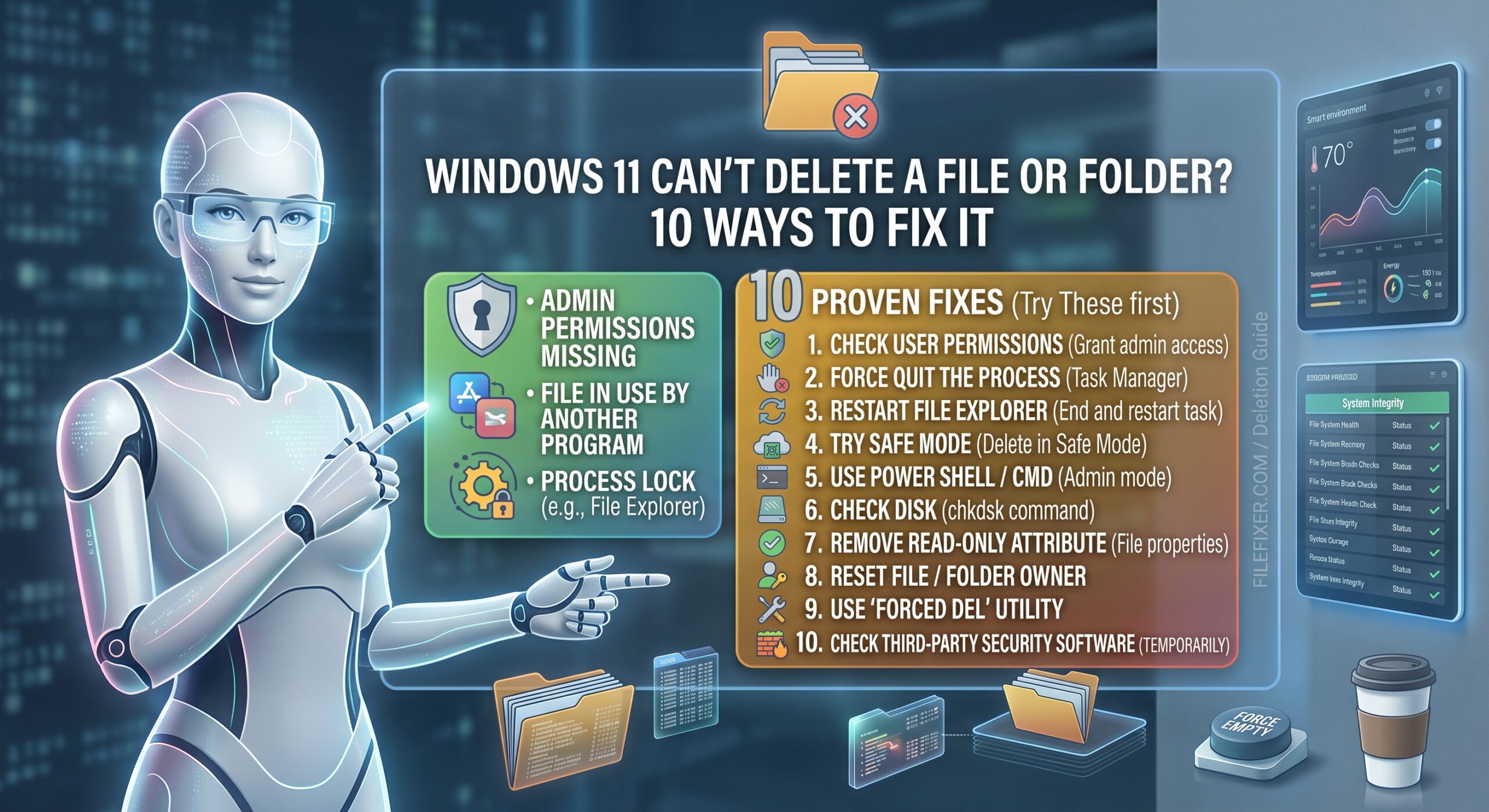
Windows 11 Can’t Delete a File or Folder? 10 Ways to Fix It
Trying to delete a file or folder in Windows 11 and getting “Access denied,” “File in use,” “You need permission,” or another error can be frustrating.
Sometimes the problem is simple: an application still has the file open. In other cases, Windows may be protecting the item because of permissions, ownership, system restrictions, or a problem with the file system.
The safest approach is to identify the reason Windows won’t delete the item before using force-delete commands.
This guide explains 10 ways to fix a file or folder that won’t delete in Windows 11, starting with the simplest solutions and progressing to more advanced methods.
Important: Do not use force-delete commands on Windows system folders, application folders, or other files unless you know exactly what you are deleting. Removing the wrong folder can make Windows or an application unusable.
Why Can’t I Delete a File or Folder in Windows 11?
Windows may refuse to delete a file or folder for several reasons.
Common causes include:
- The file is currently open.
- Another application is using the file.
- File Explorer has become stuck.
- You don’t have sufficient permissions.
- Your account doesn’t own the file or folder.
- The item has restrictive NTFS permissions.
- The file has a read-only attribute.
- A background process is using it.
- Antivirus or security software is accessing it.
- The file system has an error.
- The file or folder has an unusual or problematic name.
- The item is part of Windows or another protected application.
Microsoft’s documentation on NTFS deletion problems specifically notes that ownership and permissions can prevent files or folders from being deleted.
The correct solution depends on the error you’re seeing.
1. Close the Program Using the File
The first thing to try is also the safest.
If Windows says:
“The action can’t be completed because the file is open in another program.”
something is currently using that file.
Try this:
- Close the application that may be using the file.
- Close any File Explorer windows showing the folder.
- Wait a few seconds.
- Try deleting the file again.
For example, if you can’t delete a Word document, make sure Microsoft Word isn’t still using it.
The same applies to:
- Videos open in a media player
- Images open in an editor
- Documents open in Office applications
- ZIP files being accessed by an archive program
- Files being uploaded or synchronized
- Game files being used by a game launcher
A file generally cannot be deleted while an application has it open.
Also check background applications
Some applications continue running after you close their main window.
Look at the notification area near the clock and close applications that may still be accessing the file.
Then try deleting it again.
2. Restart Windows File Explorer
Sometimes the file itself isn’t the problem.
File Explorer may simply be stuck.
Restarting the Explorer process can resolve problems involving file and folder management.
How to restart File Explorer
- Press Ctrl + Shift + Esc.
- Open Task Manager.
- Find Windows Explorer in the process list.
- Right-click it.
- Select Restart.
Your desktop and taskbar may disappear briefly and then reload.
After Explorer restarts, navigate back to the file and try deleting it.
Microsoft recommends restarting the device and troubleshooting File Explorer when Explorer-related problems occur.
3. Restart Your PC
If you aren’t sure which application is using the file, restart Windows.
A restart closes many processes that could have a file open.
Do this:
- Save your work.
- Close your applications.
- Select Start.
- Select Power.
- Choose Restart.
After Windows starts again, immediately try deleting the file before opening the application that might have been using it.
Why this helps
A background process can sometimes maintain a file handle even after you close an application.
Restarting Windows clears those running processes.
If the file deletes normally after restarting, you probably don’t need to change permissions or use Command Prompt.
4. Check the File’s Properties and Permissions
If you see:
“You need permission to perform this action”
or
“Access denied”
the problem may involve file or folder permissions.
Windows uses permissions to control which users and accounts can access, modify, or delete files.
Check permissions
- Right-click the file or folder.
- Select Properties.
- Open the Security tab.
- Select your Windows account.
- Review the permissions.
You may see permissions such as:
- Full control
- Modify
- Read & execute
- Read
- Write
Don’t change permissions on Windows system folders simply because they show restricted access.
Some protected folders are intentionally configured that way.
Microsoft explains that NTFS ownership and permissions can prevent deletion and that taking ownership and granting appropriate permissions can resolve certain cases.
5. Take Ownership of the File or Folder
If the file came from:
- Another Windows installation
- Another user account
- An old hard drive
- A cloned drive
- A recovered disk
- A different computer
you may not be the current owner.
In that situation, Windows can deny deletion even when you’re an administrator.
Microsoft documents ownership as a factor in NTFS file and folder deletion problems.
Take ownership through File Explorer
- Right-click the file or folder.
- Select Properties.
- Open Security.
- Select Advanced.
- Look at the Owner field.
- Select Change next to the owner.
- Enter your Windows account name.
- Select Check Names.
- Confirm the account.
- Apply the change.
For a folder, Windows may provide an option to apply the ownership change to subfolders and files.
Important warning
Don’t take ownership of critical Windows directories just because you’re trying to delete one file.
Microsoft specifically cautions against casually changing permissions on folders that are part of the Windows operating system.
6. Use Command Prompt to Delete the File
If File Explorer refuses to delete the item, Command Prompt can sometimes succeed.
Delete a file
Open Command Prompt as administrator.
Then use:
del "C:\Path\To\File.txt"
Replace the path with the actual location.
For example:
del "C:\Users\YourName\Desktop\old-file.txt"
Delete a folder
For a folder and its contents, you can use:
rmdir /s /q "C:\Path\To\Folder"
or:
rd /s /q "C:\Path\To\Folder"
What the switches mean
/s removes the specified directory and its files and subdirectories.
/q uses quiet mode and suppresses confirmation prompts.
Be extremely careful with these commands.
Once executed against the wrong path, they can remove a large amount of data without giving you the normal Recycle Bin experience.
Always verify the path before pressing Enter.
7. Take Ownership and Grant Permissions From Command Prompt
If Command Prompt itself says Access is denied, permissions may be the underlying issue.
Microsoft documents icacls as a Windows command for displaying or modifying discretionary access control lists (DACLs). It supports Windows 11.
For a folder you legitimately own or need to recover access to, an administrator can use:
takeown /f "C:\Path\To\Folder" /r /d y
Then:
icacls "C:\Path\To\Folder" /grant Administrators:F /t
Then, if appropriate:
rmdir /s /q "C:\Path\To\Folder"
What these commands do
takeown changes ownership so the administrator can manage the item.
icacls modifies access-control permissions.
rmdir removes the directory and its contents.
Microsoft’s NTFS troubleshooting documentation explains that administrators may need to take ownership and modify permissions before a file or folder can be deleted.
Use this carefully
Do not run these commands against:
C:\Windows
C:\Windows\System32
C:\Program Files
C:\Program Files (x86)
or other important system/application directories merely because Windows won’t let you delete them.
Permissions exist for a reason.
8. Check Whether the File Is Read-Only
A read-only attribute can sometimes contribute to problems modifying files.
Check the file
- Right-click the file.
- Select Properties.
- Look under Attributes.
- Check whether Read-only is selected.
If appropriate, clear the Read-only attribute.
Select:
Apply > OK
Then try deleting the file again.
Command Prompt alternative
You can inspect and modify file attributes using the attrib command.
For example:
attrib "C:\Path\To\File.txt"
If appropriate, you can remove the read-only attribute with:
attrib -r "C:\Path\To\File.txt"
Then attempt the deletion again.
Don’t remove attributes from system files simply to force deletion.
9. Try Safe Mode
If a background application or third-party service keeps the file locked, Safe Mode can help determine whether normal startup software is involved.
Safe Mode starts Windows with a limited set of files and drivers.
Enter Safe Mode in Windows 11
A common route is:
Settings > System > Recovery > Advanced startup > Restart now
Windows then presents recovery options.
You can also access Windows Recovery Environment through other restart methods.
Microsoft’s recovery guidance recommends using the least disruptive recovery option first and notes that some recovery actions can result in data loss, so important files should be backed up before using more invasive recovery options.
Once in Safe Mode:
- Locate the file or folder.
- Try deleting it.
- Restart Windows normally afterward.
What does Safe Mode tell you?
If the file deletes successfully in Safe Mode but not during normal Windows operation, a startup application, service, driver, or security program may be involved.
That gives you a useful clue about the underlying problem.
10. Check Windows for File-System or System Problems
If files repeatedly refuse to delete, the problem may be broader than one stubborn file.
For example, you may also notice:
- File Explorer crashes
- Folders take unusually long to open
- Files disappear and reappear
- Copying files fails
- Moving files fails
- Windows reports disk errors
- The same drive repeatedly produces access errors
Microsoft’s File and Folder troubleshooting documentation covers problems involving deleting, moving, copying, and renaming files and folders.
Windows also provides built-in tools for checking and repairing system components.
Start with Windows troubleshooting
Microsoft currently recommends the Get Help app for available Windows troubleshooters.
Search Windows for:
Get Help
Then describe the file or folder problem and follow the available troubleshooting steps.
Consider Windows system-file repair
If File Explorer and other Windows components are also malfunctioning, Microsoft’s File Explorer troubleshooting guidance recommends checking for missing or corrupted system files.
For broader Windows problems, system repair tools such as System File Checker can be appropriate.
Don’t jump to a Windows reset simply because one file won’t delete.
Bonus: What If the File Name Is Strange or Corrupted?
Some stubborn files have unusual names or paths that cause normal File Explorer operations to fail.
You may encounter files with:
- Very long paths
- Unusual characters
- Trailing spaces or periods
- Broken-looking names
- Unexpected folder structures
In those situations, Command Prompt or another supported administrative tool can sometimes access the path differently from File Explorer.
Before using forceful commands, verify that the item is genuinely unwanted.
A strange filename doesn’t automatically mean the file is safe to delete.
What to Do Based on the Error Message
The error message can give you a strong clue.
| Error message | Likely area to investigate |
|---|---|
| “File is open in another program” | Close the application or background process |
| “Access denied” | Permissions or ownership |
| “You need permission” | Ownership/permissions |
| “You need administrator permission” | Elevation or protected location |
| “Item not found” | Explorer/path/name problem |
| Folder won’t delete | Locked contents, permissions, or filesystem issue |
| File keeps coming back | Synchronization, backup, or another application |
| Can’t delete from Recycle Bin | Recycle Bin or file-system issue |
| Delete works in Safe Mode | Startup software/process likely involved |
This approach is safer than immediately running a force-delete command.
How to Find the Full File Path
If you need to use Command Prompt, you need the correct path.
One simple method is:
- Open File Explorer.
- Navigate to the file.
- Right-click the file.
- Use Copy as path if available.
- Paste the path into Command Prompt.
It should look similar to:
"C:\Users\YourName\Downloads\old-file.zip"
Keep quotation marks around paths containing spaces.
For folders:
"C:\Users\YourName\Desktop\Old Folder"
Always verify the path before using del or rmdir.
Don’t Force-Delete Important Windows Folders
One of the biggest mistakes people make when searching for a solution to “Windows 11 can’t delete a folder” is assuming that every permission error should be bypassed.
That’s not true.
Windows deliberately restricts access to many locations.
Examples include:
C:\Windows
C:\Windows\System32
C:\Program Files
C:\Program Files (x86)
Applications can also protect their own files.
If Windows refuses to delete an important system or application component, first determine why it exists and whether it is safe to remove.
Microsoft’s security guidance specifically warns against changing permissions on Windows operating-system folders simply to gain access.
What If You Don’t Recognize the File?
Don’t delete it just because Windows makes it difficult to remove.
First investigate:
- What is the filename?
- What folder is it located in?
- Which application created it?
- Is it part of Windows?
- Is it associated with an installed program?
- Is it part of a backup or synchronization service?
- Does antivirus software identify it as suspicious?
If you believe a file is malware, don’t simply force-delete random components. Use your security software’s scanning and removal process.
What If the Folder Came From an Old Windows Installation?
This is a common situation after:
- Reinstalling Windows
- Upgrading Windows
- Replacing a hard drive
- Cloning a drive
- Moving a disk between computers
The old files may have ownership information associated with an older Windows installation or account.
In that situation, your current account may not have the required permissions.
Taking ownership and adjusting permissions can sometimes resolve the issue, provided the folder is genuinely no longer needed. Microsoft documents this ownership/permission scenario for NTFS volumes.
Before deleting an old Windows installation, make sure you don’t need:
- Personal files
- Application data
- Recovery files
- Backup files
- Files needed to recover an old configuration
Should You Use a Third-Party “Force Delete” Tool?
You generally shouldn’t start there.
Windows already provides several tools for dealing with difficult files:
- File Explorer
- Command Prompt
takeownicacls- Windows troubleshooting
- Safe Mode
- File-system and system repair tools
Using an unknown third-party utility to delete protected files can introduce another layer of risk.
If the problem is caused by ownership, permissions, a locked file, or a Windows component, fixing the underlying issue is generally more informative than installing another utility.
Windows 11 Can’t Delete a File or Folder: Quick Fix Order
If you want the shortest troubleshooting path, follow this order:
Step 1: Close the application
Make sure the file isn’t open.
Step 2: Restart File Explorer
Use Task Manager to restart Windows Explorer.
Step 3: Restart Windows
Try the deletion immediately after rebooting.
Step 4: Check permissions
Look at the Security tab under Properties.
Step 5: Take ownership
Only if you legitimately need access to the file or folder.
Step 6: Try Command Prompt
Use del for files or rmdir for folders.
Step 7: Modify permissions if necessary
Use icacls carefully.
Step 8: Try Safe Mode
Useful when another startup process is locking the file.
Step 9: Troubleshoot Windows
Use Get Help and investigate broader File Explorer or file-system problems.
Step 10: Investigate the drive
If many files behave strangely, look beyond the individual file.
Frequently Asked Questions
Why can’t I delete a file in Windows 11?
The file may be open, locked by another process, protected by permissions, owned by another account, marked with restrictive attributes, or affected by a file-system problem.
How do I force delete a file in Windows 11?
You can use Command Prompt with:
del "C:\Path\To\File"
But first make sure the file is genuinely safe to remove.
How do I force delete a folder in Windows 11?
For a folder and its contents, an administrator can use:
rmdir /s /q "C:\Path\To\Folder"
Verify the path carefully because this can remove the folder and its contents without normal confirmation.
Why does Windows say I need permission to delete a file?
Your account may not have the required permissions, or another account may own the file. Microsoft documents ownership and NTFS permissions as potential causes of deletion failures.
Does being an administrator mean I can delete every file?
No. Administrator status does not automatically mean every protected file can or should be modified. Ownership, access-control permissions, and Windows protection mechanisms can still apply.
Why won’t Windows 11 let me delete a folder?
The folder may contain a file currently in use, have restrictive permissions, be owned by another account, or be associated with a protected application or Windows component.
Can Safe Mode help delete a locked file?
It can help when a normal startup application or service is holding the file open. If the file still cannot be deleted in Safe Mode, permissions or file-system issues may be more relevant.
Should I change ownership of a Windows system folder?
Generally, no. Don’t change ownership simply to bypass Windows protection. Microsoft specifically cautions against changing permissions on operating-system folders unnecessarily.
Final Takeaway
When Windows 11 can’t delete a file or folder, the safest solution is to determine what’s preventing the deletion instead of immediately trying to force it.
Start by closing applications, restarting File Explorer, and restarting Windows. If the error says Access denied or that you need permission, investigate ownership and NTFS permissions. Microsoft documents ownership and permissions as legitimate causes of deletion failures on NTFS volumes.
For files you legitimately own or need to remove, Command Prompt, takeown, and icacls can provide additional control. Microsoft’s documentation confirms that icacls can display and modify file and folder access-control lists on Windows 11.
If the file appears to be locked by a background process, Safe Mode can help isolate the cause. If you’re seeing deletion, copying, moving, and renaming problems across multiple files, investigate the broader Windows or file-system problem instead of treating every file as an isolated issue.
Most importantly, don’t bypass Windows permissions just because a file won’t delete. Verify what the file is, why it exists, and whether removing it is safe before using administrative commands.