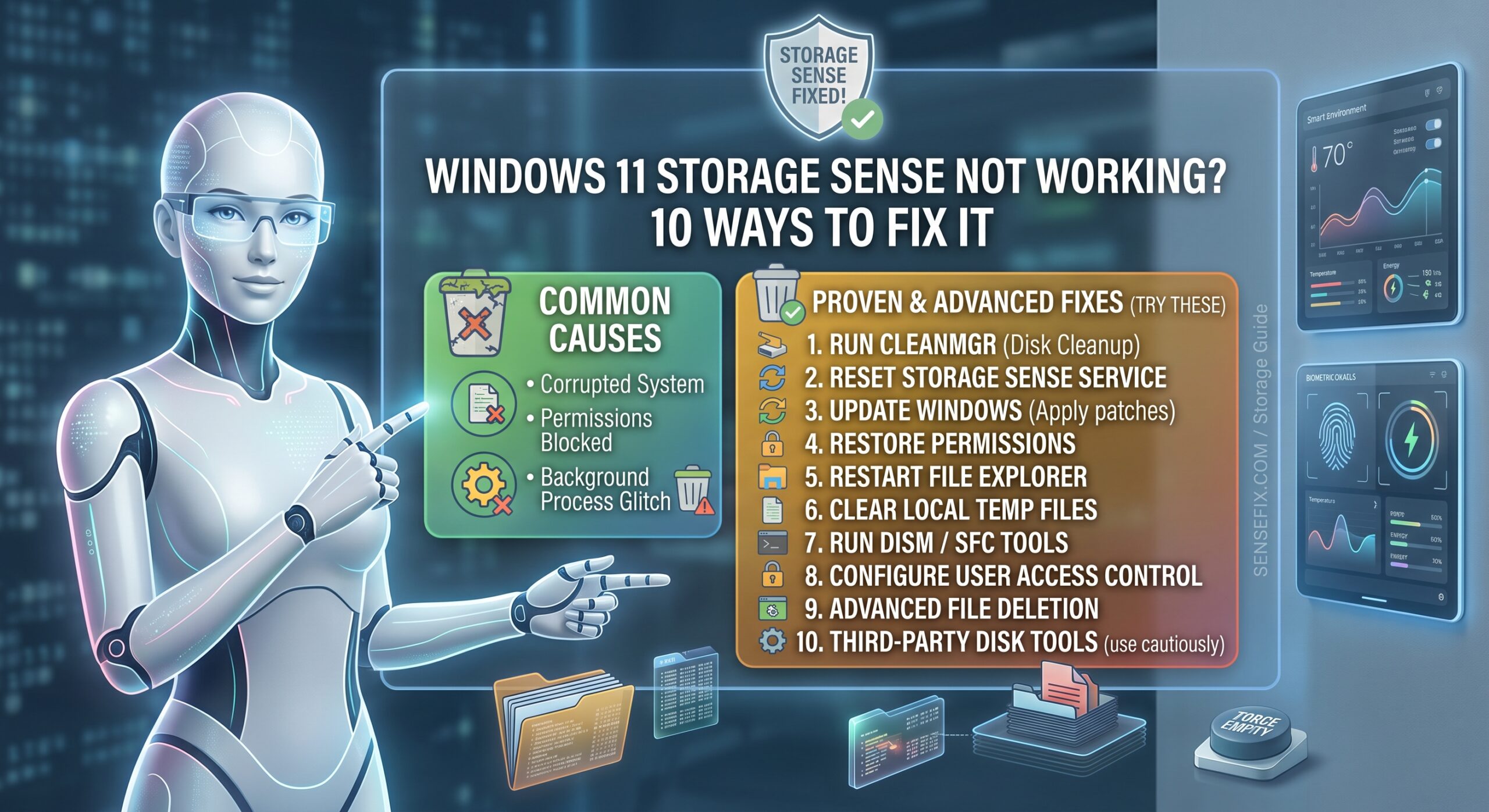
Windows 11 Storage Sense Not Working? 10 Ways to Fix It
If Windows 11 Storage Sense is not working, your PC may continue accumulating temporary files, Recycle Bin contents, and other unnecessary data even though Storage Sense appears to be enabled.
Storage Sense is designed to automatically free disk space by removing certain unnecessary files. Microsoft says it can clean temporary files and Recycle Bin contents, while additional cleanup behavior depends on your settings. By default, Storage Sense is associated with low-disk-space conditions, although you can configure it to run on a different schedule.
The good news is that Storage Sense not working does not necessarily mean Windows is seriously damaged. The problem can be caused by incorrect settings, an unsuitable cleanup schedule, insufficient time for the feature to run, Windows policies, files outside Storage Sense’s scope, or a Windows configuration problem.
This guide walks through the most useful fixes, starting with the easiest ones.
What Is Storage Sense in Windows 11?
Storage Sense is a built-in Windows feature that helps manage disk space automatically.
You can find it at:
Settings > System > Storage > Storage Sense
Depending on your configuration, it can help remove:
- Temporary files
- Recycle Bin contents
- Certain unnecessary files
- Eligible Downloads content
- Some locally stored cloud content
However, Storage Sense does not simply delete everything it considers unnecessary. Its behavior depends on its configuration and the type and location of the files involved. Microsoft also notes that Storage Sense works on the Windows system drive by default.
That distinction is important when troubleshooting.
For example, if you are expecting Storage Sense to clean a secondary D: drive, changing Storage Sense settings may not produce the result you expect because Storage Sense’s automatic cleanup is primarily designed around the system drive. Microsoft recommends using the storage settings for other drives separately.
Why Is Storage Sense Not Working in Windows 11?
Several different situations can look like the same problem.
You might be experiencing one of these:
- Storage Sense is turned off.
- Storage Sense is enabled but hasn’t run yet.
- Storage Sense is configured to run only when disk space is low.
- Cleanup options are disabled.
- Files you expect to be deleted are outside Storage Sense’s scope.
- Downloads cleanup has not been configured.
- Recycle Bin cleanup has a retention period.
- Your PC is managed by an organization.
- A Windows policy is controlling Storage Sense.
- Windows has a configuration or system problem.
- Storage Sense runs, but the amount of space it frees is smaller than expected.
Before making advanced changes, determine which of these situations describes your PC.
1. Check Whether Storage Sense Is Actually Turned On
The first thing to check is the Storage Sense switch.
Steps:
- Press Windows + I to open Settings.
- Select System.
- Select Storage.
- Find Storage Sense.
- Make sure it is turned On.
Microsoft’s current Windows 11 instructions place Storage Sense under Settings > System > Storage.
If Storage Sense is off, Windows will not perform the automatic cleanup you are expecting.
If it is already on
Don’t immediately assume it is broken.
Storage Sense can be configured to run only under certain conditions. Check its configuration before moving to more advanced troubleshooting.
2. Check the Storage Sense Cleanup Schedule
One of the most common reasons people think Storage Sense isn’t working is that it isn’t configured to run as frequently as they expect.
Open:
Settings > System > Storage > Storage Sense
Look for the option controlling when Storage Sense runs.
Depending on your Windows configuration, you may be able to select a schedule such as:
- During low free disk space
- Every day
- Every week
- Every month
Microsoft documents these cadence options for Storage Sense configuration.
Why this matters
Suppose Storage Sense is configured to run only when Windows considers the drive to be low on free space.
You might expect it to clean your PC every day.
Windows, however, may not consider the system to be in a low-storage condition yet.
As a result, Storage Sense can be functioning normally even though no cleanup has occurred.
What to do
If you want more frequent automatic cleanup, choose an appropriate schedule instead of relying solely on low-disk-space triggering.
3. Check What Storage Sense Is Allowed to Clean
Turning Storage Sense on does not mean every type of file will automatically be deleted.
Open:
Settings > System > Storage > Storage Sense
Review the available cleanup settings.
Pay particular attention to options involving:
- Temporary files
- Recycle Bin
- Downloads
- Cloud content
- Automatic user content cleanup
The exact options available can vary by Windows configuration.
Microsoft explains that Storage Sense can manage temporary files and Recycle Bin contents, while Downloads and cloud content require specific configuration before Storage Sense manages them.
Be careful with Downloads
Do not configure automatic Downloads cleanup without understanding the consequences.
Your Downloads folder may contain:
- Important documents
- Software installers
- Photos
- PDFs
- Work files
- School assignments
- Other files you haven’t backed up
Automatic cleanup can permanently remove files once they meet the configured criteria.
If you store important files in Downloads, consider leaving automatic Downloads cleanup disabled.
4. Run Storage Sense Manually
If you have confirmed that Storage Sense is enabled and configured correctly, try running it manually.
Go to:
Settings > System > Storage > Storage Sense
Look for the option to run Storage Sense or clean up now.
Microsoft’s Windows performance guidance specifically describes using Configure Storage Sense or run it now, followed by Clean now, when you want to manually trigger cleanup.
After running it
Give Windows a moment to complete the cleanup.
Then check:
Settings > System > Storage
or open:
File Explorer > This PC
and examine the available space on the Windows drive.
If free space increases, Storage Sense may have been working correctly but simply wasn’t running on the schedule you expected.
5. Check Your Windows Drive Before Troubleshooting Further
Storage Sense is often misunderstood because users expect it to automatically clean every drive.
Microsoft states that Storage Sense works on the system drive, which is normally the C: drive. For other drives, Windows provides separate storage-management options.
Check your drives
- Open File Explorer.
- Select This PC.
- Look under Devices and drives.
- Check which drive contains Windows.
For most Windows 11 PCs, this is:
C:
If the files you’re trying to remove are primarily on:
- D:
- E:
- An external hard drive
- A USB drive
- Network storage
Storage Sense may not behave as you expect.
Manage another drive
Microsoft recommends going to:
Settings > System > Storage > Advanced storage settings > Storage used on other drives
when you need to examine storage consumption on other drives.
6. Check Whether the Files Are Actually Eligible for Cleanup
Storage Sense does not indiscriminately delete files.
A file can remain on your computer because it doesn’t meet the conditions for automatic cleanup.
This is particularly important for:
- Downloads
- Cloud-synced content
- Files that have not reached their configured age threshold
- Files outside supported cleanup locations
- Files being used by applications
For example, Microsoft’s Storage Sense documentation explains that Downloads cleanup can be configured based on how long files have remained unopened.
Similarly, Recycle Bin cleanup uses a configured retention threshold.
Therefore, seeing files remain after enabling Storage Sense does not automatically prove that Storage Sense is broken.
7. Check the Recycle Bin Cleanup Setting
Storage Sense can automatically remove files from the Recycle Bin after they have remained there for the configured amount of time.
Microsoft documents a default Recycle Bin cleanup threshold of 30 days when the corresponding policy is not otherwise configured.
This means Storage Sense isn’t necessarily supposed to empty the Recycle Bin immediately.
Example
You delete a file today.
If your Storage Sense configuration keeps Recycle Bin items for a period before deletion, the file can remain in the Recycle Bin even though Storage Sense is functioning correctly.
What to check
Open:
Settings > System > Storage > Storage Sense
Review the Recycle Bin cleanup setting.
If you need to remove Recycle Bin contents immediately, you can empty the Recycle Bin manually instead.
8. Use Cleanup Recommendations as an Alternative
If Storage Sense refuses to free enough space, Windows 11 provides another useful built-in option called Cleanup recommendations.
Go to:
Settings > System > Storage > Cleanup recommendations
Microsoft says Cleanup recommendations can identify categories such as:
- Temporary files
- Large or unused files
- Files synced to the cloud
- Unused apps
You can review the recommendations and choose what you want to remove.
Why this is useful
Cleanup Recommendations gives you more direct control.
Instead of waiting for automatic cleanup, you can inspect what Windows recommends and manually approve the cleanup.
This is particularly useful when:
- Storage Sense isn’t behaving as expected.
- You urgently need free space.
- You want to see what’s consuming storage.
- You don’t want automatic cleanup.
9. Delete Temporary Files Manually
If Storage Sense isn’t cleaning temporary files, you can manage them manually.
Go to:
Settings > System > Storage > Temporary files
Windows will analyze various categories of temporary and removable files.
Review the categories carefully before deleting anything.
Depending on your system, you may see items related to:
- Temporary files
- Windows update cleanup
- Recycle Bin
- Thumbnails
- Delivery Optimization files
- Previous Windows installations
- Other system cleanup categories
Microsoft recommends reviewing the categories before selecting files for removal.
Important warning
Do not blindly select every category.
For example, a previous Windows installation may be useful if you need to roll back after an upgrade.
Once certain files are removed, recovery options can become limited.
10. Use Disk Cleanup if Storage Sense Still Doesn’t Work
Windows 11 also includes the traditional Disk Cleanup utility.
It can be useful when you need to manually remove temporary and system files.
How to use Disk Cleanup
- Open Windows Search.
- Type Disk Cleanup.
- Open the Disk Cleanup application.
- Select the drive you want to clean.
- Select OK.
- Review the available categories.
- Select Clean up system files if appropriate.
- Choose the files you want to remove.
- Select OK.
Microsoft continues to document Disk Cleanup as an alternative method for freeing storage in Windows.
This is particularly useful if your immediate goal is to reclaim disk space rather than repair Storage Sense itself.
11. Restart Windows and Try Storage Sense Again
A simple restart can be worthwhile before attempting more advanced troubleshooting.
Restart your computer normally and then return to:
Settings > System > Storage > Storage Sense
Check the configuration again and manually run cleanup if the option is available.
A restart can clear temporary Windows processes and allow system components that were stuck or interrupted to start again.
If Storage Sense begins working after the restart, there may not be a deeper problem that requires registry or policy changes.
12. Install Available Windows Updates
If Storage Sense continues to behave incorrectly, check Windows Update.
Go to:
Settings > Windows Update
Then select:
Check for updates
Microsoft recommends keeping Windows current, and its storage documentation notes that insufficient disk space can interfere with Windows updates and system operation.
Updates can also address Windows component problems and bugs.
Before updating
If your C: drive is nearly full, first use one of the manual cleanup methods above to create enough free space for Windows Update to operate properly.
13. Check Whether Your PC Is Managed by an Organization
This step is particularly important if you’re using:
- A work laptop
- A school computer
- A company-managed Windows PC
- Windows Pro or Enterprise under organizational management
Storage Sense can be controlled through administrative policies.
Microsoft documents policies that can control:
- Whether Storage Sense is allowed
- Temporary-file cleanup
- Downloads cleanup
- Recycle Bin cleanup
- Cloud-content cleanup
- Storage Sense scheduling
These policies can be configured through management tools such as Group Policy or Microsoft Intune.
Why this matters
You might turn Storage Sense on in Settings, but an administrator-controlled policy could restrict what users are allowed to configure.
If this is a company-managed computer, contact your IT administrator before changing policies or registry settings.
14. Check for Conflicting Cleanup or Security Software
Third-party applications can sometimes affect how files are accessed or modified.
Potential examples include:
- Antivirus software
- Backup software
- Data-loss-prevention software
- Disk-management utilities
- Corporate security tools
- Third-party cleanup applications
Microsoft’s troubleshooting guidance for Storage Sense identifies external software interference as one possible factor when cleanup doesn’t behave as expected.
If Storage Sense worked previously and stopped after installing or changing security software, that timing is worth investigating.
Don’t disable security software permanently just to test Storage Sense. If you’re using a managed device, ask your administrator for assistance.
15. Check Whether Storage Sense Is Running but Not Deleting What You Expect
This is an important distinction.
There are two different problems:
Problem A: Storage Sense does not run
You trigger it, but nothing appears to happen.
Problem B: Storage Sense runs, but doesn’t remove specific files
You can see cleanup activity, but the files you expected to disappear remain.
The second situation can occur when files aren’t within the cleanup scope or don’t meet the configured criteria.
Microsoft’s Storage Sense troubleshooting documentation identifies several possible causes, including incorrect policy configuration, files outside the feature’s scope, open or protected files, and interference that changes file access information.
So before attempting complicated repairs, identify which type of failure you’re experiencing.
How to Tell If Storage Sense Is Actually Working
Use this simple test.
Step 1: Check available space
Open:
File Explorer > This PC
Record the free space on your Windows drive.
Step 2: Open Storage Sense
Go to:
Settings > System > Storage > Storage Sense
Step 3: Check the configuration
Confirm:
- Storage Sense is enabled.
- The cleanup schedule is appropriate.
- Temporary-file cleanup is configured.
- Recycle Bin cleanup is configured if desired.
- Other cleanup options match your needs.
Step 4: Run cleanup manually
Use the available Clean now option.
Step 5: Check free space again
Return to:
This PC
If available storage has changed, Storage Sense is performing at least some cleanup.
If nothing changes, inspect the categories under Storage and Temporary files to determine where your disk space is actually being used.
What If Storage Sense Says It Cleaned Files but Free Space Barely Changes?
This doesn’t necessarily mean Storage Sense failed.
Your biggest storage consumers may be somewhere else.
Open:
Settings > System > Storage
Windows provides a breakdown of storage usage into categories such as:
- Installed apps
- Temporary files
- System & reserved
- Documents
- Pictures
- Other categories
Microsoft recommends using Storage settings to understand how storage is being consumed.
For example
Suppose your computer has:
- 5 GB of temporary files
- 80 GB of installed applications
- 40 GB of personal videos
- 20 GB of system files
Cleaning the 5 GB of temporary files won’t suddenly produce dozens of gigabytes of free space.
In that situation, Storage Sense may be working exactly as intended.
The problem is actually where your storage is being consumed, not the cleanup feature itself.
What to Do When Your C: Drive Is Almost Full
If your immediate problem is critically low storage, don’t wait for automatic Storage Sense cleanup.
Use a combination of Windows’ built-in tools.
Recommended order
1. Settings > System > Storage
Find the largest categories.
2. Cleanup recommendations
Remove files you have reviewed and no longer need.
3. Temporary files
Remove unnecessary temporary data.
4. Disk Cleanup
Run Disk Cleanup and review system-file options.
5. Uninstall applications you no longer use
Large games and applications can consume substantial amounts of storage.
6. Move large personal files
Consider moving videos, photos, installers, or other large files to another appropriate storage location.
7. Empty the Recycle Bin
Only do this after confirming you don’t need the deleted files.
Should You Change the Registry to Fix Storage Sense?
For most home users, no.
Storage Sense has normal configuration options in Windows Settings, and many problems can be addressed without editing the registry.
Microsoft does document registry and policy settings for managed Windows environments, but these are primarily relevant to administrators and advanced troubleshooting.
Changing registry values without understanding them can introduce additional problems.
If Storage Sense is unavailable or behaves differently because of an organization-managed configuration, check with your administrator rather than randomly deleting registry entries.
Should You Use a Third-Party PC Cleaner?
Usually, you don’t need one just because Storage Sense isn’t working.
Windows 11 already provides several built-in storage-management tools:
- Storage Sense
- Storage settings
- Cleanup recommendations
- Temporary files cleanup
- Disk Cleanup
Microsoft specifically documents these tools as ways to free disk space.
A third-party cleaner may introduce additional variables when you’re already troubleshooting a Windows storage problem.
Start with Windows’ built-in tools first.
Frequently Asked Questions
Why is Storage Sense not working in Windows 11?
Storage Sense may appear not to work because it is disabled, scheduled to run only under certain conditions, configured not to clean the files you’re checking, or because the files are outside its cleanup scope. Managed PCs can also have Storage Sense behavior controlled by organizational policies.
How do I manually run Storage Sense?
Go to Settings > System > Storage > Storage Sense and use the available option to run cleanup now. Microsoft documents a Clean now option for manually triggering Storage Sense cleanup.
Does Storage Sense clean the D: drive?
Storage Sense’s automatic cleanup is designed around the Windows system drive, usually C:. Microsoft recommends separate storage management under Advanced storage settings > Storage used on other drives for other drives.
Why isn’t Storage Sense deleting my Downloads folder?
Downloads cleanup is not automatically equivalent to general temporary-file cleanup. It requires appropriate configuration, including a retention threshold. Microsoft documents Downloads cleanup as a configurable Storage Sense behavior.
Does Storage Sense automatically empty the Recycle Bin?
Storage Sense can automatically delete Recycle Bin contents after the configured retention period. It does not necessarily empty the Recycle Bin immediately whenever it runs. Microsoft’s documented default policy threshold is 30 days when not otherwise configured.
Is Storage Sense safe?
Storage Sense is a Windows feature designed to automatically remove certain unnecessary files, but you should review settings involving Downloads, cloud content, and other user files before enabling automatic deletion.
What should I use if Storage Sense won’t work?
Use Cleanup recommendations, Temporary files, or Disk Cleanup to manually free space. These are built-in Windows tools documented by Microsoft.
Can a company prevent Storage Sense from working?
Yes. Microsoft provides administrative policies that can allow or block Storage Sense and control its cleanup behavior.
Windows 11 Storage Sense Troubleshooting Checklist
Before moving to advanced troubleshooting, work through this checklist:
- Storage Sense is turned on.
- The cleanup schedule is appropriate.
- Temporary-file cleanup is enabled as needed.
- Recycle Bin cleanup is configured appropriately.
- Downloads cleanup is configured only if you actually want it.
- You’re checking the Windows system drive.
- The files you’re expecting to disappear are eligible for cleanup.
- You’ve tried Clean now.
- You’ve restarted Windows.
- You’ve checked Windows Update.
- You’ve checked Storage settings to identify the largest categories.
- You’ve tried Cleanup recommendations.
- You’ve tried Disk Cleanup.
- You checked whether your PC is organization-managed.
- You considered whether third-party security or management software is interfering.
Final Takeaway
If Windows 11 Storage Sense is not working, don’t immediately assume that the feature itself is broken.
Start by checking whether Storage Sense is enabled and when it is scheduled to run. Then verify exactly what it is configured to clean. Remember that Storage Sense primarily handles the Windows system drive and that some categories, such as Downloads and Recycle Bin contents, depend on specific settings and retention rules.
If automatic cleanup still doesn’t produce the result you need, Windows 11 gives you several alternatives. Cleanup recommendations, Temporary files, Storage settings, and Disk Cleanup can help you identify and manually remove unnecessary data.
For work or school computers, also consider whether administrative policies are controlling Storage Sense. Microsoft provides policy controls that can change whether Storage Sense is allowed to run and how its cleanup behavior is configured.
The key is to determine whether Storage Sense is not running, running but not targeting the files you expect, or working normally while another category is consuming most of your disk space. Once you identify which situation you’re dealing with, the appropriate fix is usually much easier to find.